Loading Material Connecting Material Coil Box To Printer
Page 117
© Copyright 2021 Stratasys. All rights reserved.
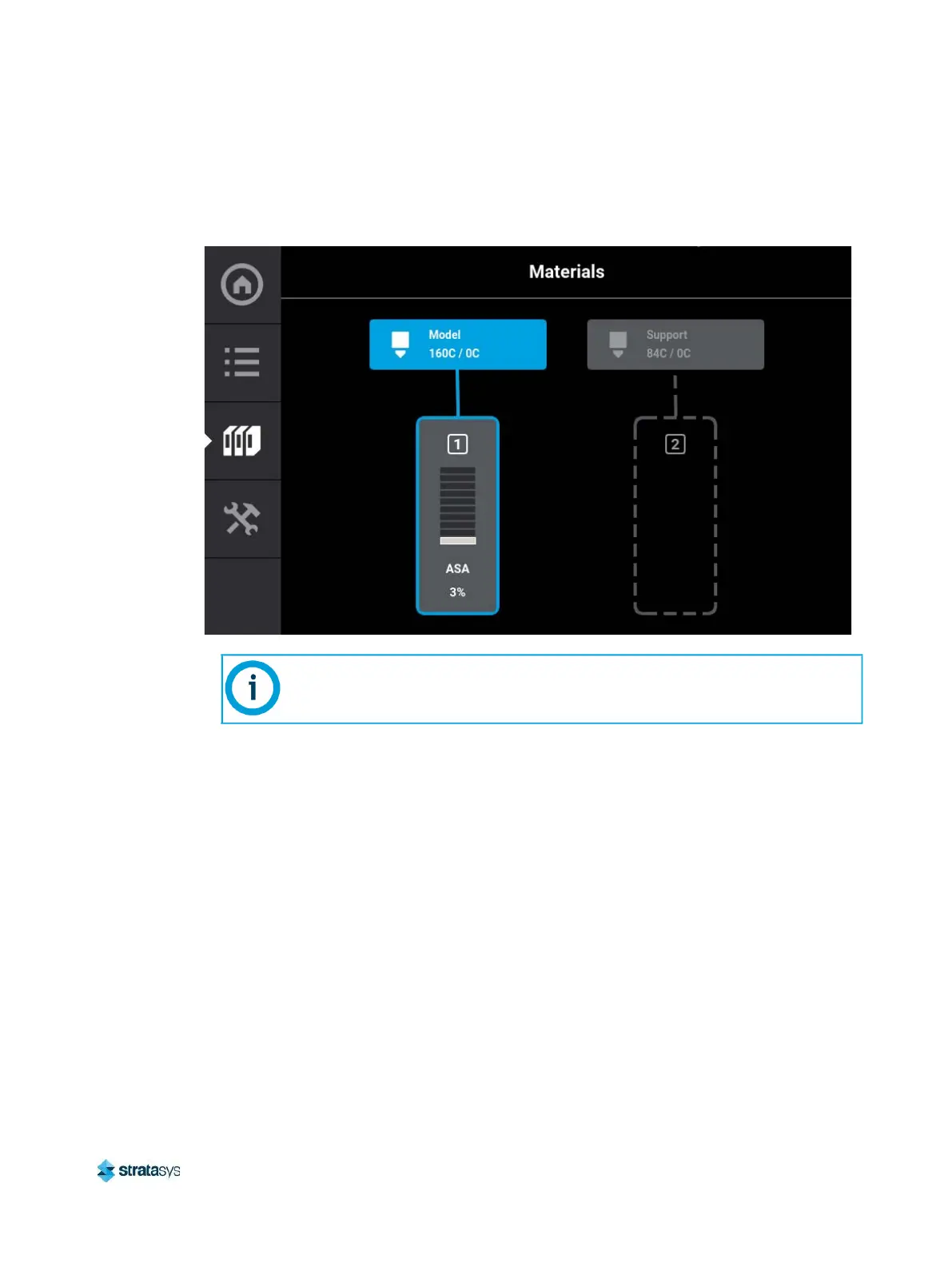
13. When the load process is complete, a screen similar to the one shown below will display.
Material is now loaded to the print head.
Figure 14: Material Loaded
14. Press the Back button within the Material Details page to exit and return to the Materials
page.
15. If necessary, perform this procedure for the support material
16. Once material is loaded, the filament pathway between the Material Status Icon and the
corresponding Head Status Icon will be solid blue, the Head Status Icon will turn from gray
to blue, and the Material Status Icon will display a solid blue border.
You are now ready to select a job to build, see “Basic Job Build Tasks” (page 124) for
information on selecting and starting a job.
Only one material can be loaded at a time.


 To Next Page
 Loading...