Working with the Materials Page Material Status Icons
Page 67
© Copyright 2021 Stratasys. All rights reserved.
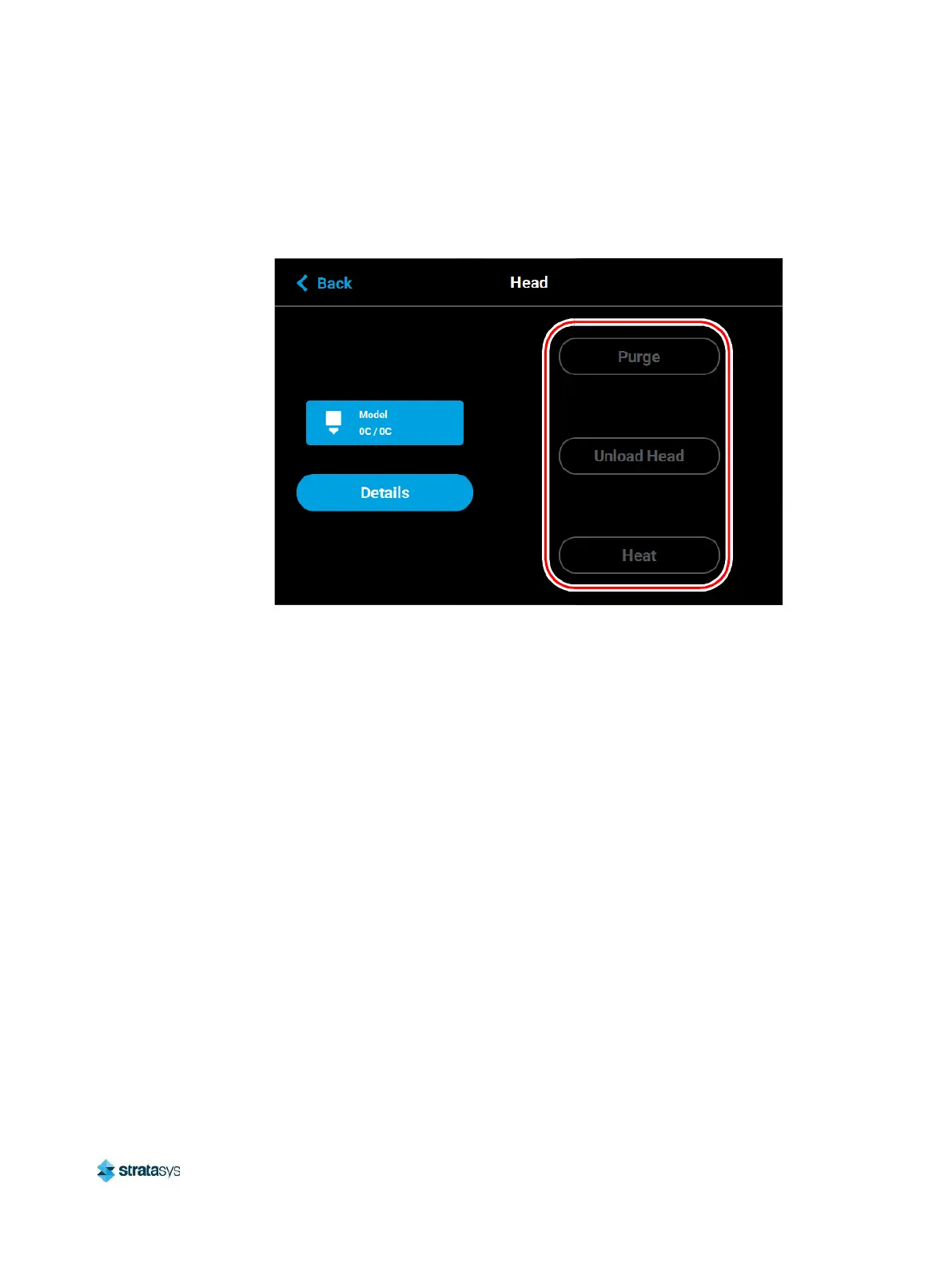
the printer to begin cooling the corresponding tip back to the 0 set point; the button will toggle
to display the Heat button. The tip will also begin to cool automatically if the heat option
exceeds the 2 minute time allotment and the Cool button is not pressed.
Figure 28: Head Maintenance Page - Menu View
Material Status Icons
The Material Status Icons within the Materials page represent the model and support material
coil boxes loaded in the printer. Either two icons will be displayed. Each icon displays a number
corresponding to the material coil box, colored bars indicating the color of the material currently
installed, the name of the material currently installed, and a percentage indicating the current
volume of material on that material coil box. Touching one of these icons on the screen, unless
otherwise indicated in Table 7, will open that material’s Material Details page. Various graphics













 To Next Page