Working with the Materials Page Viewing Material Details
Page 69
© Copyright 2021 Stratasys. All rights reserved.
Viewing Material Details
To view additional details regarding a particular material, select the desired material by
touching its Material Status Icon on the screen. Doing so will open its Material Details page. If
the material coil box is in a warning or error state additional information pertaining to the
warning/error will be displayed within the page (see “Load/Unload Errors” (page 5) for details).
The right portion of the screen displays detailed information about the material coil box
including:
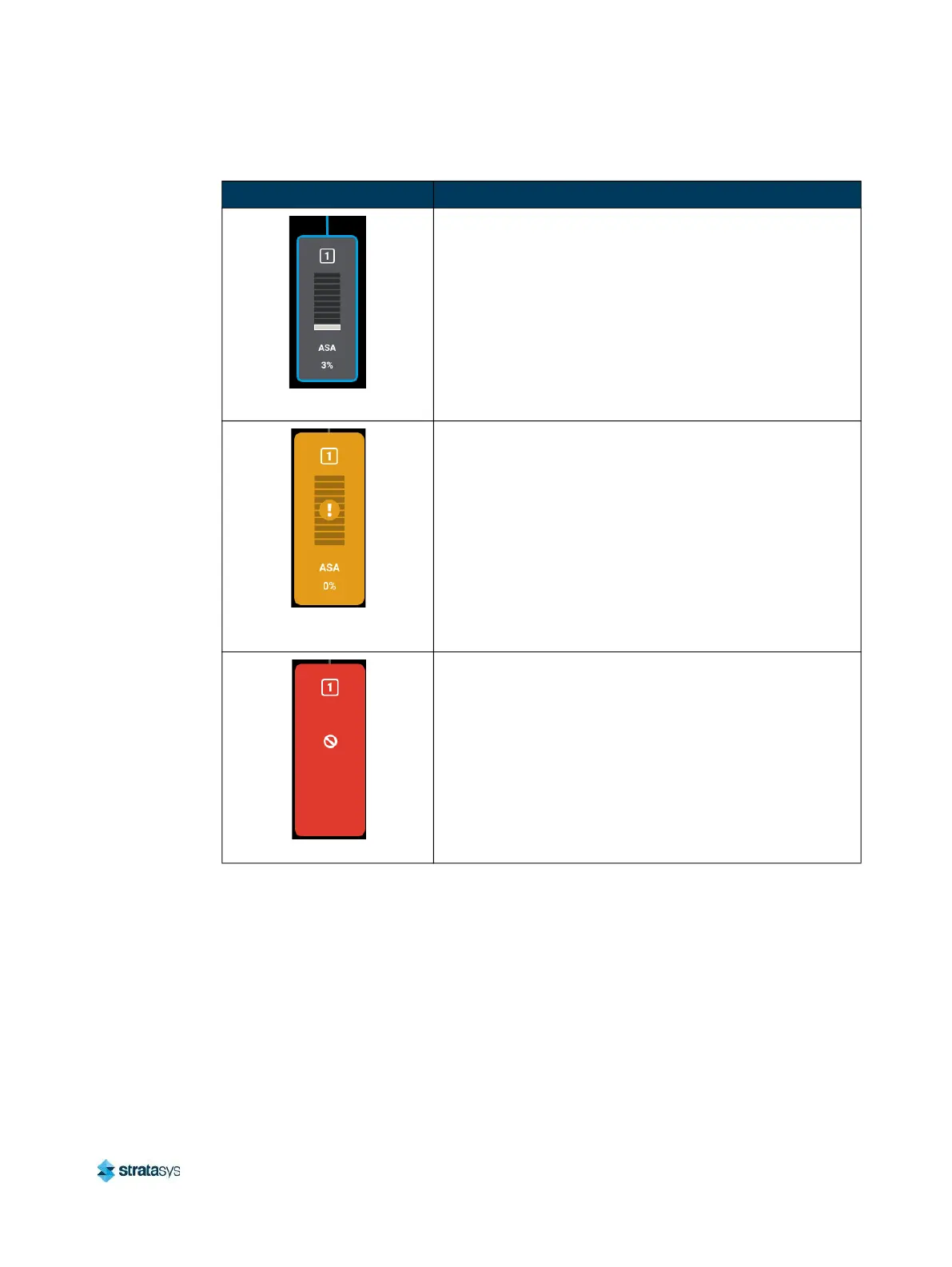
• State: load state.
Loaded (blue border)
• Valid material coil box connected. Material name, color,
and current volume displayed.
• Material from the material coil box is loaded to the head
and is selected to be used for building.
• See “Selecting a Job to Build” (page 18) for instructions
on starting a build. See “Unloading Material” (page 11) for
instructions on unloading material.
Empty Material Coil Box
(solid yellow)
• Material coil box is empty - a volume of 0% is displayed.
• User action required to replace the empty material coil
box. See “Unloading Material” (page 11) for instructions.
Error (solid red)
• Indicates that communication with the material coil box is
not possible. Please note that this state differs from the
unusable state as the icon is solid red in this state and the
bars within the center of the icon are not visible.
• Contact Customer Support or your regional Stratasys
office if you experience this icon state (see “Getting Help”
(page 1) for contact information).
Table 7: Material Status Icons - Icon States (Continued)
Icon State Description













 To Next Page