Exporting System Configuration (.CFG) File Insight Software Method
Page 172
© Copyright 2021 Stratasys. All rights reserved.
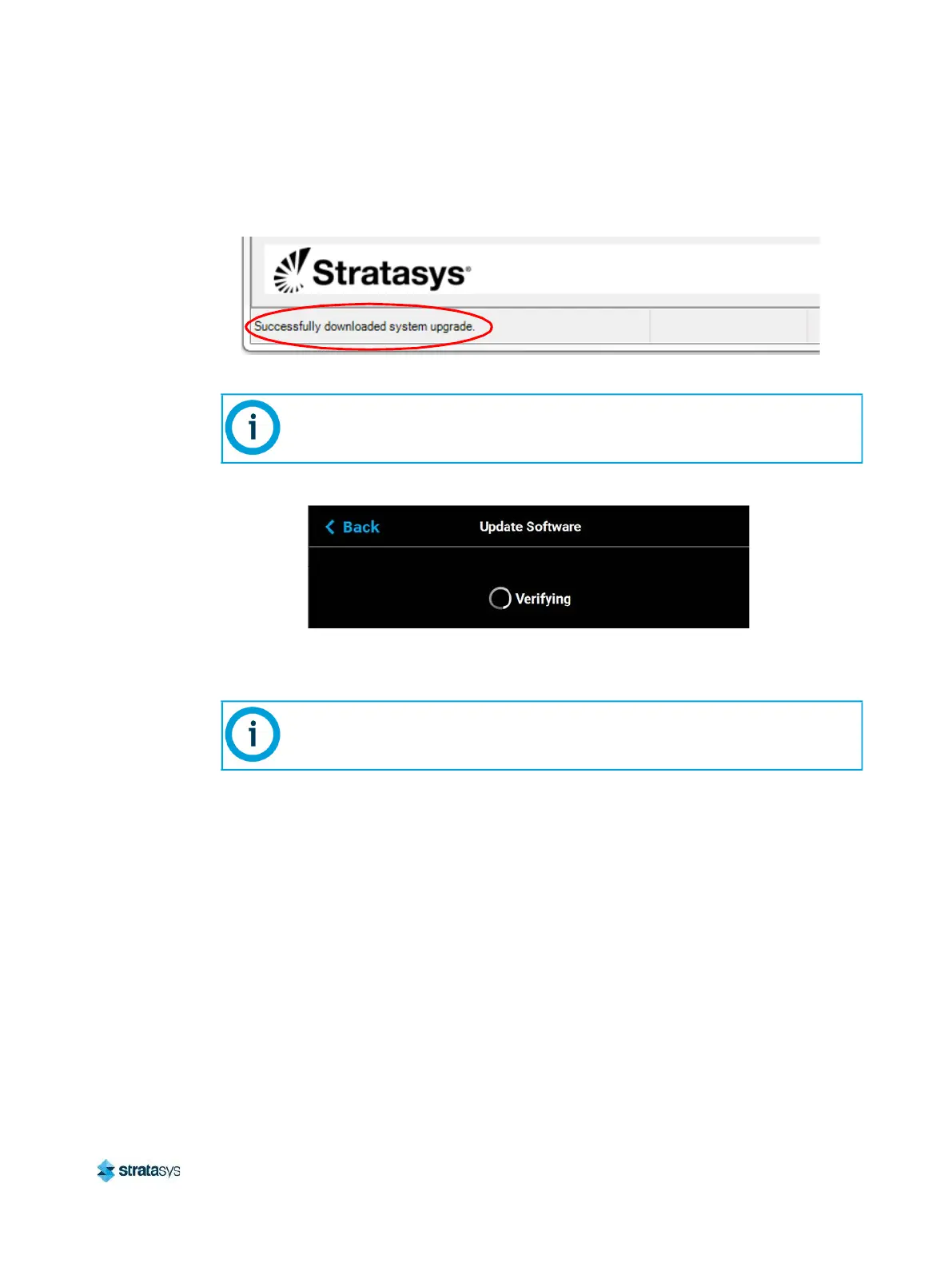
9. Once the software upgrade is successfully downloaded to the printer an indicator will be
displayed within the bottom of the Control Center window.
Figure 10: Software Upgrade Successfully Downloaded
10. The touchscreen will refresh to indicate that the printer is verifying the upgrade file.
Figure 11: Verifying Software Upgrade
11. Once the verification process is complete, the printer will automatically reboot and begin
installing the upgrade file. A variety of output will be displayed on the touchscreen during
the installation process.
12. Once the Controller Software upgrade is installed the printer will conduct its regular startup
process and automatically perform an XY Gantry Calibration (see “Powering ON the
Printer” (page 105) for details).
Exporting System Configuration (.CFG) File
If your system is receiving fault determination codes, you may need to export a configuration
(.cfg) file from your system to send to Customer Support. System configuration files can be
exported using one of the following three methods:
• Saving to a USB Flash drive directly from the F770 printer
• Saving to a location on your workstation PC using the Insight software application
• Saving via GrabCAD Print
You have the option of exporting system configuration files via any of these methods; however,
the USB Flash drive method is the preferred method.
The verification process will take several minutes; please be patient.
The installation process will take several minutes; please be patient.













 To Next Page