Working with the Queue Page Print Job Controls
Page 53
© Copyright 2021 Stratasys. All rights reserved.
Working with the Queue Page
The Queue page contains the list of files (jobs) which have been downloaded to the printer and
are queued for building; this list is referred to as the Job Queue. By default, jobs are added to
the Job Queue in the order they were sent to the printer via GrabCAD Print and/or transferred
from a USB flash drive. Individual jobs are listed in numbered rows with row one corresponding
to the first job in the Job Queue. Each row displays the name of the job, estimated build time
for the job, and name of the user that submitted the job. From the Queue page you can add
files to the Job Queue, select a file to build, sort jobs within the Job Queue, view additional
details associated with a selected job, and access the Sample Queue.
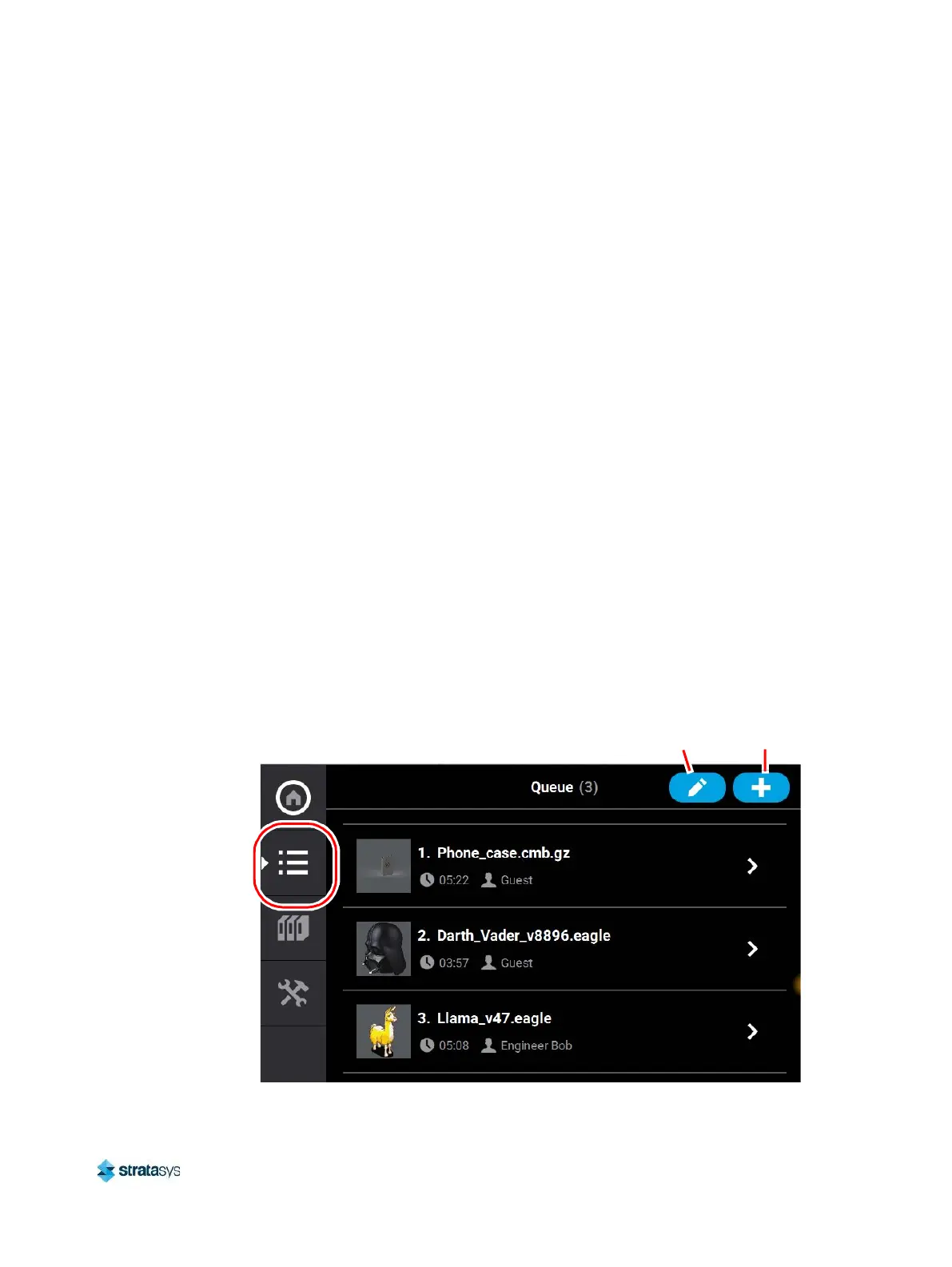
To access the Queue page, press the Queue button within the Navigation Menu; a screen
similar to the one in
Figure 14 will be displayed. Please note that the Job Queue is empty upon initial startup.
The heading of the Queue page lists the number of jobs currently loaded into the Job Queue.
Up to three jobs are displayed within the Job Queue list at a given time. If the Job Queue
contains more than three jobs, use the scrollbar (to the right of the Job Queue list) to scroll up
or down through the list of available jobs.
Pressing the Edit button within the heading of the page will display the Job Queue Control
buttons; these buttons allow you to sort and /or delete the jobs within the Job Queue as
needed. Pressing the Load File button within the heading of the page will allow you to add
additional files to the Job Queue. Touching one of the rows listed within the Job Queue will
open that job’s Job Details page; this page contains additional information pertaining to the
selected job (material configuration, tip size, etc.). After selecting either of these buttons or
opening a job’s details page a "Back" button will be displayed within the heading of the page;
press this button to return to the main Queue page.
Figure 14: Queue Page
Edit
Button
Load File
Button













 To Next Page