Updating Controller Software GrabCAD Print Method
Page 170
© Copyright 2021 Stratasys. All rights reserved.
GrabCAD Print Method
To update Controller Software via GrabCAD Print, navigate to http://help.grabcad.com/article/
196-printer-firmware-management and follow the procedure for “Updating the printer’s
firmware”.
Insight Software Method
If the printer has a weak network connection or does not allow for automatic updates, you can
manually download Controller Software updates by performing the following steps:
1. Open the Maintenance page by pressing the Maintenance button within the Tools page
(see Figure 34 (page 76)).
2. Locate the Update Software row within the page. Press anywhere within the row to open
the Update Software page (see Figure 73 (page 95)).
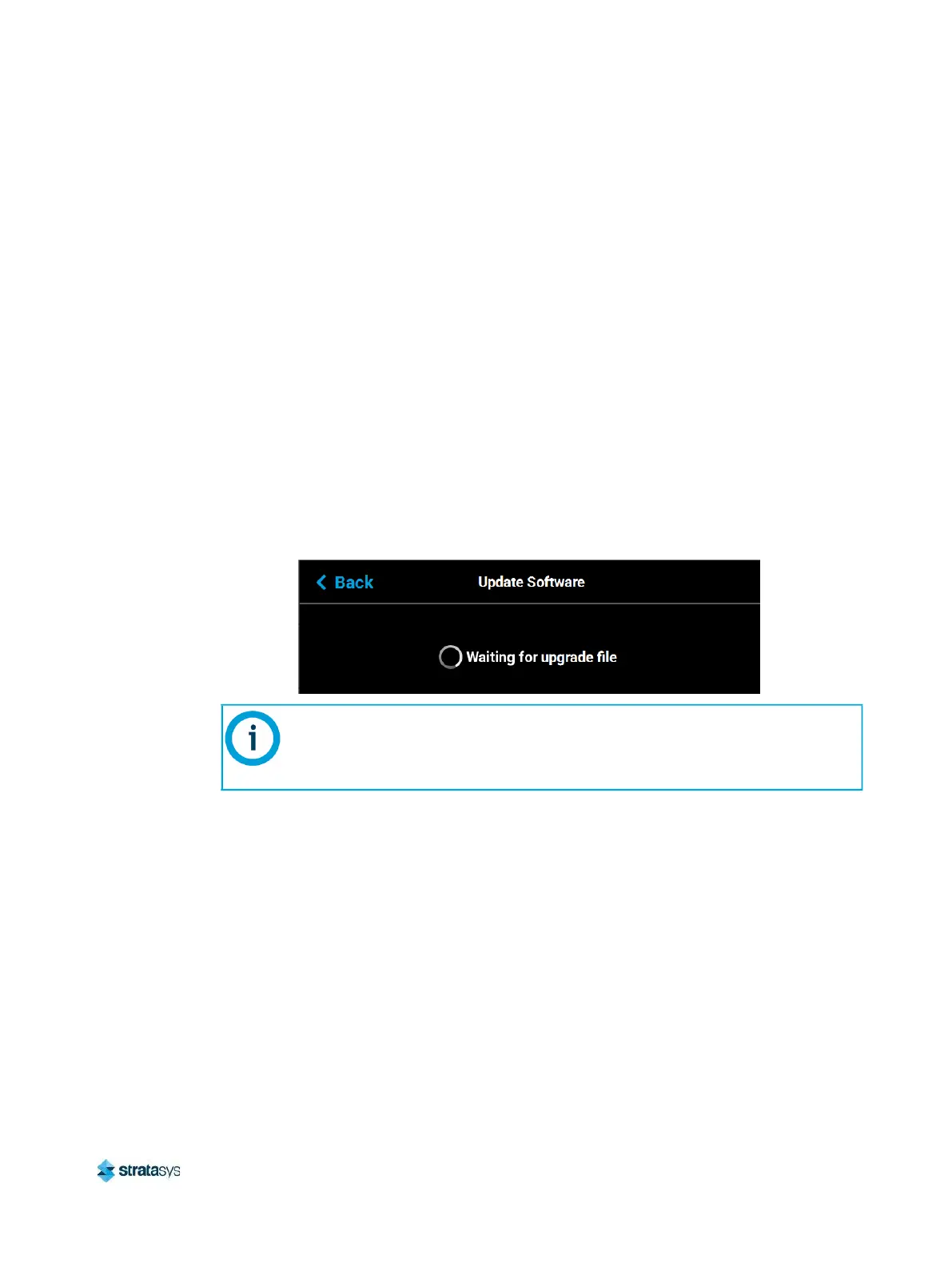
3. The Update Software page will open and the printer will automatically be put into software
upgrade mode, allowing it to receive the software upgrade. The following is displayed on
the touchscreen while the printer is in software upgrade mode.
Figure 7: Printer In Software Upgrade Mode
4. From your workstation PC’s Start Menu, navigate to All Programs > Insight (installed
version) > Control Center (installed version) or double-click the Control Center shortcut (if
available).
All recent calibration data (i.e. tip offset values) as well as printer settings and
configurations are automatically retained during the software upgrade process.
Files sent to the Job Queue via Ethernet or Wi-Fi connection or transferred to the
printer from a USB flash drive are not retained.













 To Next Page