Changing Printer Defaults Part Build Location
Page 135
© Copyright 2021 Stratasys. All rights reserved.
Part Build Location
The Part Placement setting determines whether or not you can select a job’s placement on a
build sheet prior to starting the build (see “Part Placement” (page 81)).
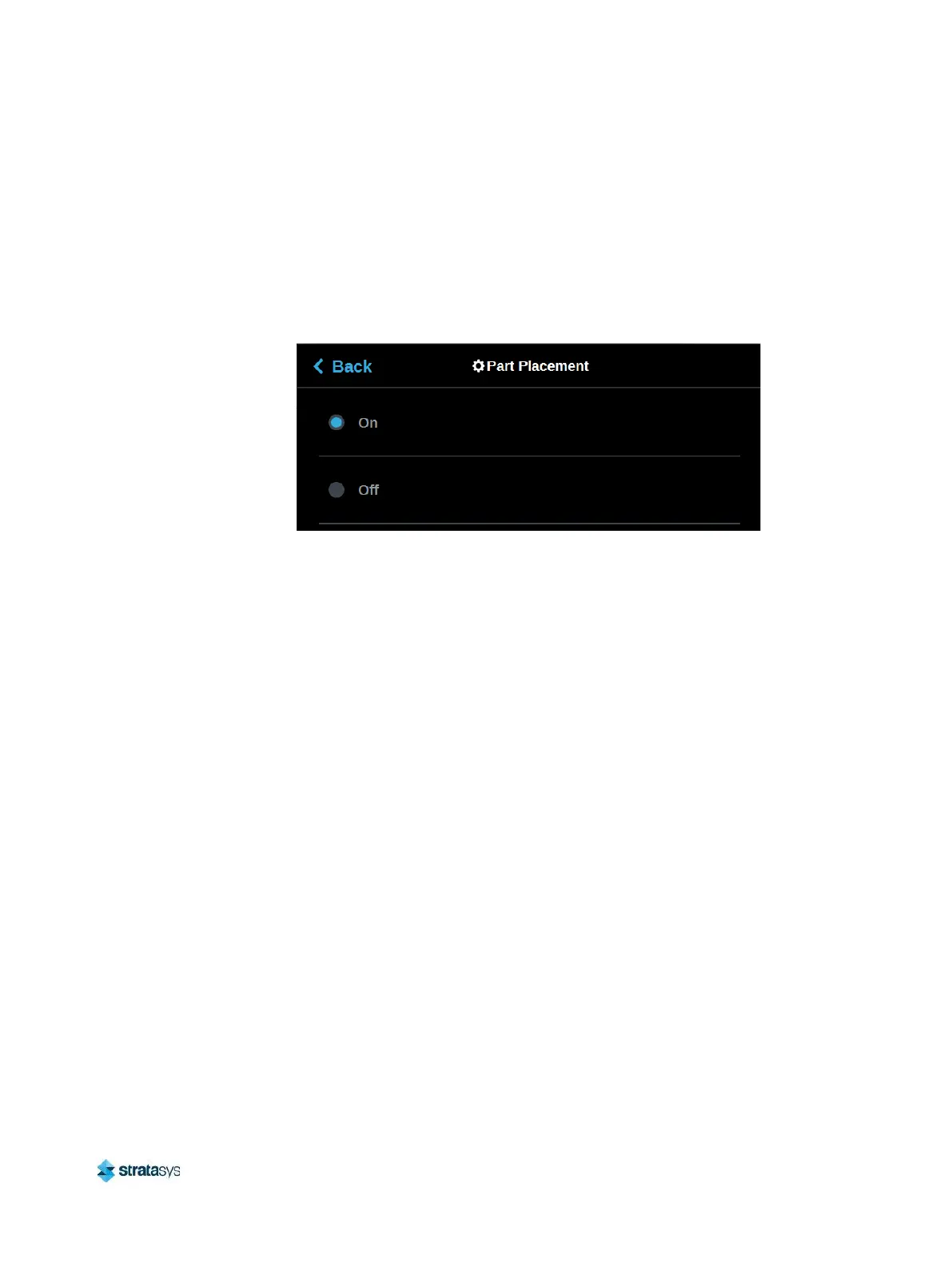
To configure this setting, press anywhere within the Part Placement row; the Part Placement
page will be displayed. Use the radio buttons within this page to turn the setting On and Off as
needed.
Figure 28: Configure Part Placement
By default this setting is set to On, meaning you will be able to select a job’s location on the
build sheet prior to starting the build (see “Selecting a Job to Build” (page 126)). At the start of
a build the Part Placement dialog will be displayed asking you to select the part’s build location
(see Figure 29 (page 136)). The dialog will contain a graphic representing your printer’s platen
as well as a blue bounding box graphic (the imaginary box surrounding the part). You can
select the part’s build location by dragging and dropping the bounding box on the touchscreen;
the bounding box cannot be placed outside the limits of the platen. Pressing the Print button
will confirm your selected placement and start a build.
"Ghost box" graphics are also displayed; a "ghost box" represents the location where a part
was built previously. Pressing the Clear History button will clear the display, removing all
"ghost box" items.













 To Next Page