EasyManua.ls Logo

Unipulse F701-C - User Manual

Unipulse F701-C
189 pages
Print Icon
To Next Page IconTo Next Page
Loading...
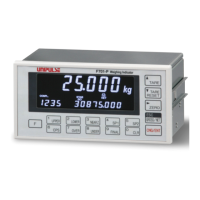
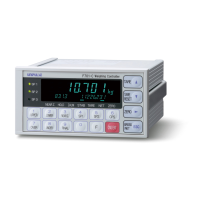
F701-C
WEIGHING CONTROLLER
     
01 Apr. 2015
Rev. 1.16
           
OPERATION MANUAL

Table of Contents

Other manuals for Unipulse F701-C

Questions and Answers

  • R
    reyesdanielAug 13, 2025
    How to fix over-scale display on Unipulse Accessories?
    • M
      myerssamanthaAug 13, 2025
      If the Unipulse Accessories display shows an over-scale reading, it could be due to the input signal from the load cell exceeding the F701-C span adjustment range. Verify that the load cell output is within the appropriate span adjustment range. Alternatively, the input signal from the load cell may be lower than the F701-C span adjustment range; in this case, check if the load cell output falls short of the span adjustment range.
  • B
    brendafloresAug 17, 2025
    Why am I getting a calibration error on my Unipulse F701-C Accessories?
    • A
      Angela GarciaAug 17, 2025
      A calibration error with Unipulse Accessories can occur for several reasons. First, Zero Calibration should be performed before Span Calibration. Second, if the initial dead load is above the zero adjustment range, remove any excess load. Third, if the initial dead load is negative, ensure the load cell is correctly mounted and that the +SIG and -SIG lines are properly connected. Next, if the Balance Weight Value exceeds the Capacity, re-enter a Balance Weight Value equal to or less than the Capacity. Also, confirm that the load cell output reaches the span adjustment range of the F701-C, and that the load cell output isn't negative. Finally, if the load is unstable, adjust the stable period and range of Motion Detection so the " STAB " display lights during Calibration.
  • D
    Douglas WilliamsonAug 20, 2025
    What to do if gross weight exceeds Gross Over set value on Unipulse F701-C?
    • G
      gfloresAug 20, 2025
      If the Unipulse Accessories display shows 'Gross weight ? Gross Over set value', it means the gross weight exceeds the Gross Over set value. To resolve this, decrease the signal coming from the load cell until the normal display returns, or reset the Gross Over value.
  • M
    Miranda MontesAug 25, 2025
    What to do if net weight exceeds Net Over set value on Unipulse Accessories?
    • P
      Paul LucasAug 25, 2025
      If the Unipulse Accessories display shows 'Net weight ? Net Over set value', it indicates that the net weight exceeds the Net Over set value. To fix this, decrease the signal from the load cell until the display returns to normal, or reset the Net Over value.
  • M
    Mark WilsonAug 28, 2025
    What causes an EXC error display on Unipulse F701-C Accessories?
    • C
      Colton PhillipsAug 28, 2025
      An 'EXC error display' on Unipulse Accessories indicates that the load cell excitation voltage has dropped. Check the cables connecting the F701-C and load cell for excessive load, and verify that the wiring is correct.
  • W
    Wayne StevensonSep 1, 2025
    Why is the setting value not changed on my Unipulse F701-C Accessories?
    • D
      Deborah MurraySep 1, 2025
      If the setting value on your Unipulse Accessories isn't changing, it's possible that writing to the NOV RAM was interrupted. Ensure that you do not turn off the power of the F701-C while “?” is lit.
  • B
    Brooke WashingtonSep 4, 2025
    Why have the setting values changed when I turn on my Unipulse F701-C?
    • T
      Tracy NelsonSep 4, 2025
      If the setting values on your Unipulse Accessories have changed when the power is turned on, the voltage of the lithium battery for memory backup may have dropped. Replace the lithium battery and change the setting values again.
  • M
    Michael YoungSep 8, 2025
    What does the battery alarm display mean on Unipulse F701-C Accessories?
    • P
      Paula CarrilloSep 8, 2025
      A 'Battery alarm display' on Unipulse Accessories means the voltage of the lithium battery for memory backup has dropped. Replace it with a new battery.

Summary

SAFETY PRECAUTIONS

Warning on design

Important design considerations for safe operation of the F701-C weighing controller.

Warning on installation

Safety precautions for installing the F701-C weighing controller.

Warning on wiring

Critical safety guidelines for wiring the F701-C weighing controller.

Warning during startup and maintenance

Safety notes for starting up and maintaining the F701-C weighing controller.

Caution on installation

Precautions for installing the F701-C in various environments.

Caution on wiring

Safety guidelines for wiring operations of the F701-C.

Caution during startup and maintenance

Safety recommendations for startup and maintenance procedures.

Caution during transportation

Safety measures to be taken during transportation of the F701-C.

Caution during disposal

Guidelines for the safe and proper disposal of the F701-C product.

1. APPEARANCE DESCRIPTION

1-1. Front Panel

Overview of the weighing controller's front panel components and displays.

1-2. Rear Panel

Description of the rear panel connectors and components of the weighing controller.

2. CONNECTION

2-1. Load cell Connection

Instructions for connecting load cells to the weighing controller.

2-2. Connection of the Power Input Terminals

Details on connecting the power input terminals for the weighing controller.

2-3. Connection of the Guard Ground

Explains the procedure for connecting the guard ground terminal for safety.

2-4. SI;F Connection

Guide for connecting external devices via the SI/F interface.

2-5. Connection of the Control Connector

Information on connecting the control connector and its pin assignments.

3. METHODS OF SETTING

3-1. Setting Procedure

General steps for changing settings on the weighing controller.

3-2. Setting Mode

Overview of different setting modes available for the weighing controller.

4. CALIBRATION

4-1. Span Calibration

Explanation of how to perform span calibration for the weighing controller.

4-2. Span Calibration Procedure

Step-by-step guide for executing the span calibration process.

4-3. Secondary Calibration Procedure (Equivalent Calibration)

Procedure for performing secondary calibration without actual load.

4-4. Preparation for Calibration

Steps required to prepare the device for calibration, including LOCK release.

4-5. Zero Calibration

Instructions for registering the initial zero point of the weighing controller.

4-6. Span Calibration

Detailed steps for performing span calibration with a test weight.

4-7. Secondary Calibration (Equivalent Calibration)

Method for secondary calibration using output values instead of actual load.

5. FUNCTION SETTINGS

5-1. Display Frequency

Settings for controlling the display update rate per second.

5-2. Subdisplay Selection

Options for selecting data to be displayed in the subdisplay area.

5-3. Digital Filter

Configuration of the digital filter to minimize weight value instability.

5-4. Analog Filter

Function to stabilize the display by removing low frequency noise.

5-5. Filter in Stable Condition

Option to automatically insert digital filter when value is stable.

5-6. Motion Detection (MD)

Parameter setting to detect the stability of the indicated value.

5-7. Zero Tracking (ZT)

Automatic adjustment of zero point drift and shifting.

5-8. Digital Zero (DZ)

Function to forcibly zero the Gross weight.

5-9. Digital Zero Clear

Function to clear the digital zero.

5-10. Zero Regulation Value

Setting the range for zero point adjustment.

5-11. One-touch Tare Subtraction

Subtracting tare and zeroing net weight with a single key press.

5-12. One-touch Tare Subtraction Reset

Restoring subtracted tare and equalizing net weight to gross weight.

5-13. Digital Tare Subtraction

Subtracting tare and zeroing net weight digitally.

5-14. Restriction of the Tare Subtraction Function

Restricting digital or one-touch tare subtraction functions.

5-15. Switching Gross Weight;Net Weight Display

Executing the switching between Gross and Net weight displays.

5-16. Reversing Symbol at Discharging Control

Reversing Net weight polarity for positive discharging weight.

5-17. Invalidation of Function Keys

Disabling function keys to prevent malfunctioning.

6. DISCHARGING CONTROL MODE

6-1. Feeding Weighing and Discharging Weighing

Methods for controlling raw material feeding and discharging.

6-1-1. Feeding Weighing

Method controlling weight while feeding raw materials into a measuring tank.

6-1-2. Discharging Weighing

Method controlling weight while discharging raw material from a metering tank.

6-1-3. Discharging Mode

Setting feeding, discharging, or external selection control modes.

6-2. Simple Comparison Control and Sequence Control

Control methods comparing weight with discharging value.

6-2-1. Simple Comparison

Compares weight value with discharging value regularly.

6-2-2. Sequential Control

Compares weight value with discharging value after start signal.

6-2-3. Sequence Mode

Setting simple comparison or sequence control modes.

6-4. Final; Set Point 2; Set Point 1; Compensation; Over; Under

Setting values for controlling and judging the discharge process.

6-5. Negative Compensation

Selection for including or excluding negative values in compensation input.

6-6. Near Zero; Upper Limit; Lower Limit

Setting criteria for judging the final discharging function.

6-10. Net Over; Gross Over

Function warns when Net or Gross weight exceeds control value.

6-11. Weight Error; Sequence Error

Output signals for weight and sequence errors.

7. STATISTICAL AND ACCUMULATION FUNCTION SETTING AND OPERATION

7-1. Data Display

Displays accumulated weight and statistical data.

7-2. Accumulation Command

Accumulates weight values via external signals or communication.

7-3. Accumulation Clear

Clears accumulated data, values, and statistics.

7-4. Auto Accumulation Command

Automatically accumulates weight values when the complete signal turns on.

8. SYSTEM MODE

8-1. LOCK (soft)

Software lock to inhibit changes in setting values.

8-2. Password

Use of password for clearing statistical data.

8-3. Self-Check and Memory Clear

Functions for checking memory and clearing system settings.

9. EXTERNAL INPUT;OUTPUT SIGNALS (CONTROL CONNECTOR)

9-1. Control Connector-Pin Assignment

Details the pin assignments for the control connector.

9-2. Equivalent Circuit (Input)

Illustrates the equivalent circuit for signal input.

9-3. Equivalent Circuit (Output)

Illustrates the equivalent circuit for signal output.

9-4. External Input Signal

Describes various external input signals for controller functions.

9-5. External Output Signal

Describes various external output signals indicating controller status.

10. INTERFACE

10-1. 2-wire Serial Interface (SI;F)

Interface for connecting printers or remote displays.

10-1-2. Auto Print Command

Command for automatic printing via SI/F interface.

10-2. RS-232 C Interface

Interface for communication with computers via RS-232C.

10-2-3. Setting Values for RS-232 C

Configuration settings for the RS-232C communication port.

10-2-4. Communication Mode

Different communication modes for RS-232C interface.

10-2-5. Transmission Format

Defines the structure of data transmitted via RS-232C.

10-2-6. Communication Format

Details the communication data formats for RS-232C.

10-3. BCD Parallel Data Output Interface

Interface for outputting measured weight as BCD data.

10-3-2. Equivalent Circuit (Input)

Equivalent circuit diagram for BCD input signals.

10-3-3. Equivalent Circuit (Output)

Equivalent circuit diagram for BCD output signals.

10-3-4. BCD Data Output

Format of BCD data output for measured weight values.

10-3-5. Polarity Output (MINUS)

Outputting the polarity of weight values as BCD data.

10-3-6. Over Status Output (OVER)

Output indicating Over status for weight values.

10-3-7. Print Command Output (P.C)

Pulse signal for printing data in synchronization with judgment.

10-3-8. Data Strobe (STROBE)

Strobe pulses synchronized with BCD data updates.

10-3-9. BCD Data Update Rate Selection

Setting the update rate for BCD data.

10-4. D;A Converter

Interface for outputting measured weight values as analog current signals.

10-4-1. Name of Each Part

Identifies the parts of the D/A converter.

10-4-3. Method of Adjusting the D;A Zero and Gain

Procedure for adjusting the D/A converter's zero and gain.

10-5. RS-485 Communication Interface

Interface for longer-distance communication with RS-485.

10-5-3. Setting Values for RS-485

Configuration settings for the RS-485 communication port.

10-5-4. Communication Method

Methods for communicating via RS-485, including ID number setting.

10-5-5. Communication Format

Defines the data formats for RS-485 communication.

11. OVER SCALE & ERROR

11-1. Over Scale

Explains the conditions and output for over-scale errors.

11-2. Sequence Error

Details the conditions and messages for sequence errors.

11-3. Calibration Error

Lists calibration error types and corresponding alarm messages.

12. TROUBLE SHOOTING

● Over-scale display

Troubleshooting steps for various over-scale display conditions.

● Error display

Explains different error codes and their troubleshooting.

● EXC error display

Troubleshooting for load cell excitation voltage errors.

● Battery alarm display

Information on lithium battery alarm and replacement.

● The setting value is not changed.

Troubleshooting when setting values are not retained.

● Setting values have been changed when the power is turned on.

Issues related to setting values changing due to power cycles.

● Self-check error display

Explains errors detected during self-checking procedures.

13. REPLACEMENT OF THE BACKUP BATTERY

13. REPLACEMENT OF THE BACKUP BATTERY

Step-by-step guide for replacing the backup battery.

14. BLOCK DIAGRAM

14. BLOCK DIAGRAM

Diagram illustrating the internal components and connections of the controller.

15. DIMENSIONS

15. DIMENSIONS

Provides the physical dimensions of the weighing controller unit.

16. MOUNTING ON A PANEL

16. MOUNTING ON A PANEL

Instructions for mounting the controller onto a panel.

17. SPECIFICATIONS

17-1. Analog Section

Technical specifications for the analog input section.

17-2. Display Section

Specifications related to the main and subdisplays.

17-3. Setting Section

Details on setting methods and memory storage.

17-4. External Input;Output

Specifications for external input and output signals.

17-5. Interface

Specifications for SI/F and RS-232C interfaces.

17-6. General Performance

General performance characteristics and environmental conditions.

17-7. Attachment

Lists included accessories and optional items.

18. THE LIST OF INITIAL SETTING VALUE

18-1. Setting Mode 0

Initial values for setting mode 0.

18-2. Setting Mode 1

Initial values for setting mode 1.

18-3. Setting Mode 2

Initial values for setting mode 2.

18-4. Setting Mode 3

Initial values for setting mode 3.

18-5. Setting Mode 4

Initial values for setting mode 4.

18-6. Setting Mode 5

Initial values for setting mode 5.

18-7. Setting Mode 8

Initial values for setting mode 8.

18-8. Calibration Mode (Setting Mode 9)

Initial values for calibration mode (Setting Mode 9).

Unipulse F701-C Specifications

General IconGeneral
Display7-segment LED
UnitsN, kg, lb
Power SupplyAC 100-240V, 50/60Hz
InterfaceRS-232C, RS-485
Operating Temperature0°C to 40°C
Storage Temperature-20°C to 60°C

Related product manuals