Operating the Autosampler 114
4
Programming the Event Contact
To program the event output:
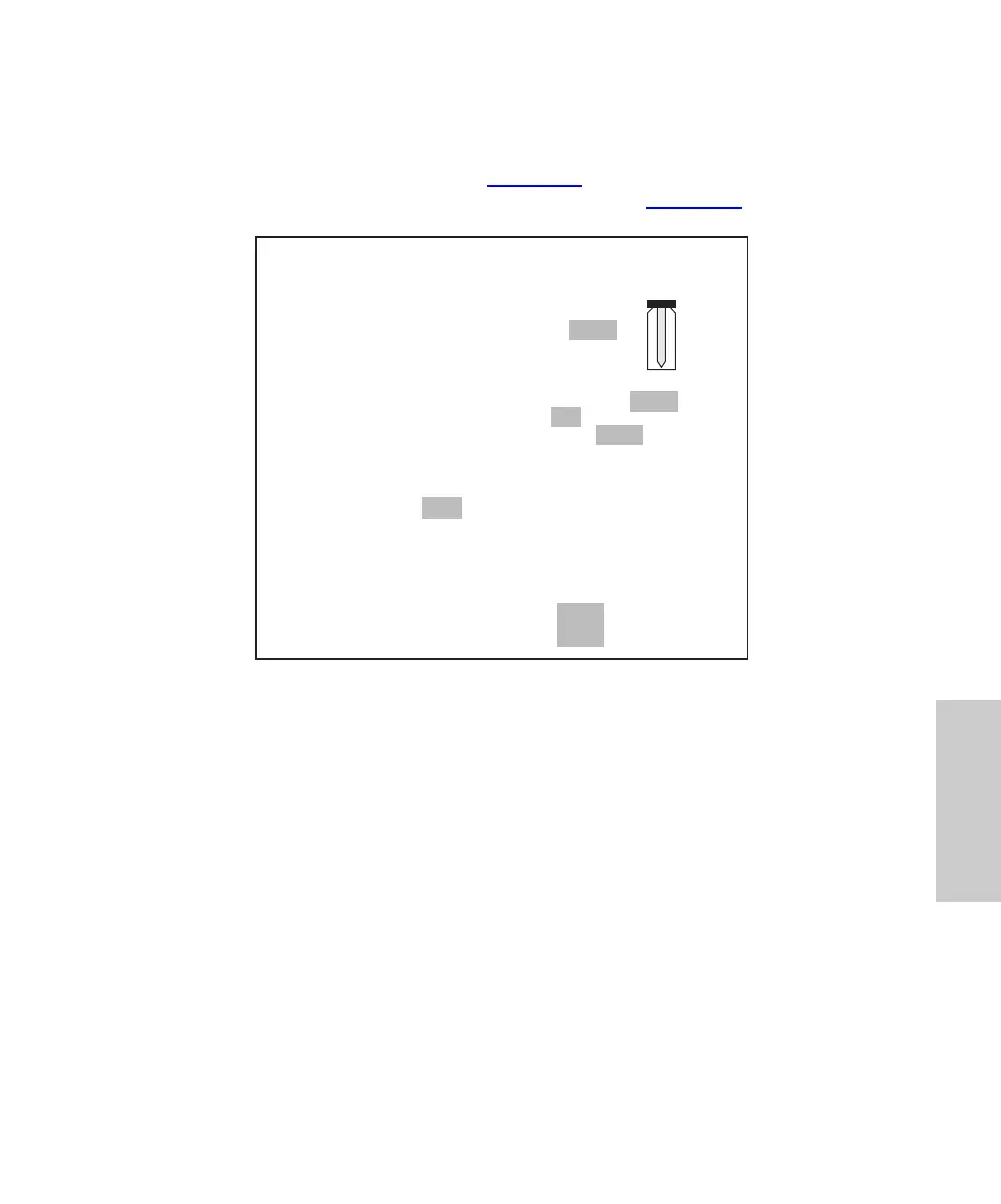
1. From the Edit: Auto Run screen (Figure 4-10
), select a step, then press Step
Function to display the Edit: Step Function screen (Figure 4-21
).
Figure 4-21 Edit: Step Function Screen
Program the event output using the Event Time and Prog Event fields at the bottom
of the screen. The Run Time displayed is the run time for the selected step, and
cannot be changed on this screen. The run time displayed is the maximum value
that can be entered in the Event Time field.
2. Move the cursor to the Event Time field. Enter the time (from injection start) at
which to turn on or turn off the first event. Valid entries are from 0 to a value equal to
the run time (displayed in the Run Time field).
3. Move the cursor to the Prog Event field. Enter 1 to turn on the event. Enter 0 to turn
off the event. Press Enter.
4. Repeat steps 3 and 4 to program the three additional event times if required.
4.6.7 Starting and Stopping an Auto Run
Note: Run a purge before starting an Auto Run to ensure that fresh mobile phase is in the
autosampler.
IDLE
Edit: Step Function 1 of 1 Trns
Editing Step: 1
Needle Position (%) 25 50 75 100
Purge After Step? Yes No
Option? None Stds Addn Trns
Run Event (0=Off 1=On)
Time Time Prog Event
10.0 1.0
2.0
3.0
4.0
1
0
1
0
Trns
Page
Auto
Page



 To Next Page