This message is displayed if the unit drivers on PC detects less frame than expected
during the exam acquisitions.
If the problem happens during a panoramic or a 3D exam it may be related to a
communication
malfunctioning of the 3D sensor Ethernet connections (cables and PC network
interface) or of the 3D sensor.
If the problem happens during a cephalometric exam it may be related to a
communication malfunctioning of the ceph sensor Ethernet connections (cables
and PC network interface) or of the ceph sensor.
1.
Check the Ethernet connections (cables, junctions, PC network board) and PC
network board settings (see paragraph 7.7.1).
Check also if the cables and the network board interface are compliance with the
mandatory characteristics reported below:
-
The network interface must be Intel I350-T2 dual port
-
The Ethernet cables must be the ones supplied with the unit or CAT 6 cables
(or higher category)
-
The 3D sensor must be directly connected to the PC, no Ethernet
hub/switch are allowed between the 3D sensor and the PC.
-
The unit must be directly connected to the PC, no Ethernet hub/switch are
allowed between the unit and the PC
Note
In order to check the Ethernet cable/junctions integrity and functioning, it
is suggested to:
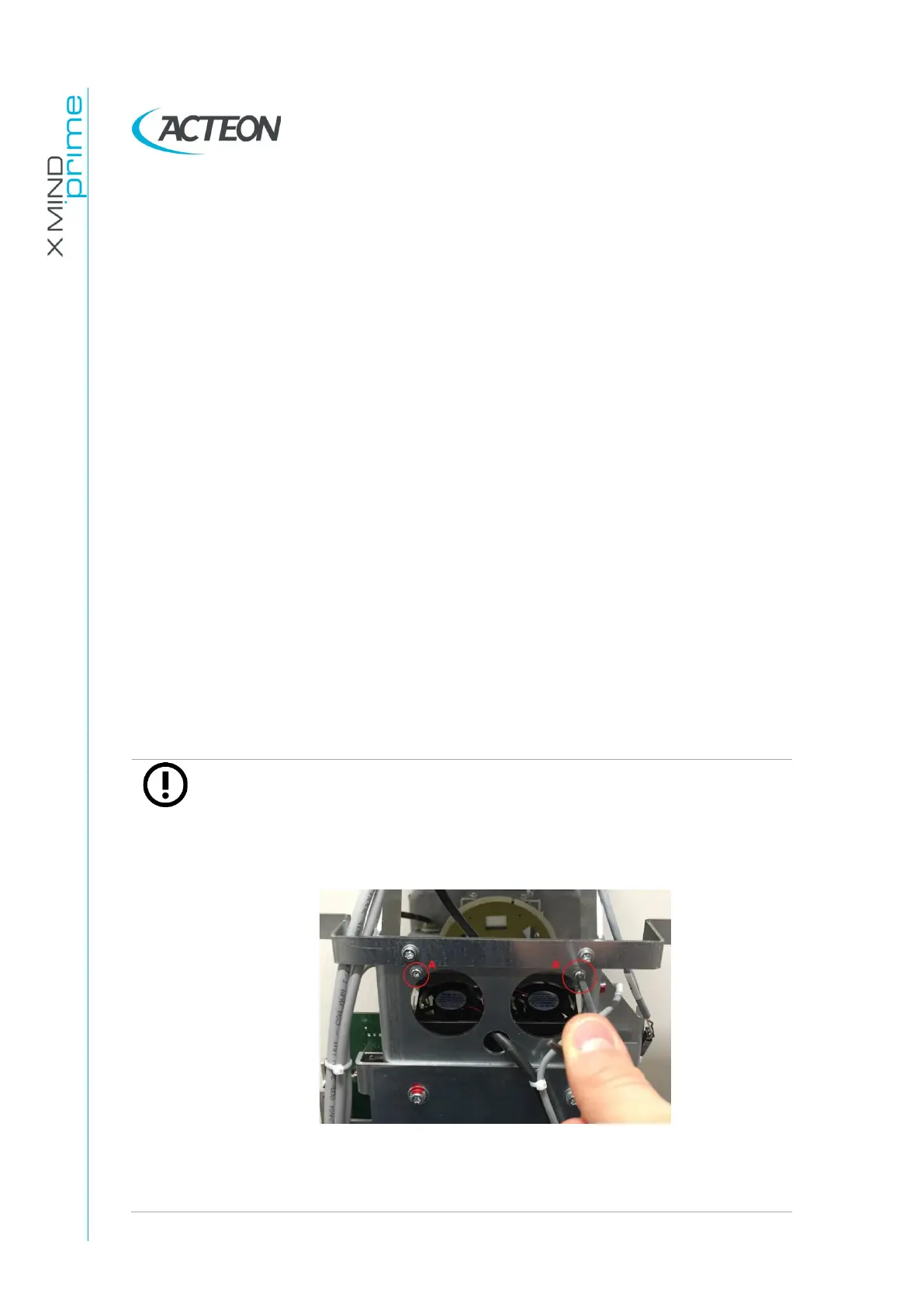
1.
Remove the two fans “A” screws to access to the 3D sensor Ethernet
connector.
2.
Unplug the Ethernet cable connected to the 3D sensor.
3.
Plug a functioning Ethernet CAT 5E (or higher) cable to the 3D sensor
and connect it directly to the PC network interface:



 To Next Page