Service Manual – Corrective maintenance
SERVICE MANUAL • X-MIND prime 3D • (19) • 11/2019 • NXMPEN080A
8.
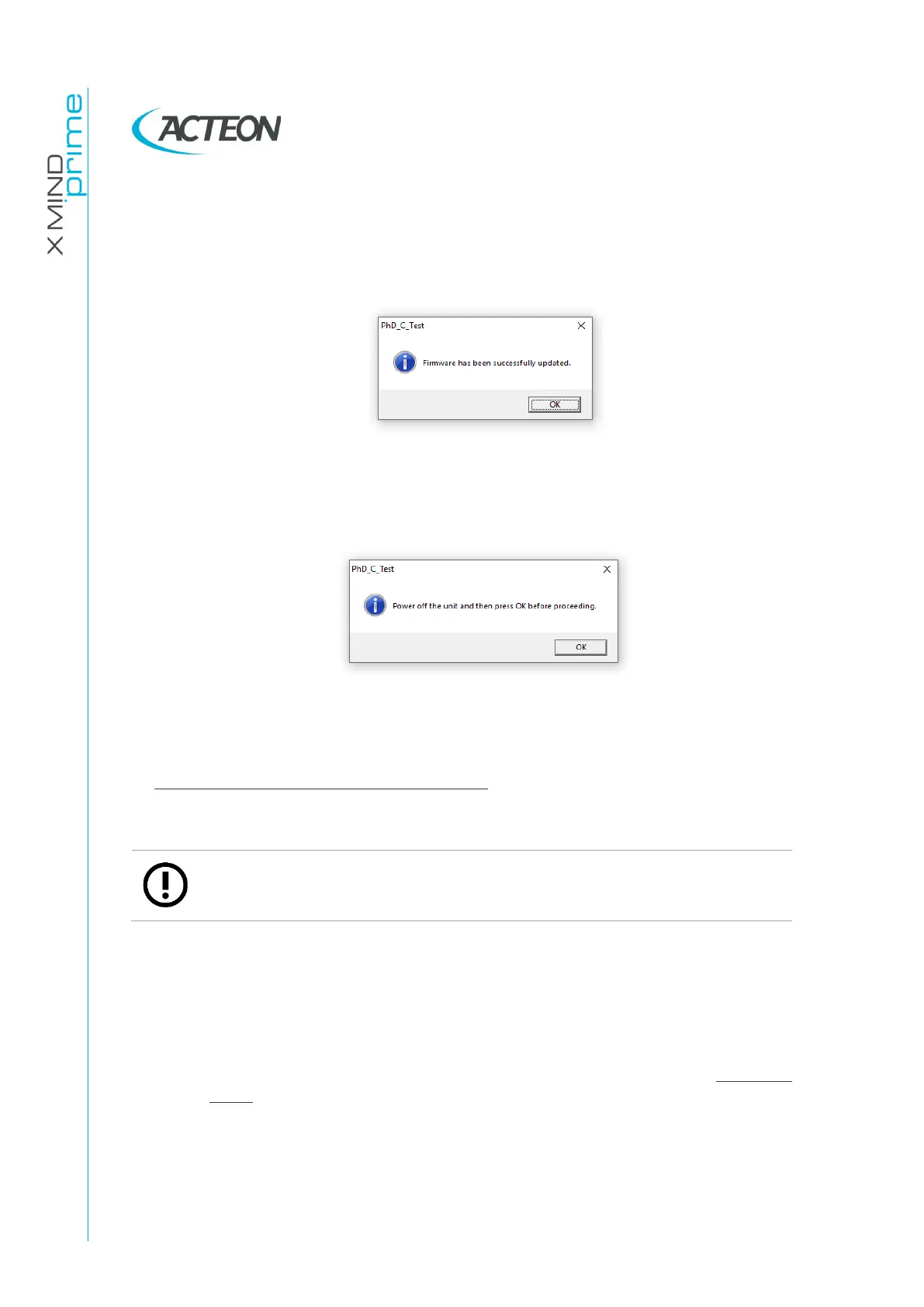
When the upload process has been completed, the following window is
displayed. Click on OK button.
9.
Switch OFF the unit.
10.
Click on OK button of the information window.
11.
Switch ON the unit and check on the first page of the GUI service program
(chapter 8) the current MCU firmware version.
Only in case the firmware upload process fails (at point. 8 of the MCU firmware upgrade
procedure), we suggest to perform the following steps
Note
The following procedure has to be performed only in case the automatic
mode firmware uploading process failed at least one time before
- Switch off the unit
- Close PhD_C_test
- Open Phd_C_Test and Switch on the unit
Wait at least 1 minute ( the unit it will be probably in an error state: 3 keyboard
leds blinks fast)
- In the PhD_C_Test selection bar select: Settings->Firmware update ->Degraded
mode->MCU
- Insert the password (same of point 5. of the service procedure)
- Select the new firmware MCUet-xxxx.hex file
- Skip the following steps by pressing OK ( no need to open the unit covers and set
dip switches)



 To Next Page