Checking for Higher-Level NTP Servers
Checking for Higher-Level NTP Servers
This section describes how to check for higher-level NTP servers. That is to ensure that
your system clocks are synchronized.
Note
It is only possible to check for higher-level NTP servers via the Craft
Console and with root account privileges.
Step 1 Select External Applications > Shell from the Craft Console main menu. In
response, a command line window is shown.
Step 2 At the Linux prompt type su - to change from ADMIN to the “root” account.
Note
The root user account is the most powerful user account and is only
intended for support personnel.
Step 3 Enter a valid root password or the default password CHGME.1.
Please use exit or Ctrl-D to return.
[ADMIN@DOKU_NE ADMIN]$ su -
Password:
[root@DOKU_NE root]#
Step 4 At the prompt type ntpq.
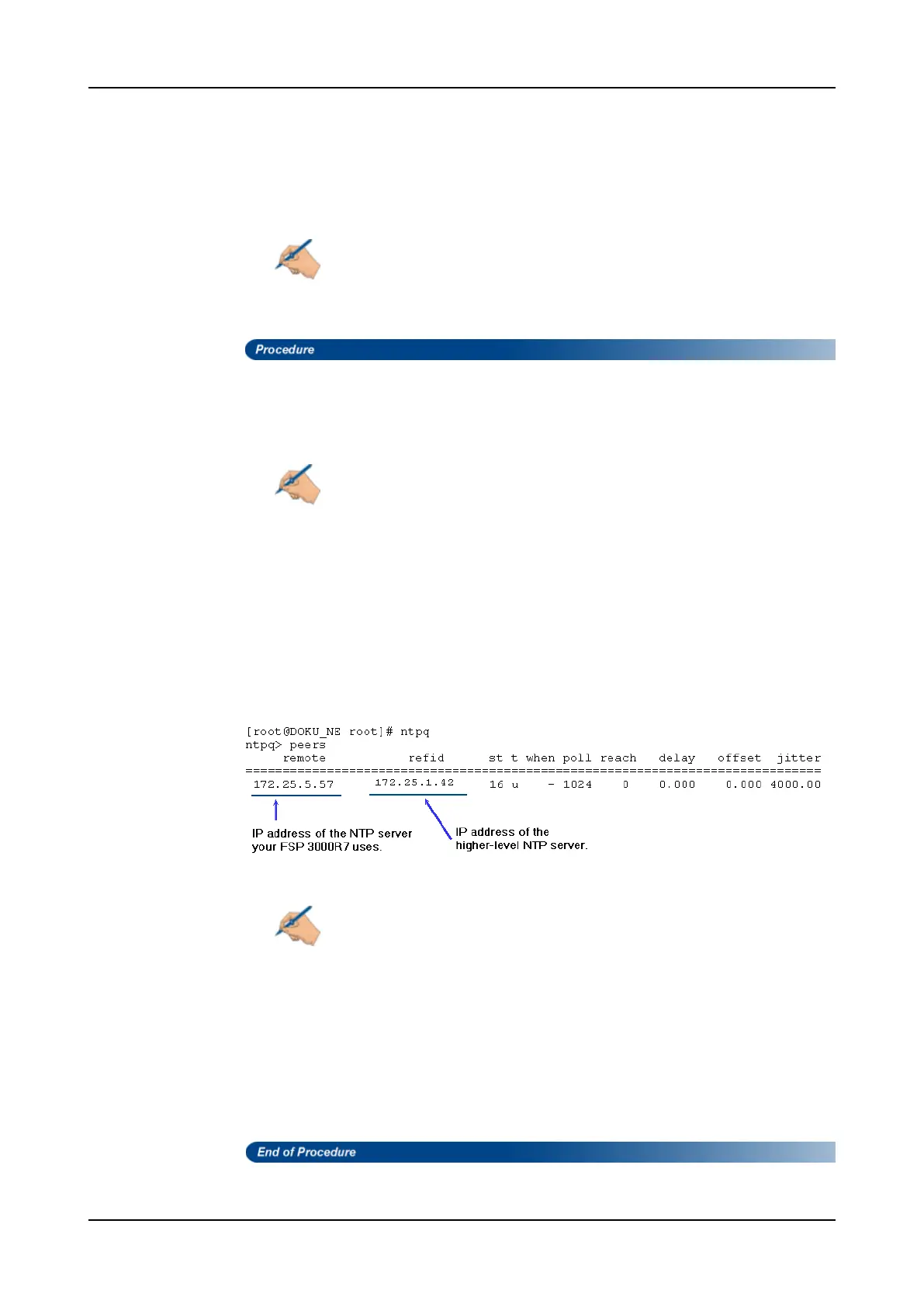
Step 5 At the “ntpq>” prompt type peers. If a higher-level NTP server is available, the
following screen appears:
Note
If no higher-level NTP server is available, the NCU will ignore the NTP
server it is connected to (in the above example it is the NTP server
172.25.5.57) and the “refid” (reference ID) column is empty.
Step 6 To exit this window, press CTRL+D. This will return you to the root account.
Step 7 Press CTRL+D again to access the admin prompt.
Step 8 Press CTRL+D a third time to return to the Craft Console main menu. As soon
as you are back in the Craft Console main menu, you lose root account
privileges. You automatically regain the user account privilege you were
previously logged on with (e.g. ADMIN).
FSP 3000R7 Maintenance and Troubleshooting Manual - Product Release 16.2 - Document Issue A 583



 To Next Page