CHAPTER 5 REFERENCE GUIDE
EFD1000/500 MFD Pilot’s Guide
Page 5-44 091-00006-001 REV B
EFD1000/500 MFD Pilot’s Guide
Page 5-45091-00006-001 REV B
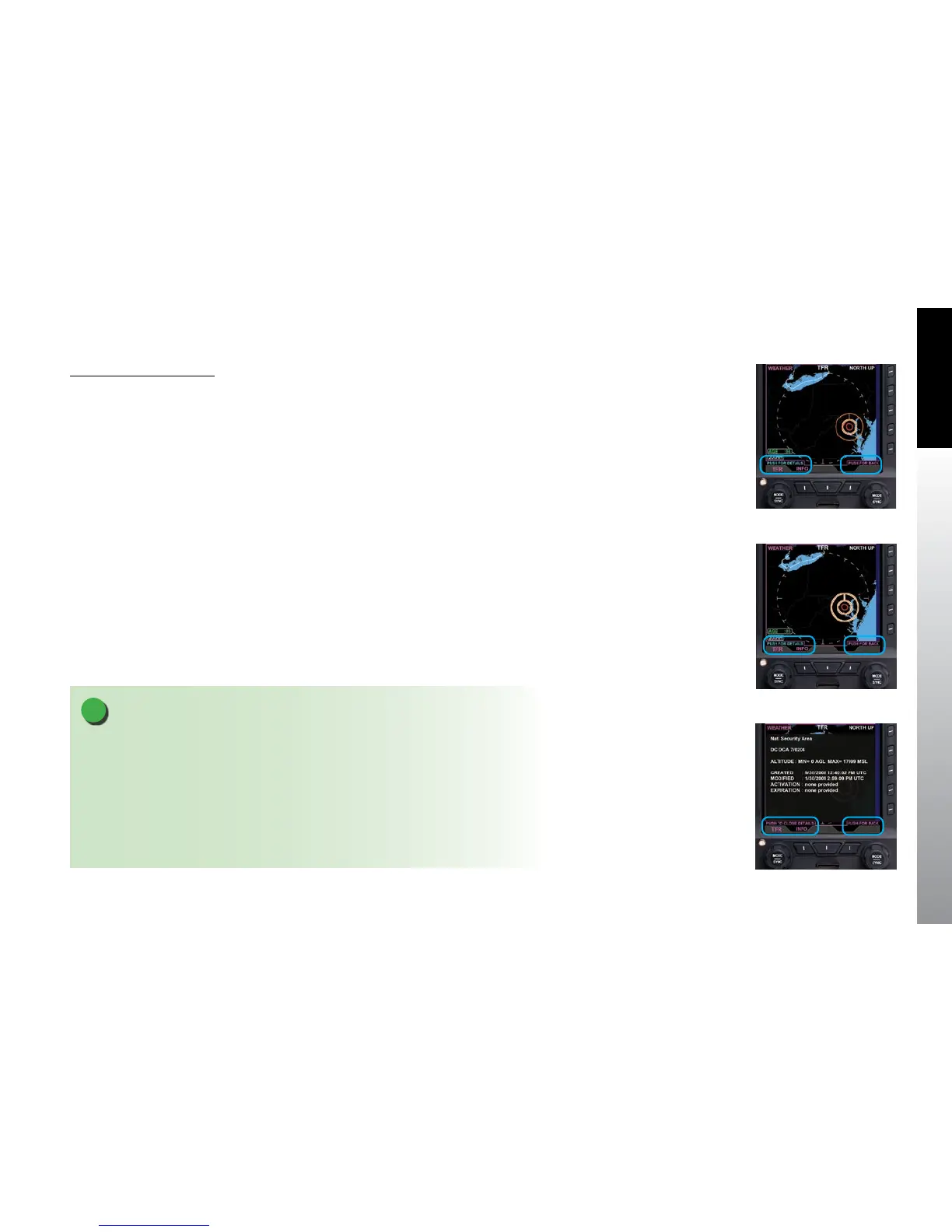
Display TFR Information
1. With the TFR weather product screen displayed, press the lower Left Button
labeled INFO. The Left Knob label changes to TFR and both the Left Knob and
Left Button label turn magenta (Figure 5-60).
2. Rotate the Left Knob to select the desired TFR. A white border will surround
the red TFR border (Figure 5-61).
3. Press the Left Knob to display the selected TFR information
(Figure 5-62).
4. Repeat steps 2 and 3 as desired.
5. Press the lower Left Button, to exit selection mode. The Left Knob and Left
Button label turn cyan.
NOTE
It is possible to select a TFR item that is not in the current viewable display area. Use the
Range+/- button to zoom out or in (respectively) to see selectable items.
Selecting a map range of 500 nm or higher might make it easier to see selected items.
When viewing the map at a lower map range the selected item may be at the edge of the
map display. and the white border will not be visible. In rare cases at larger zoom scales,
it may be that the selected item is so small as to be less than one pixel in size. In this case,
zooming in will reveal the selected item.
Figure 5-60
TFR Selected
Figure 5-61
Selecting Another TFR
Figure 5-62
Selected TFR Information
Pop-up


 To Next Page