CHAPTER 5 REFERENCE GUIDE
EFD1000/500 MFD Pilot’s Guide
Page 5-12 091-00006-001 REV B
EFD1000/500 MFD Pilot’s Guide
Page 5-13091-00006-001 REV B
5.1.4. Map Declutter
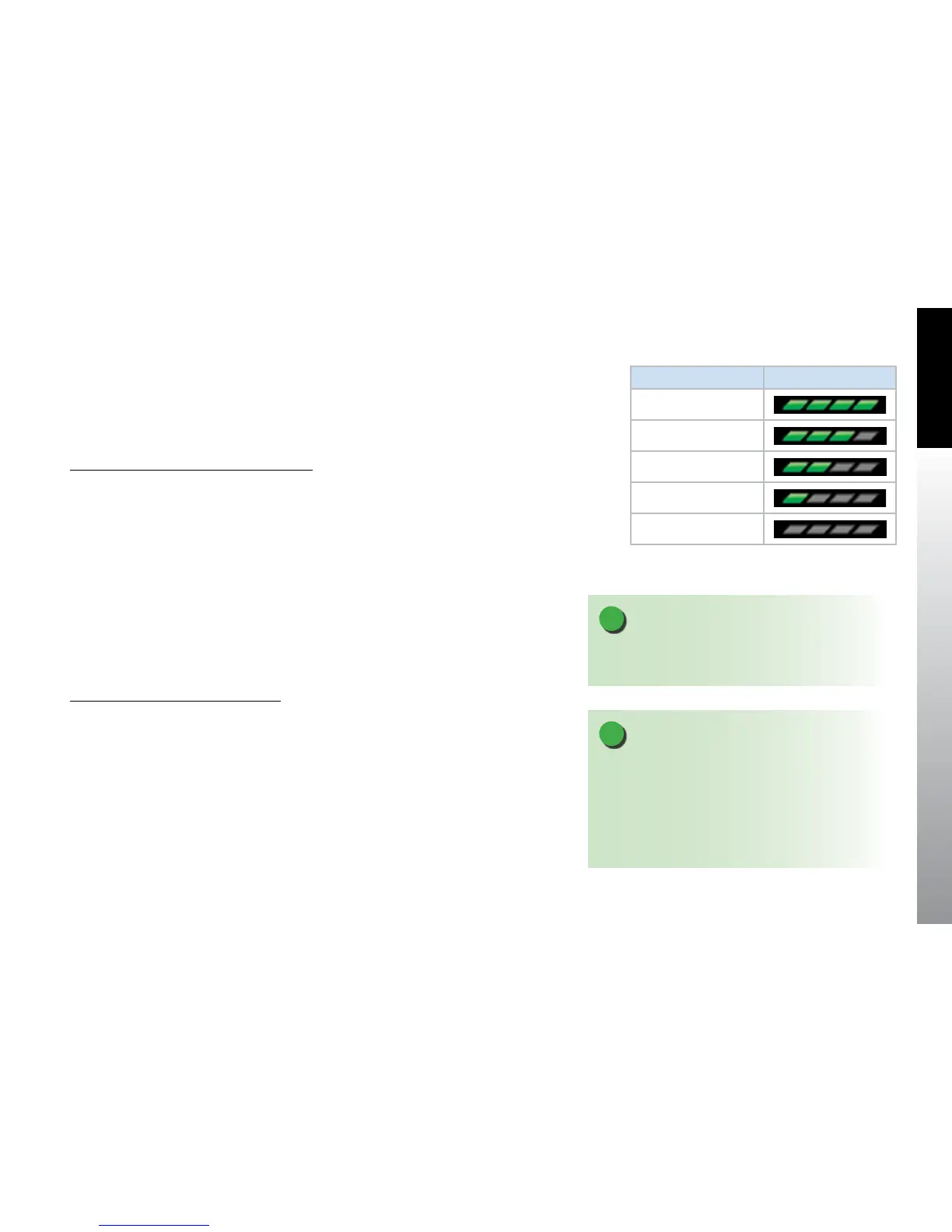
There are four map feature declutter levels available that work in conjunction with the
map range to aid in map declutter. Each level is represented by a graphical bar below
the numerical range display (Figure 5-9).
Change the Map Feature Declutter Level
• Press the MAP Hot Key until the desired map declutter
level is selected.
5.1.5. GPS Information
On startup, the Navigation Map VIEW initializes using either the current position, the last
known position (if current position is not available), or Albuquerque, New Mexico, USA
(if last known position is unavailable) and the current heading from the EFD1000 PFD or
the current track from the GPS system (if heading is invalid or unavailable). The aircraft
position, current ight plan, and other navigation information are displayed on the
Navigation Map based on information received from the selected GPS navigator. The
GPS navigation source is selected from the Main Menu.
Change the GPS Navigation Source
1. Press the Menu Key to enter the Main Menu.
2. Display the General Settings page if it is not already displayed.
3. Press the rst Hot Key, GPS POSITION SOURCE. The menu label turns magenta.
4. Rotate the Right Knob to select the desired GPS navigation source.
5. Press the Menu Key to exit the Main Menu and save your selection.
NOTE
Map features set to AUTO are decluttered according to
Table 5-6 and the selected declutter range.
Declutter Range Display
High (H)
Med-High (MH)
Med-Low (ML)
Low (L)
O
Figure 5-9
Map Declutter Settings
NOTE
When the EFD is connected to some GPS systems and
the active ight plan is changed (e.g. “Direct To” is
selected), the display of the active (magenta) leg on the
Nav Map may be delayed for up to 20 seconds. The CDI
course pointer and autopilot will react immediately to
the ight plan change.


 To Next Page