CHAPTER 4 GETTING STARTED
EFD1000/500 MFD Pilot’s Guide
Page 4-6 091-00006-001 REV B
EFD1000/500 MFD Pilot’s Guide
Page 4-7091-00006-001 REV B
4.1.2. Change VIEW
A WINDOW can display dierent VIEWs as outlined in Section 3.1. Default Display. To
select a dierent VIEW in any WINDOW you must rst move the FOCUS to the WINDOW
you want to change, and then select a dierent VIEW. The current VIEW name displays
in the upper left of the active WINDOW (Table 4-1).
VIEW NAME
Navigation Map NAV MAP
Terrain Awareness
TERR
Data Link Weather WEATHER
Trac TRFC
Stormscope STRIKES
Secondary Attitude Indicator NONE
Secondary HSI NONE
Table 4-1 EFD1000/500 MFD VIEW Names
Change the VIEW of a WINDOW
1. Push the Right Knob to select the WINDOW you want to change. The
Magenta border will move from WINDOW to WINDOW as the Right Knob is
pressed to indicate which WINDOW is selected. The selected VIEW’s name also
displays in magenta.
2. Rotate the Right Knob to display the available VIEWS for that WINDOW until
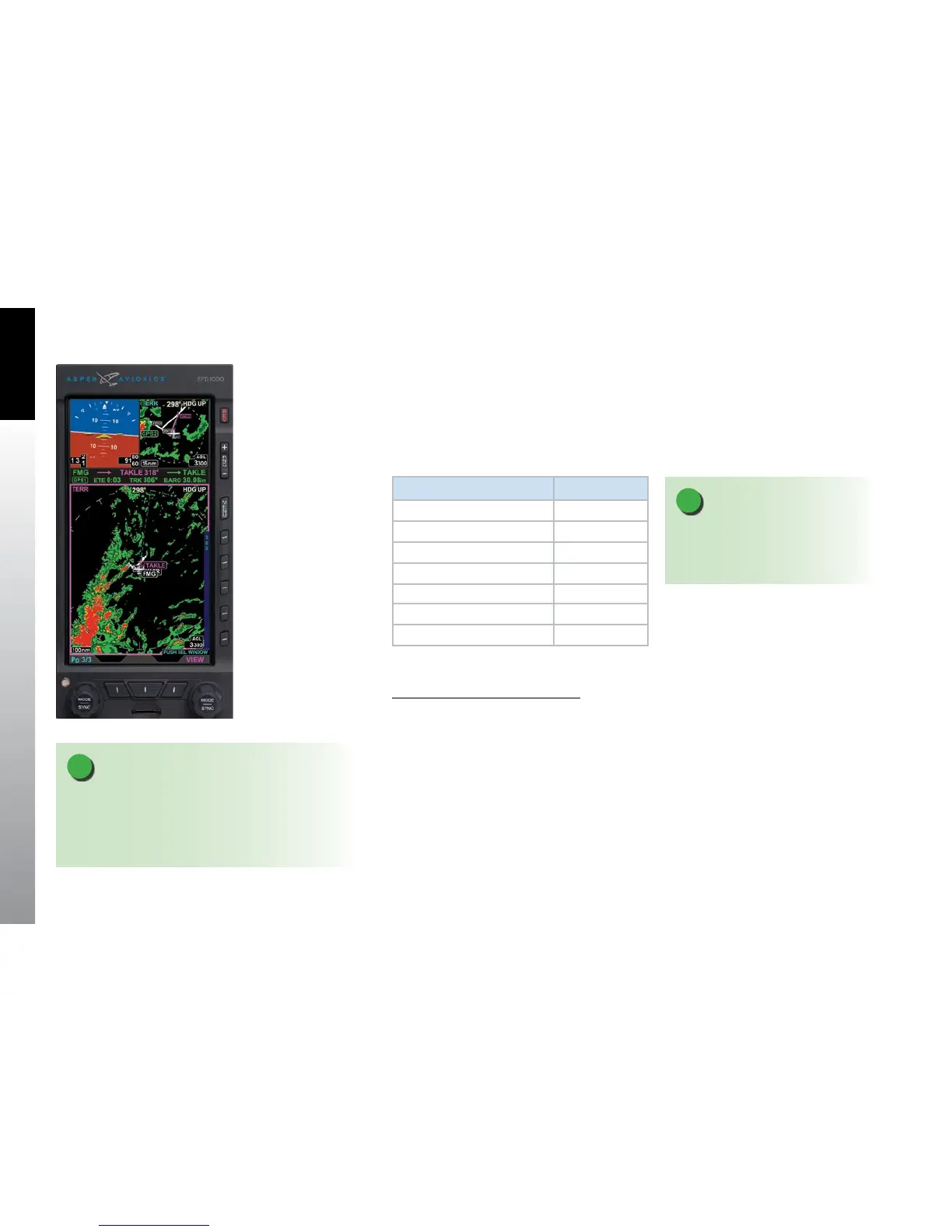
the VIEW you want displays (Figure 4-8).
Figure 4-8
Change VIEW – New VIEW
Selected
NOTE
Not all WINDOWS support all VIEWS.
See the appropriate VIEW section for
more detailed information.
NOTE
If the WINDOW you want to change already has a thin
magenta border, there is no need to push the Right
Knob. Simply rotate the Right Knob to select the VIEW
you want.


 To Next Page