CHAPTER 4 GETTING STARTED
EFD1000/500 MFD Pilot’s Guide
Page 4-8 091-00006-001 REV B
EFD1000/500 MFD Pilot’s Guide
Page 4-9091-00006-001 REV B
4.1.4. Editing Airport Identier Fields
The METAR screen of the Data Link Weather VIEW allows the pilot to enter information
by entering VIEW control mode and using the Data Field Edit functionality. For example,
when looking for METAR information for a specic airport, the pilot can enter the airport
identier to display the required information.
NOTE
This task uses the METAR data editing capabilities as an example. The process is similar for
any type of data eld edits.
Editing Airport Identier Fields
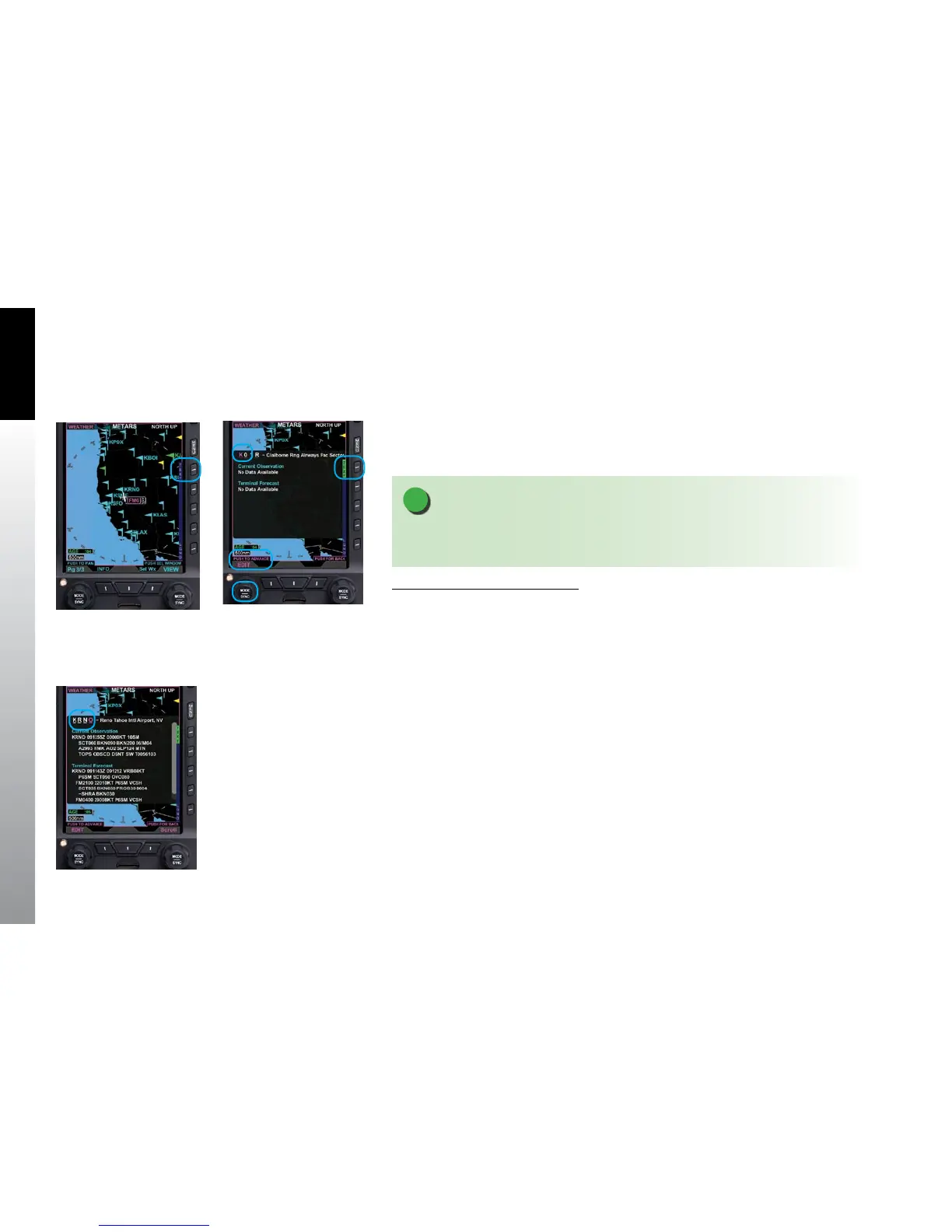
1. Display the METAR screen of the Data Link Weather VIEW (Figure 4-12).
2. Push the TEXT Hot Key to display the current airport’s METAR. Data Field
Edit mode is automatically active. The rst character of the airport identier
is magenta and the Left Knob has two magenta labels, EDIT and PUSH TO
ADVANCE (Figure 4-13).
3. The airport identier character that is magenta is selected. Rotate the Left
Knob to select another available character (clockwise moves forward,
counter-clockwise moves backward). Push the Left Knob to move the
identier selection to the next character, and then rotate the Left Knob as
before (Figure 4-14).
4. Push the TEXT Hot Key to exit the METAR.
Figure 4-12
METAR Weather Product Screen
Figure 4-13
Editing Airport Identier
Figure 4-14
New Airport Identier Entered


 To Next Page