CHAPTER 5 REFERENCE GUIDE
EFD1000/500 MFD Pilot’s Guide
Page 5-18 091-00006-001 REV B
EFD1000/500 MFD Pilot’s Guide
Page 5-19091-00006-001 REV B
View Airport/VOR Information
1. With the Navigation Map VIEW selected (magenta border), press the lower
Left Button labeled INFO. The Left Knob label changes to Apt/Vor and both
the Left Knob and Left Button label turn magenta.
2. Press the Left Knob to display the selected airport’s or VOR’s pop-up
information.
3. Rotate the Left Knob to scroll through each displayed airport and/or VOR.
4. Press the lower Left Button or the Right Knob, to exit selection mode. Both
the Left Knob and Left Button label turn cyan.
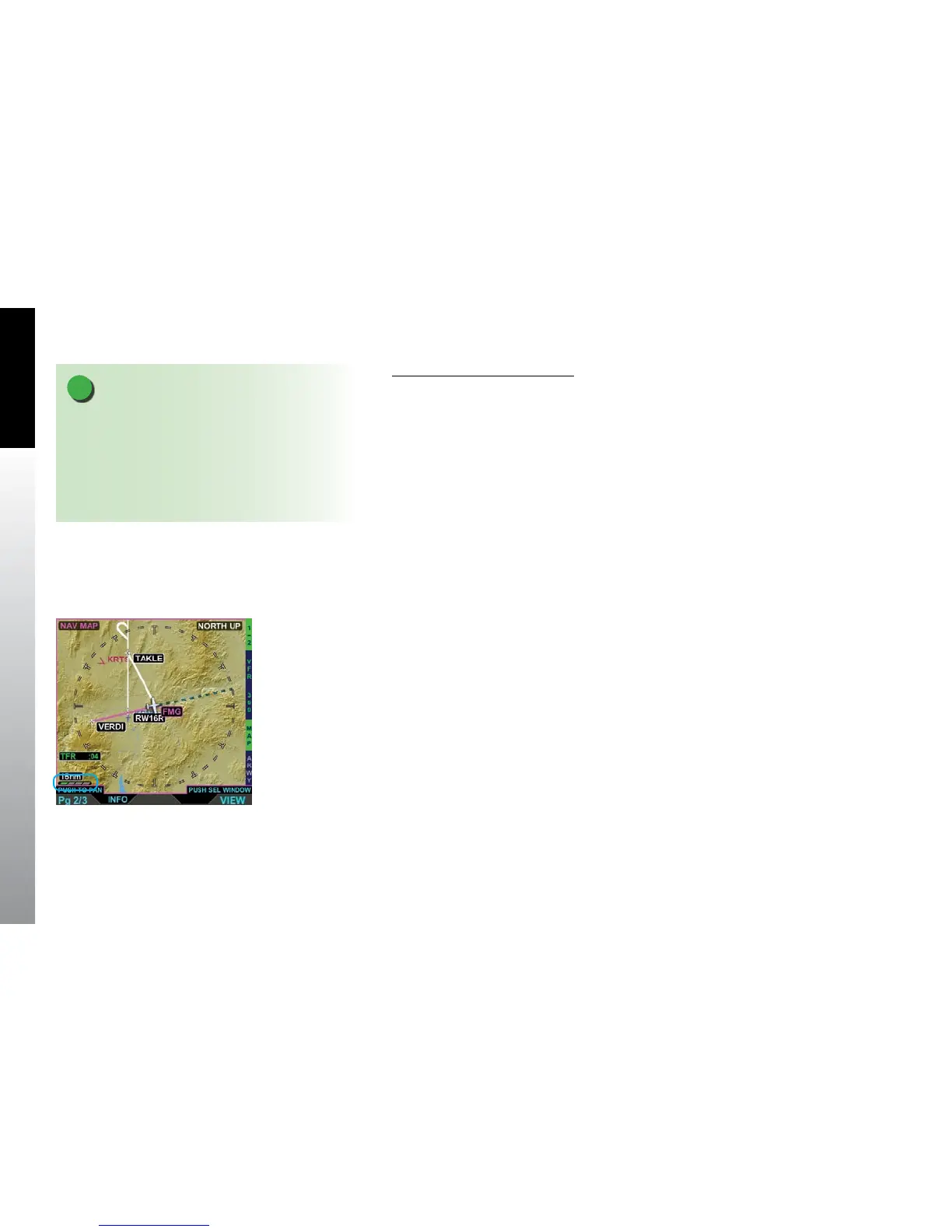
5.1.7. Flight Plan
When congured with a compatible GPS, the EFD1000/500 MFD will display the current
ight plan, which overlays all other symbology on the Navigation Map VIEW except for
the ownship, GPS track, and trac. The basemap will display all waypoints and legs.
The active leg and waypoint are magenta, and all other waypoints and legs are white
(Figure 5-20):
• Flight plan legs in excess of 50nm are computed as a great circle route and
displayed as a contiguous series of line segments between the ight plan
waypoints.
• Waypoint identiers are displayed, when enabled, adjacent to their associated
ight plan waypoint icon.
• Curved and straight ight plan paths, including ight plan path discontinuities
(gaps), are displayed as received from externally connected navigators.
• Flight plan depictions are rotated within the display to maintain their correct map
orientation.
Figure 5-20
Navigation Map VIEW
Showing the Current
Flight Plan
NOTE
On rare occassions when the EFD1000/500 is using the
backup battery, the ON BAT annunciation may obscure
the airport information when the display is using PAGE
3/3. Use the split screen LAYOUT, PAGE 2/3 with the
Navigation VIEW in the lower WINDOW to avoid this
issue.


 To Next Page