♦ Netmask: network mask is used in conjunction with the destination to
determine when a route is used.
♦ Gateway: enter the device's IP address.
♦ Metric: measurement of a route's preference. Typically, the lowest metric is
the most preferred route. If multiple routes have the same metric value, the
default route is the first in the order of appearance.
3. To add or edit a default route:
a. Under the 'Default Routes' group, click the required device whose default route
you want to edit or click the New Default Route link to add a default route; the
following page appears:
Figure 45-3: Editing the Default Route
b. If adding a default route, From the 'Device' drop-down list, select the WAN
device.
c. In the 'Metric' field, enter a value for the metric route preference.
d. Click OK to save the settings.
Notes:
• To add an additional (logical) default route device, you must first define a
new WAN device that has an IP address.
• Although multiple devices may be configured as default routes, only one
serves as the default route—the one with the lowest metric value, or, if
metric values are identical, the first in order.
4. To enable load balancing between multiple WAN devices:
a. Under the 'Load Balancing' group, select the 'Enabled' check box; the load
balancing table appears.
b. Select the devices on which load balancing is performed by checking their
respective check boxes.
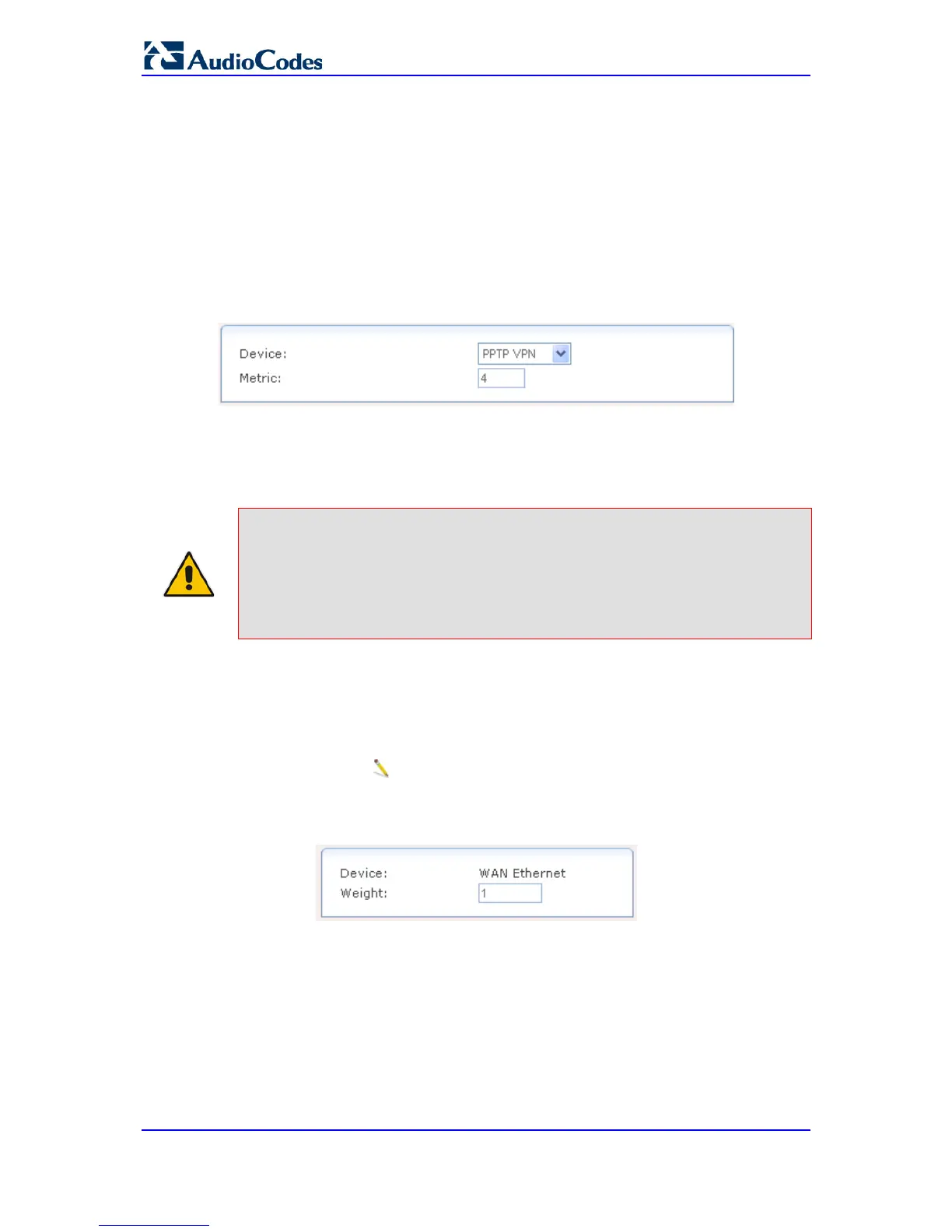
c. Click the Edit icon corresponding to the device for which you want to modify
the weight in the balancing procedure (determines the ratio of IP pairs provided to
each device); the following page appears:
Figure 45-4: Defining Load Balancing
d. In the 'Weight' field, enter the numeric ratio to represent the weight of the device.
e. Click OK to save the settings.


 To Next Page
 Loading...