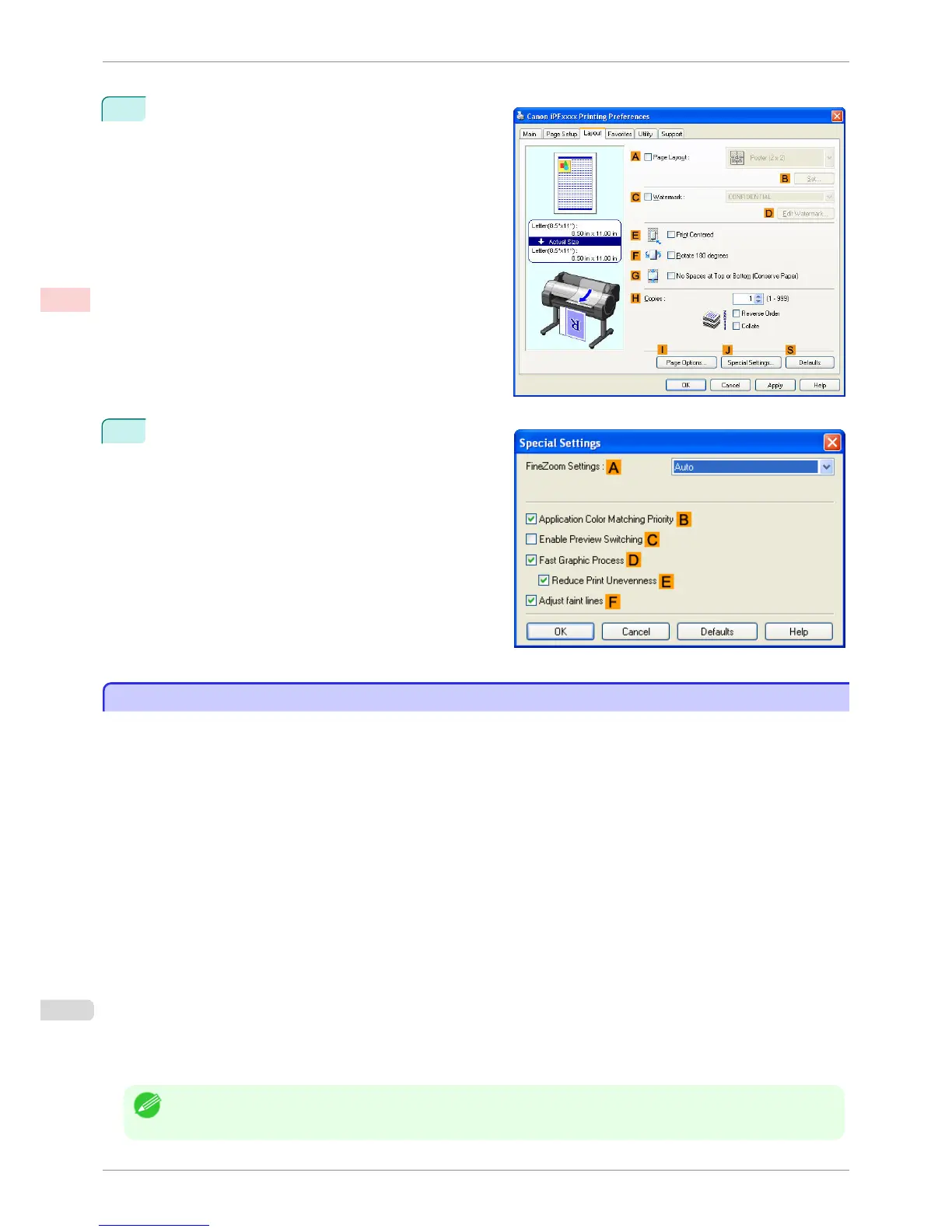
If printing is unsuccessful, you may be able to print after completing the following setting.
1
On the Layout sheet, click
J Special Settings to dis-
play the Special Settings dialog box.
2
In the FineZoom Settings list, click Yes.
Printing Vertical or Horizontal Banners (Large-Format Printing; Mac OS X)
Printing Vertical or Horizontal Banners (Large-Format Printing; Mac OS X)
By automatic enlargement of a document created with an application software by the printer driver, you can print
maximum 18.0 m vertical or horizontal banners.
This topic describes how to print a banner about five times as long as the roll width based on the following exam-
ple.
•
Document: An original designed for a horizontal banner
•
Page Size: Non-standard (100×500 mm [3.9×19.7 in])
•
Paper: Roll
•
Paper type: Plain Paper
•
Roll paper width: 16 inches (406.4 mm)
The print procedure is as follows.
1.
In the application, create an original in the format of a horizontal or vertical banner.
2.
In Page Setup, register Custom Page Sizes (Mac OS X 10.4.11–10.5) / Custom Paper Sizes (Mac OS X
10.6-10.7).
Once you register Custom Page Sizes / Custom Paper Sizes, you then can select it repeatedly from the pa-
per size list.
Custom Page Sizes / Custom Paper Sizes can be set up to 18.0 m.
3.
Print the banner, using the settings that correspond to banners.
Note
• The following procedures are based on Mac OS X 10.5. The method of setting up non-standard paper sizes varies de-
pending on the version of Mac OS X.
Printing Vertical or Horizontal Banners (Large-Format Printing; Mac OS X)
iPF760
User's Guide
Enhanced Printing Options Printing banners or at other non-standard sizes
102















 To Next Page