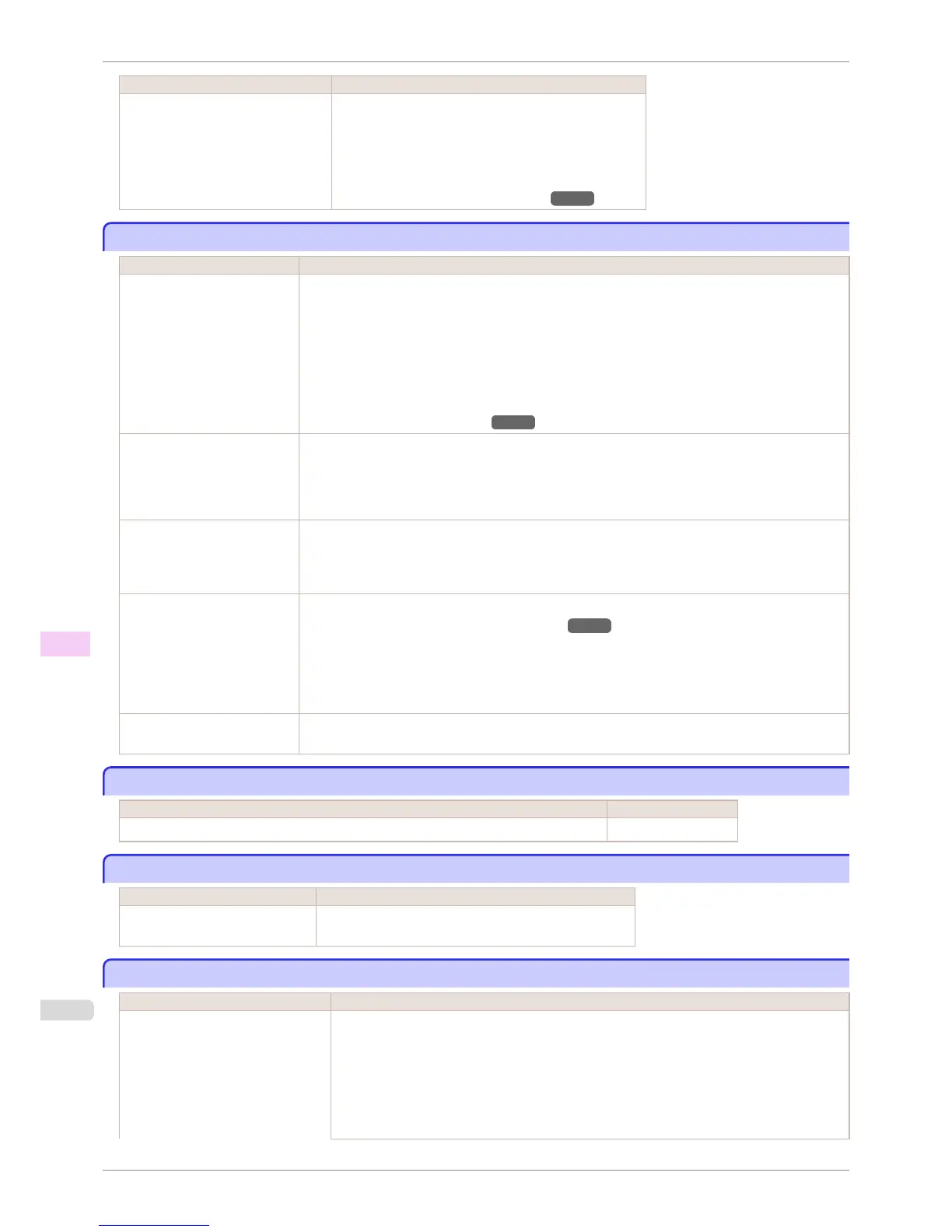
Cause Corrective Action
The paper has come out of the printer.
Follow these step to reload a sheet.
1.
Push the Release Lever back and remove the paper.
2.
Pull the Release Lever forward.
3.
Reload the sheet, aligning it with the guide on the right.
(See "Loading Sheets in the Printer.") →P.417
Paper cutting failed.
Paper cutting failed.
Cause Corrective Action
There are sheets left on the
Ejection Guide.
1.
Push the Release Lever back and remove the paper.
2.
Load the paper.
3.
Pull the Release Lever forward.
4.
If "Not finished printing. Finish printing remaining jobs?" is shown on the Display Screen, press
the OK button.
Printing will resume, starting from the page on which the error occurred.
(See "Loading Rolls in the Printer.")
→P.399
There is a foreign object by the
Output Tray, obstructing the
Cutter Unit.
1.
Lift the Top Cover and remove the foreign object.
2.
If "Not finished printing. Finish printing remaining jobs?" is shown on the Display Screen, press
the OK button.
Printing will resume, starting from the page on which the error occurred.
You are not using the printer
under the recommended envi-
ronmental conditions for the pa-
per.
Use the printer only where the recommended environmental conditions for the paper are met. Note that
various environmental conditions are recommended for various types of paper. For details on the rec-
ommended environmental conditions for paper, see Paper Reference Guide."
(See Paper Reference Guide.)
You are using paper that is not
compatible with automatic cut-
ting.
1.
Specify Manual as the cutting method and use scissors or a cutting tool to cut the roll.
(See "Specifying the Cutting Method for Rolls.") →P.410
For information about paper that is compatible with automatic cutting, see the Paper Reference
Guide.
(See Paper Reference Guide.)
2.
Push the Release Lever back and remove the paper.
In other cases, the Cutter Unit
may be damaged.
Contact your Canon dealer for assistance.
End of paper feed.
End of paper feed.
Cause Corrective Action
You are pressing the ▲ button on the Control Panel and trying to rewind the roll to the edge. Release the ▲ button.
Rel lever is in wrong position.
Rel lever is in wrong position.
Cause Corrective Action
The Release Lever is pushed back. Pull the Release Lever forward.
Turn off the printer and wait a while before restoring power.
Borderless printng not possible.
Borderless printng not possible.
Cause Corrective Action
The print job received specifies a type
or width of paper that is not compati-
ble with borderless printing.
Follow these steps to change the settings of the print job to enable borderless printing.
1.
Press ▲ or ▼ to select Stop Printing, and then press the OK button.
2.
Make sure the correct printer driver for the printer is selected and try printing again.
For information on types of paper compatible with borderless printing, refer to the Paper Refer-
ence Guide.
(See Paper Reference Guide.)
Paper cutting failed.
iPF760
User's Guide
Error Message Messages regarding paper
586















 To Next Page