2
Hold down the Power button for more than a second.
After "Shut Down.. Please Wait.." is shown on the Display
Screen, the printer shuts off.
Loading and Printing on Rolls
Loading and Printing on Rolls
These are the basic steps for loading and printing on rolls.
Follow these steps to load and print on rolls.
Note
• For details on supported sizes and types of rolls, see Paper Sizes or the Paper Reference Guide. (See "Paper Sizes.")
→P.392 (See "Types of Paper.") →P.392
• If you prefer to wait for the ink to dry after printing and simply eject the document, you can deactivate automatic cutting
and cut the paper manually. (See "Specifying the Cutting Method for Rolls.") →P.410
1
Turn the printer on. (See "Turning the Printer On and Off.")
→P.17
2
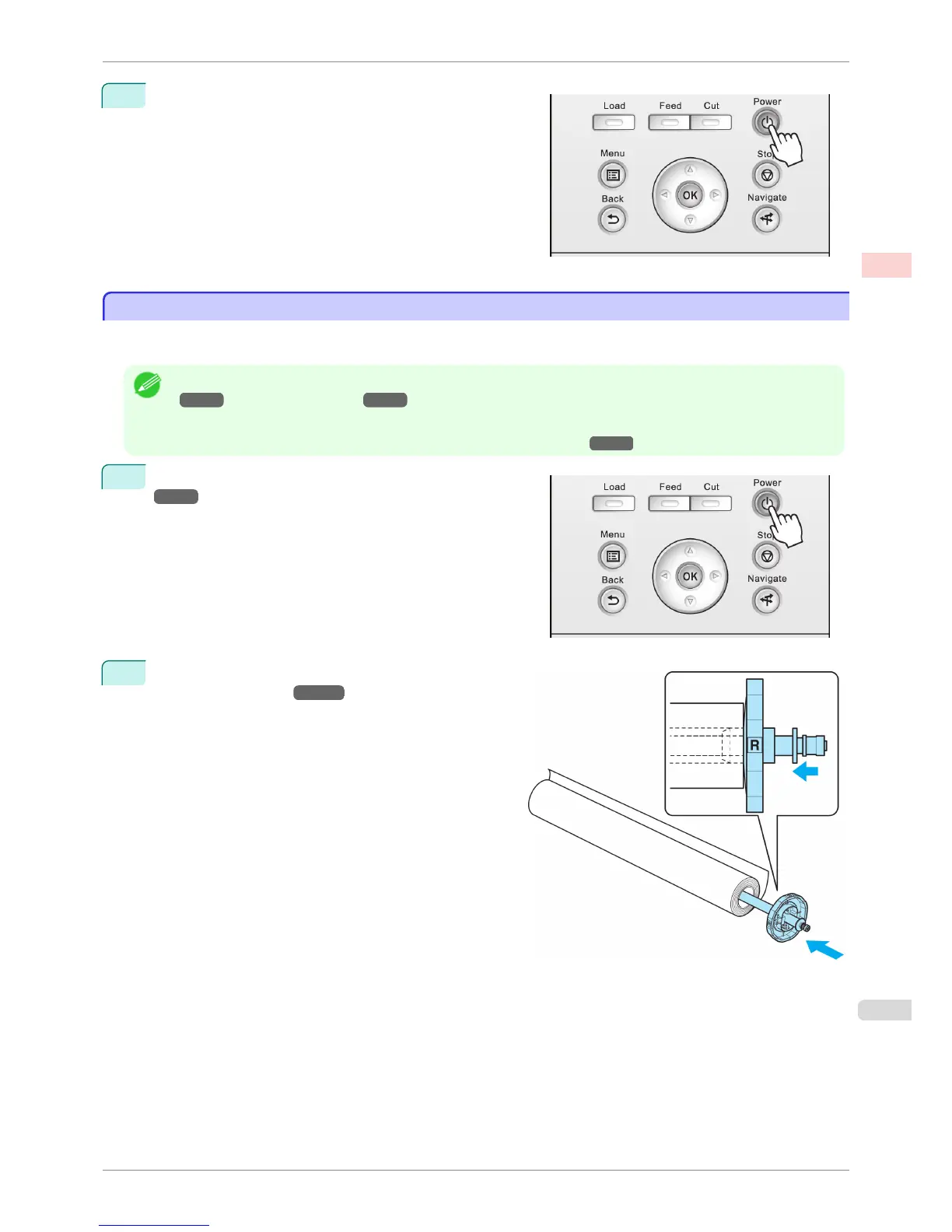
Load the roll on the Roll Holder. (See "Attaching the
Roll Holder to Rolls.")
→P.397
iPF760
Loading and Printing on Rolls
User's Guide
Basic Printing Workflow Printing procedure
19















 To Next Page