2
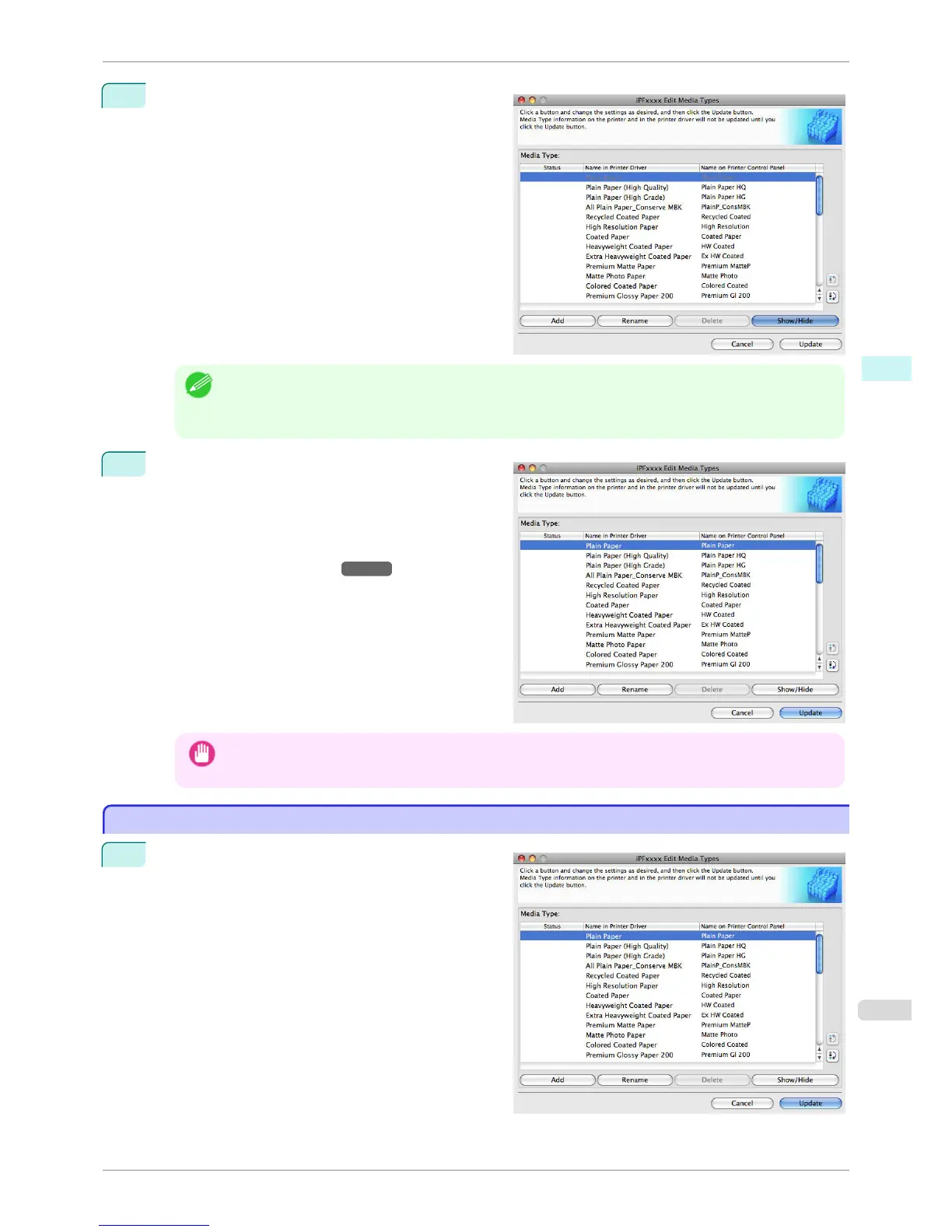
In the Media Type list, select the name of the media
to switch off or on for display.
Click the Show/Hide button.
The selected paper is alternately shown or hidden.
Note
• The names of media switched for non-display appear grayed out in the Media Type list.
• Each time you click the Show/Hide button, the display mode cycles from showing both the printer driver and
printer panel, to hiding both the printer driver and printer panel, and then to showing only the printer panel.
3
In the Edit Media Types dialog box, click the Update
button.
The Update Media Types wizard is started at this
point. For details on the procedure to update paper
information using the Update Media Types wizard,
see "Updating Media Types."
→P.388
Important
• Be sure to click the Update button. If you do not, your changes will not be applied to the printer and printer
driver.
Changing the Display Order of Media Types
Changing the Display Order of Media Types
1
Open the Edit Media Types dialog box.
iPF760
Changing the Display Order of Media Types
User's Guide
Mac OS X Software Media Configuration Tool
387















 To Next Page