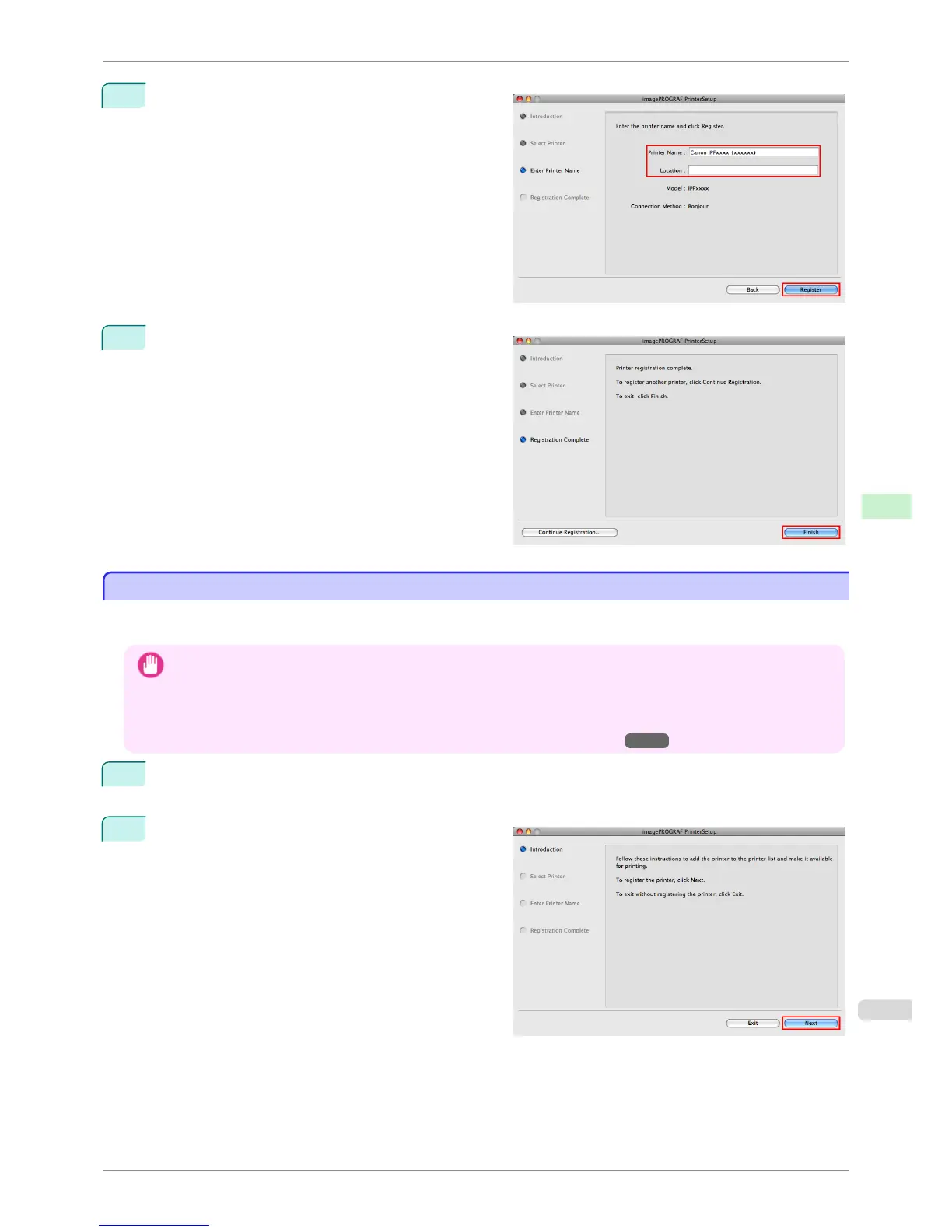
5
Complete Printer Name and Location as desired
and click Register.
6
Click Finish.
Configuring the Destination for Bonjour Network
Configuring the Destination for Bonjour Network
Follow the steps below to configure the destination if you are using the printer in a network that uses the Bonjour
function.
Important
• Bonjour and IP Print (Auto) do not support printing to a printer on other network groups that require a router for connec-
tion. Make sure the computer and printer are on the same network. For information about network settings, ask your
network administrator.
• By default, Bonjour is activated on the printer. You can activate or deactivate the Bonjour function or change the printer
name by using RemoteUI. For instructions on changing it, see "Using RemoteUI." →P.475
1
Navigate to Applications > Canon Utilities > imagePROGRAF PrinterSetup and double-click image-
PROGRAF PrinterSetup.app.
2
Click Next.
iPF760
Configuring the Destination for Bonjour Network
User's Guide
Network Setting Mac OS X Settings
493















 To Next Page