8
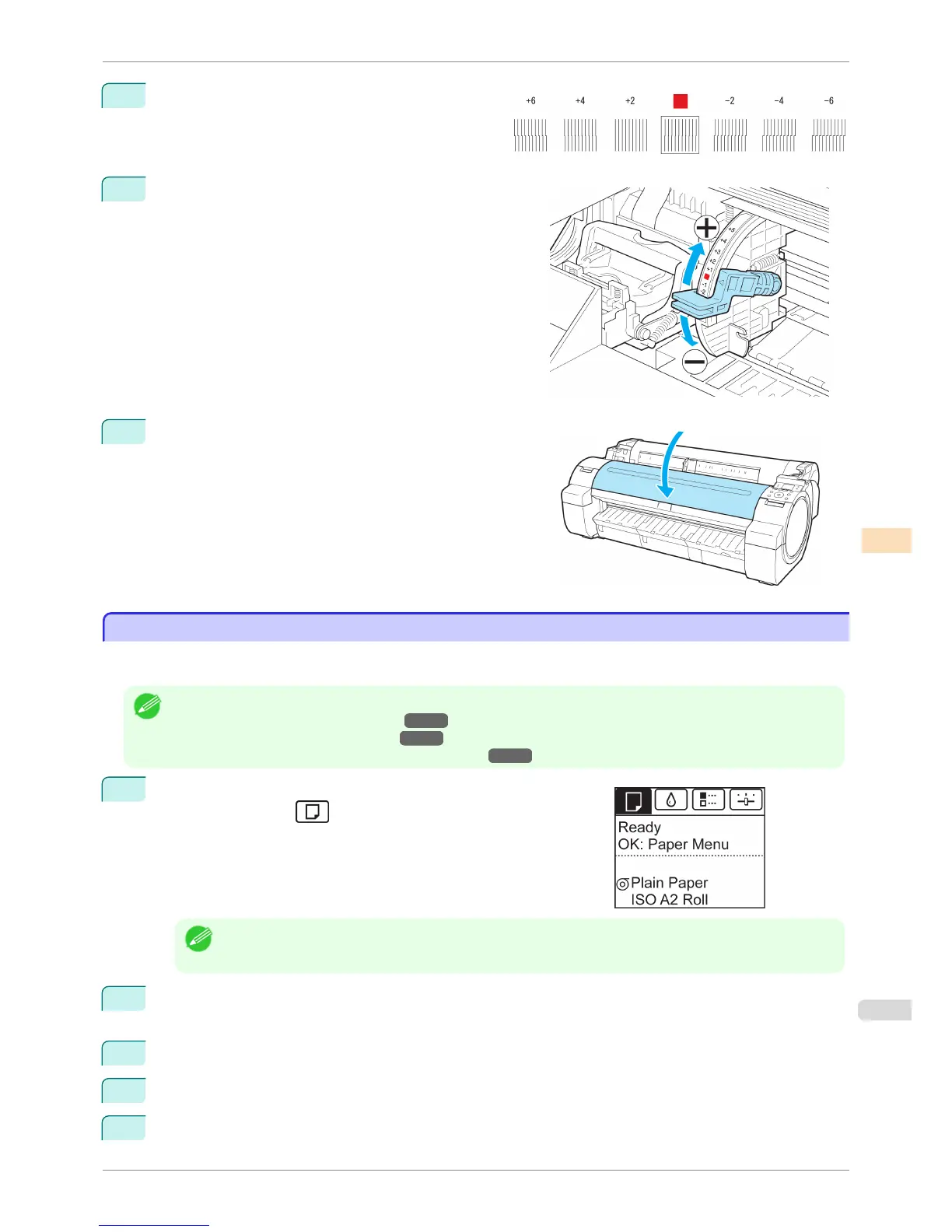
Examine the test pattern for adjustment. Determine
the straightest set of lines.
9
Open the Top Cover and move the Angle Adjustment Lev-
er to match the number (or the square) of the straightest
set of lines.
If no single set of lines is perfectly straight, move the Angle
Adjustment Lever to a position between the numbers (or
between the number and the square) of the two sets of
lines that are least misaligned.
10
Close the Top Cover.
The Printhead is now straight, and adjustment is complete.
Troubleshooting Paper Abrasion and Blurry Images (Head Height)
Troubleshooting Paper Abrasion and Blurry Images (Head Height)
If the Printhead rubs against paper during printing, adjusting the Printhead height may improve results.
If image edges are blurred, it may help to lower the Printhead.
Note
• Raise or lower the printhead, depending on the nature of the problem.
(See "Paper rubs against the Printhead.") →P.560
(See "The edges of the paper are dirty.") →P.561
(See "Image edges are blurred or white banding occurs.") →P.564
1
On the Tab Selection screen of the Control Panel, press
◀ or ▶ to
select the Paper tab (
).
Note
• If the Tab Selection screen is not displayed, press the Menu button.
2
Press the OK button.
The Paper Menu is displayed.
3
Press ▲ or ▼ to select Paper Details, and then press the OK button.
4
Press ▲ or ▼ to select the type of paper, and then press the OK button.
5
Press ▲ or ▼ to select Head Height, and then press the OK button.
iPF760
Troubleshooting Paper Abrasion and Blurry Images (Head Height)
User's Guide
Adjustments for Better Print Quality Adjusting the Printhead
507















 To Next Page