Note
• This feature is useful when you print the document enlarged or reduced with Scaling as well. When an image is
scaled, it is always enlarged or reduced in reference to a starting point in the upper left corner of the page. If the
image is reduced, the bottom and right margins are enlarged and the top and left margins remain unchanged. At that
point, you can set all margins evenly with this feature.
•
No Spaces at Top or Bottom
You can set the printer to print without any empty area when the print data contains empty area at the top or
bottom. Since the printer does not feed paper over the empty area, you can save paper.
Note
• Available only if rolls are selected in Paper Source.
•
Rotate Page
Select the method for rotating page.
The following settings are available for rotating page.
Setting Details
Rotate Right 90 Degrees Rotates the portrait page right 90 degrees and print in landscape orientation. When the rotated
page can fit in the width of roll paper, the page is rotated automatically, and when it can not fit
in the width of roll paper, the page is not rotated.
*When Fit Roll Paper Width is selected under Enlarged/Reduced Printing, then the image is
enlarged or reduced after rotating to fit the width of the roll paper.
Rotate Left 90 Degrees Rotates the portrait page left 90 degrees and print in landscape orientation. When the rotated
page can fit in the width of roll paper, the page is rotated automatically, and when it can not fit
in the width of roll paper, the page is not rotated.
*When Fit Roll Paper Width is selected under Enlarged/Reduced Printing, then the image is
enlarged or reduced after rotating to fit the width of the roll paper.
Rotate 180 degrees Allows you to rotate the image 180 degrees from the vertical to the right.
Note
• Available only if rolls are selected in Paper Source.
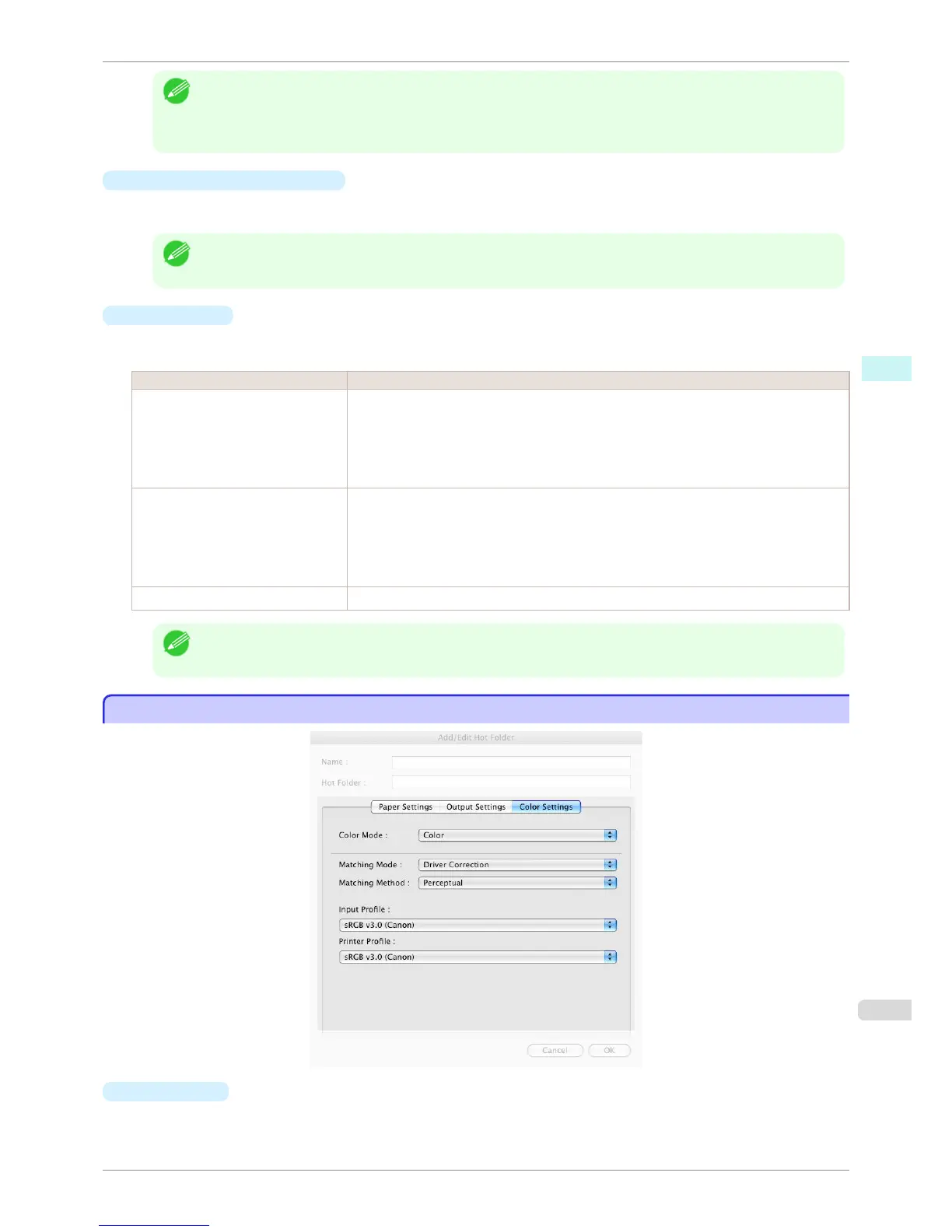
Color Settings Panel
Color Settings Panel
•
Color Mode
You can select a color mode to suit the print job.
iPF760
Color Settings Panel
User's Guide
Mac OS X Software Color imageRUNNER Enlargement Copy
369















 To Next Page