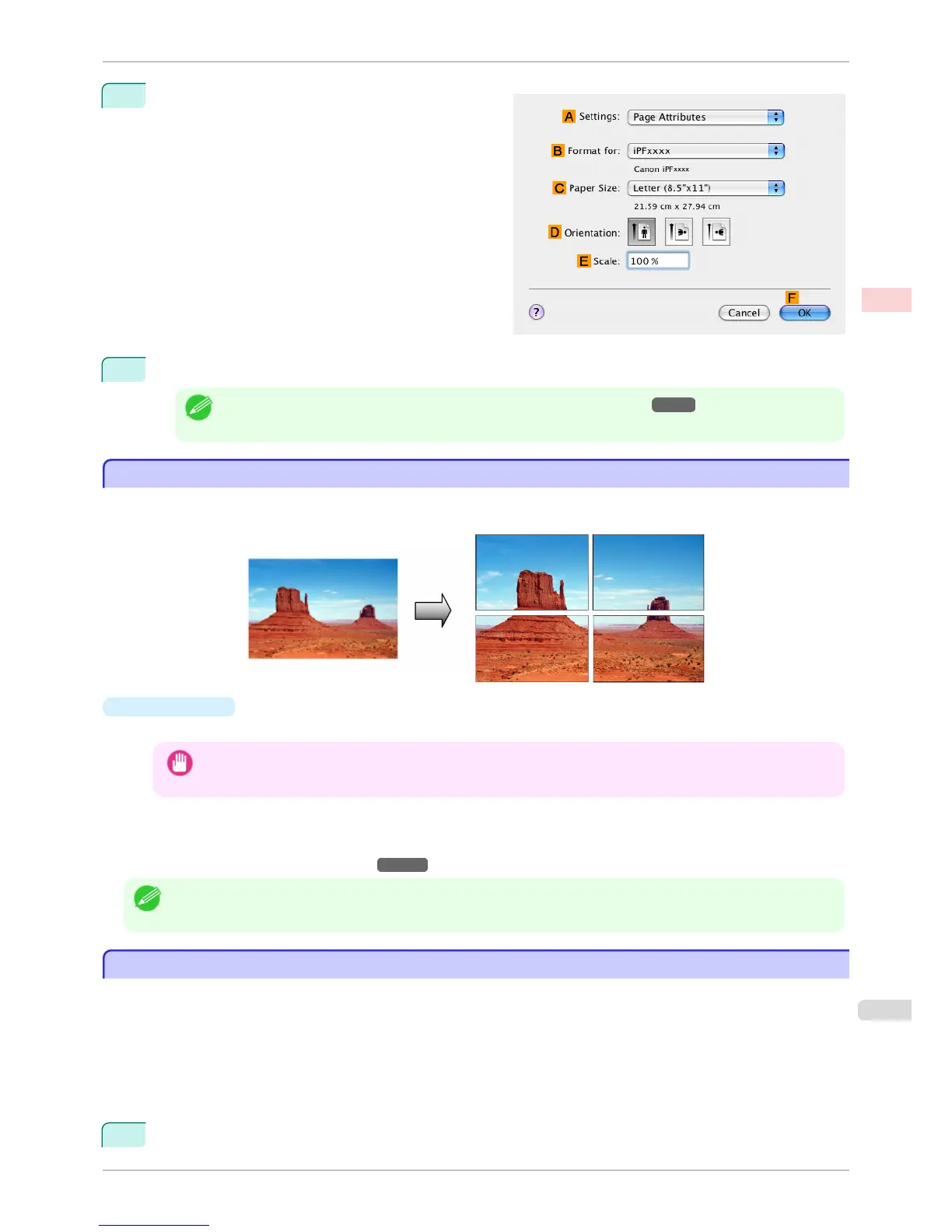
14
Make sure
C Page Size shows the original size as
specified in C Paper Size in the Page Attributes di-
alog box—in this case, ISO A3.
15
Confirm the print settings, and then click M Print to start printing.
Note
• For tips on confirming print settings, see "Confirming Print Settings(Mac OS X) →P.294 "
Printing Posters in Sections
Printing Posters in Sections
You can enlarge an original to print it in sections on several sheets. By assembling the printed sheets, you can
create a poster larger than the maximum supported paper size of the printer.
•
Page Layout
Choose poster printing.
Important
• When printing using this function, the Print Centered, Watermark, No Spaces at Top or Bottom (Conserve Pa-
per), and Page Options settings are disabled.
For instructions on printing large posters, refer to the following topics, as appropriate for your computer and
operating system.
•
Printing Large Posters (Windows) →P.123
Note
• This method of poster printing is supported in Windows.
Printing Large Posters (Windows)
Printing Large Posters (Windows)
You can enlarge an original to print it in sections on several sheets. By assembling the printed sheets, you can
create a poster larger than the maximum supported paper size of the printer. This topic describes how to enlarge
an A2 original for printing it in sections on four sheets, based on the following example.
•
Document: Poster
•
Page size: A2 (420.0×594.0 mm [16.5 × 23.4 in])
•
Paper: Sheets
•
Paper Size: A2 (420.0 × 594.0 mm [16.5 × 23.4 in])
1
Choose Print in the application menu.
iPF760
Printing Posters in Sections
User's Guide
Enhanced Printing Options Tiling and multiple pages per sheet
123















 To Next Page