Note
• The availability of settings is determined by the media type and print priority selections.
• Printing time is longer and more ink is consumed with High than with Fast, however, print quality is higher.
• Printing time is shorter and less ink is consumed with Fast than with High, however, print quality is lower.
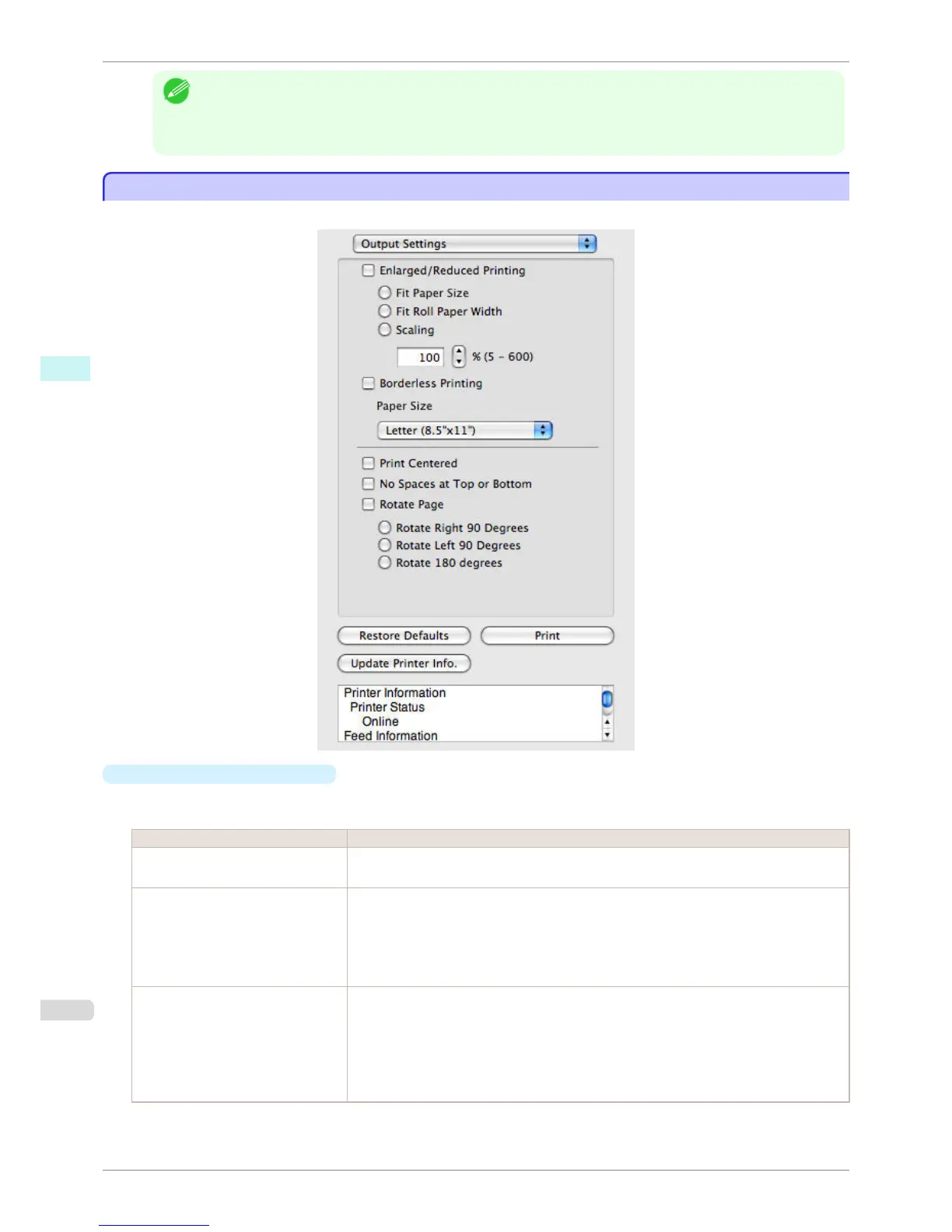
Output Settings Panel
Output Settings Panel
This panel appears when you select Output Settings in the dialog area.
•
Enlarged/Reduced Printing
Select the method for enlarged/reduced printing.
The following settings are available for enlarged/reduced printing.
Setting Details
Fit Paper Size Enlarges/reduces the whole page automatically to fit the media size selected for output. Select
the media size to print from Paper Size.
Fit Roll Paper Width Enlarges/reduces the whole page automatically to fit the width of the roll paper with the page
width.
*Make sure that the width of the roll paper in the printer is set correctly for Roll Paper Width in
the Paper Settings panel.
*Displayed only if rolls are selected in Paper Source.
Scaling Enlarges/reduces the whole page by the scaling rate as specified. Input the scaling value in
numerical characters. You can specify a range between 5 and 600%.
*You can change the numbers by clicking either ▲ button or ▼ button.
*Although Scaling can be set to make the image larger than the media size, the part that does
not fit in the media cannot be printed.
*This is not displayed when a checkmark is placed in Borderless Printing.
Output Settings Panel
iPF760
User's Guide
Mac OS X Software Preview
318















 To Next Page