Note
• To display the Matching pane, on the Main pane, click Color Settings by Color Mode in Advanced Settings, and then
click the Matching tab.(See "Main Pane →P.297 ")
• A Matching Mode
Select the color matching mode to use, as desired.
• B Input Profile Settings
You can choose Input Profile.
Various options are available depending on your selected A Matching Mode.
• C Matching Method
You can choose C Matching Method.
Various options are available depending on your selected A Matching Mode.
• D Printer Profile Settings
Specify the printer profile as desired.
Note
• For details on settings items, see "Adjusting the Color in the Printer Driver →P.50 "
Color Settings Pane: Color
Color Settings Pane: Color
In general, make any needed adjustments to the color of documents in the application used to create them. Howev-
er, if the color tone as printed is not as you expected, you can also adjust the color in the printer driver.
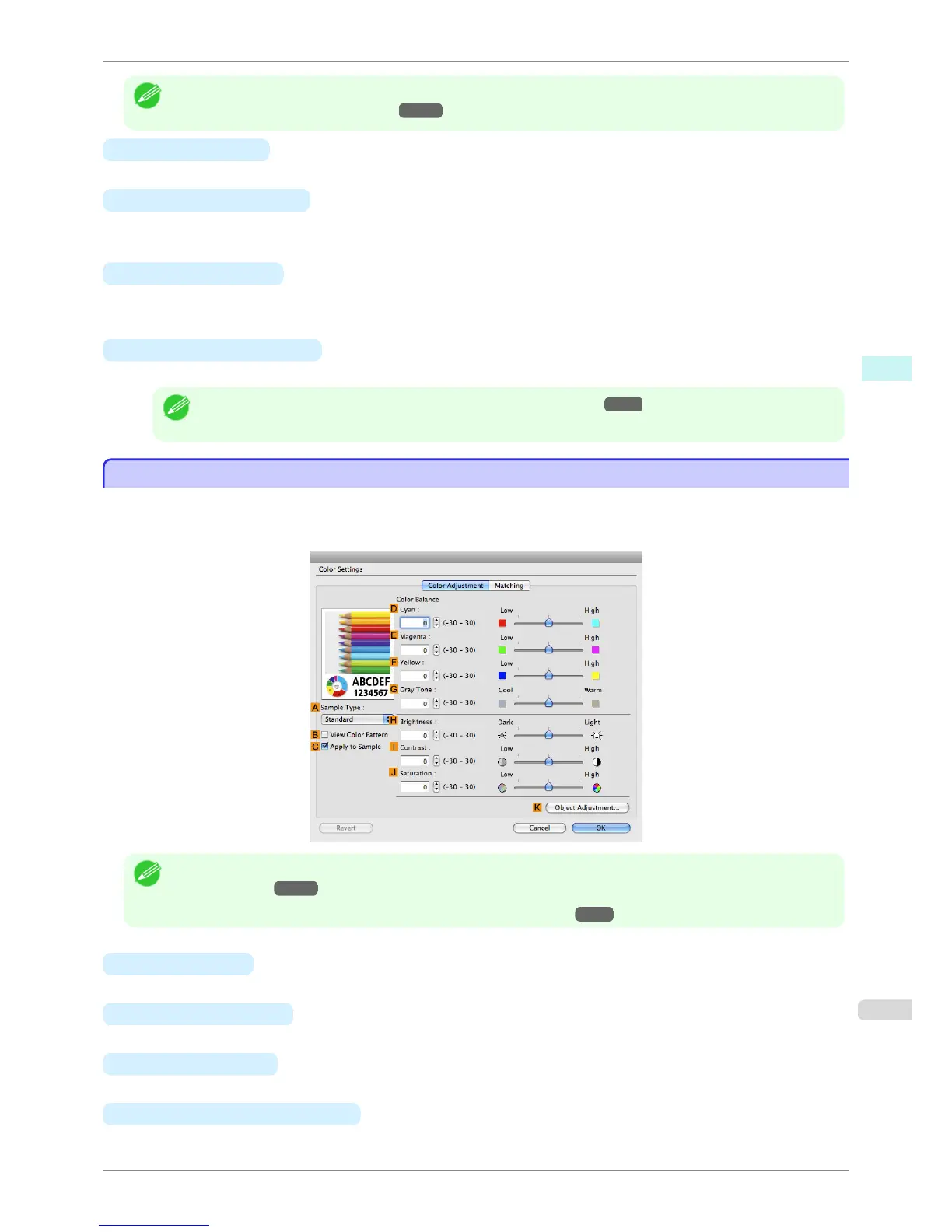
If the color tone as printed is not as you expected, you can adjust it on the Color Adjustment pane.
Note
• To display the Color Adjustment pane, on the Main pane click Color Settings by Color Mode in Advanced Settings.
(See "Main Pane →P.297 ")
• For details on settings items, see "Adjusting the Color in the Printer Driver →P.50 "
• A Sample Type
Choose a sample image from Standard, Portrait, Landscape, or Graphics.
• B View Color Pattern
Select this checkbox to display the color pattern.
• C Apply to Sample
Select this checkbox to apply the changed settings to the sample image.
• D Cyan / E Magenta / F Yellow
Correct color tones by adjusting the levels of each color.
iPF760
Color Settings Pane: Color
User's Guide
Mac OS X Software Printer Driver
303















 To Next Page