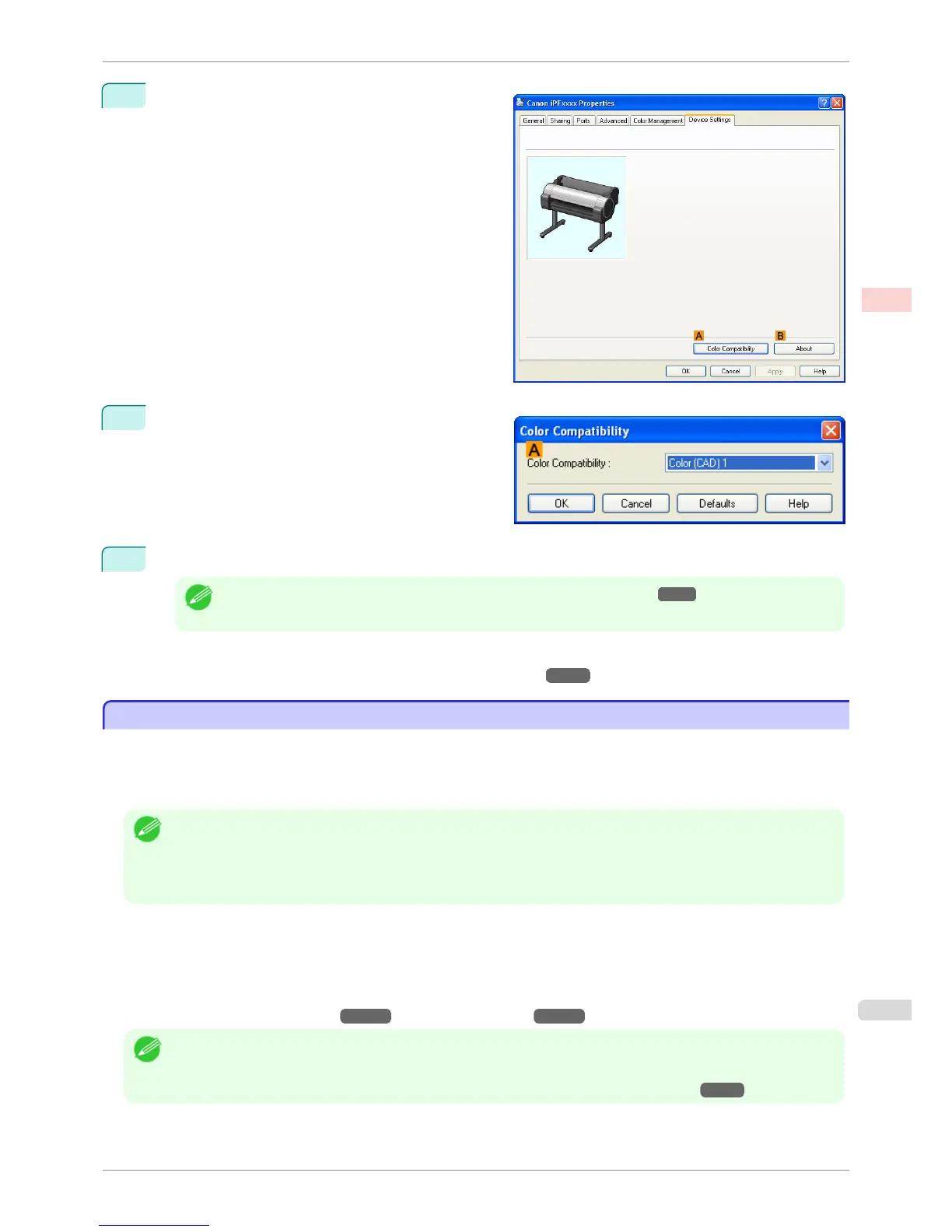
3
Click the Device Settings tab to display the Device
Settings sheet.
4
Click
A Color Compatibility to display the Color
Compatibility dialog box.
5
Select the desired color settings in the A Color Compatibility list.
Note
• For details on color settings, see "Specifying Colors and Printing CAD Drawings →P.48 "
For printing instructions, refer to the following topic.
•
Choosing the Document Type and Printing Conditions (Windows) →P.58
HP-GL/2 Printing
HP-GL/2 Printing
This printer supports printing using the original Canon GARO printer control language and printing using HP-GL/2
and HP RTL emulation to print in colors resembling the colors produced by printers from other companies.
The printer automatically switches to the corresponding processing depending on whether a GARO or HP-GL/2
and HP RTL emulation job is received.
Note
• GARO is an abbreviation of Graphic Arts Language with Raster Operations.
• HP-GL/2 is an abbreviation of Hewlett-Packard Graphics Language/2, and HP RTL is an abbreviation of Hewlett-Packard
Raster Transfer Language.
• Emulation is good for obtaining results similar to printing on other printers.
When printing from applications that support HP-GL/2 output, specify HP-GL/2 in the application's plotter output
settings.
HP-GL/2 and HP RTL emulation prints by emulating the Designjet 500/800 or Designjet 1000, in colors resembling
colors produced by these printers.
HP-GL/2 and HP RTL emulation related settings such as the printer to emulate are configured from the printer Con-
trol Panel. (Refer to "Menu Structure →P.442 " and "Menu Settings →P.448 ")
Note
• For instructions on configuring these settings, refer to the software documentation.
It may not be possible to print jobs with excessively large amounts of data correctly.
• For information on CAD colors other than HP-GL/2 and HP RTL emulation, see "Menu Settings." →P.448
iPF760
HP-GL/2 Printing
User's Guide
Enhanced Printing Options Printing CAD Drawings
49















 To Next Page