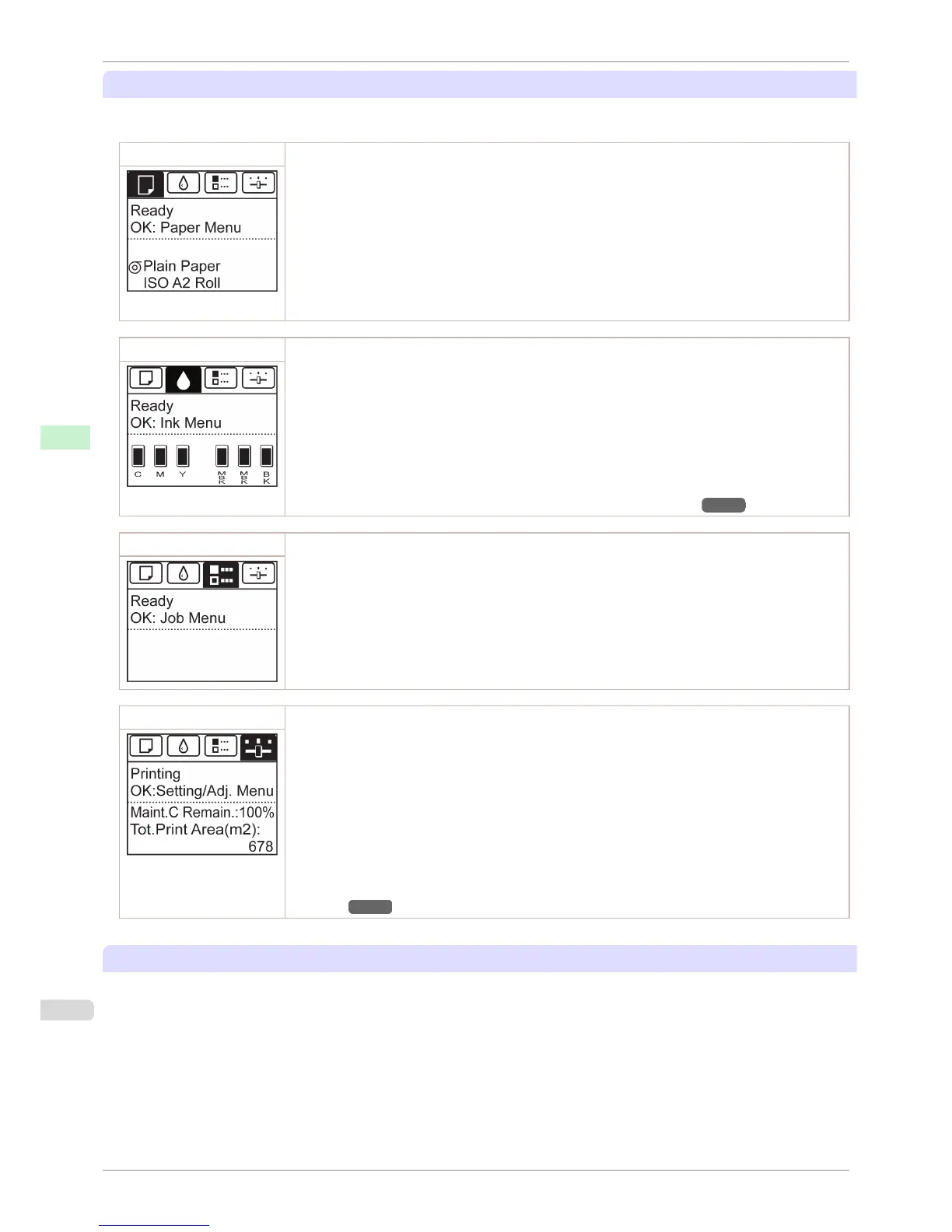
Types of tabs
The Tab Selection screen presents four tabs. Each tab is represented by an icon in the top row. Press the
◀ or
▶ button to access other tabs.
Paper tab A tab indicating status and showing menus related to paper. Pressing the OK button when this tab is high-
lighted will display the Paper Menu.
•
Top line displayed
The paper icon is highlighted.
•
Middle line displayed
Indicates the printer status and shows menu names.
•
Bottom line displayed
The first and second lines display the paper type and size.
Ink tab A tab indicating status and showing menus related to ink. Pressing the OK button when this tab is highligh-
ted will display the Ink Menu.
•
Top line displayed
The ink icon is highlighted.
•
Middle line displayed
Indicates the printer status and shows menu names.
•
Bottom line displayed
Here, the remaining ink level is indicated. (See "Checking Ink Tank Levels.") →P.522
Job tab A tab indicating status and showing menus related to print jobs. Pressing the OK button when this tab is
highlighted will display the Job Menu menu.
•
Top line displayed
The job icon is highlighted.
•
Middle line displayed
Indicates the printer status and shows menu names.
Settings/Adj. tab A tab indicating status and showing menus related to settings and adjustment. Pressing the OK button
when this tab is highlighted will display the Set./Adj. Menu.
•
Top line displayed
The settings/adjustment icon is highlighted.
•
Middle line displayed
Indicates the printer status and shows menu names.
•
Bottom line displayed
The remaining Maintenance Cartridge capacity is shown on the first line and Tot.Print Area on the sec-
ond. The display unit for Tot.Print Area can be specified in the Length Unit menu. (See "Menu Set-
tings.") →P.448
Printer status and modes
Printer status is classified according to the following five modes.
Control Panel Display
iPF760
User's Guide
Control Panel Operations and Display Screen
432















 To Next Page