1
Press the Feed button.
2
Press the ▲ or ▼ button to advance or retract the roll.
Press ▲ to retract the roll manually.
Press ▼ to advance the roll manually.
Note
• If you hold down ▲ or ▼ for less than a second, the roll will move about 1 mm (0.04 in).
If you hold down ▲ or ▼ for more than a second, the roll will move until you release the button. Release the button when
the Display Screen indicates "End of paper feed. Cannot feed paper more.".
Keeping Track of the Amount of Roll Paper Left
Keeping Track of the Amount of Roll Paper Left
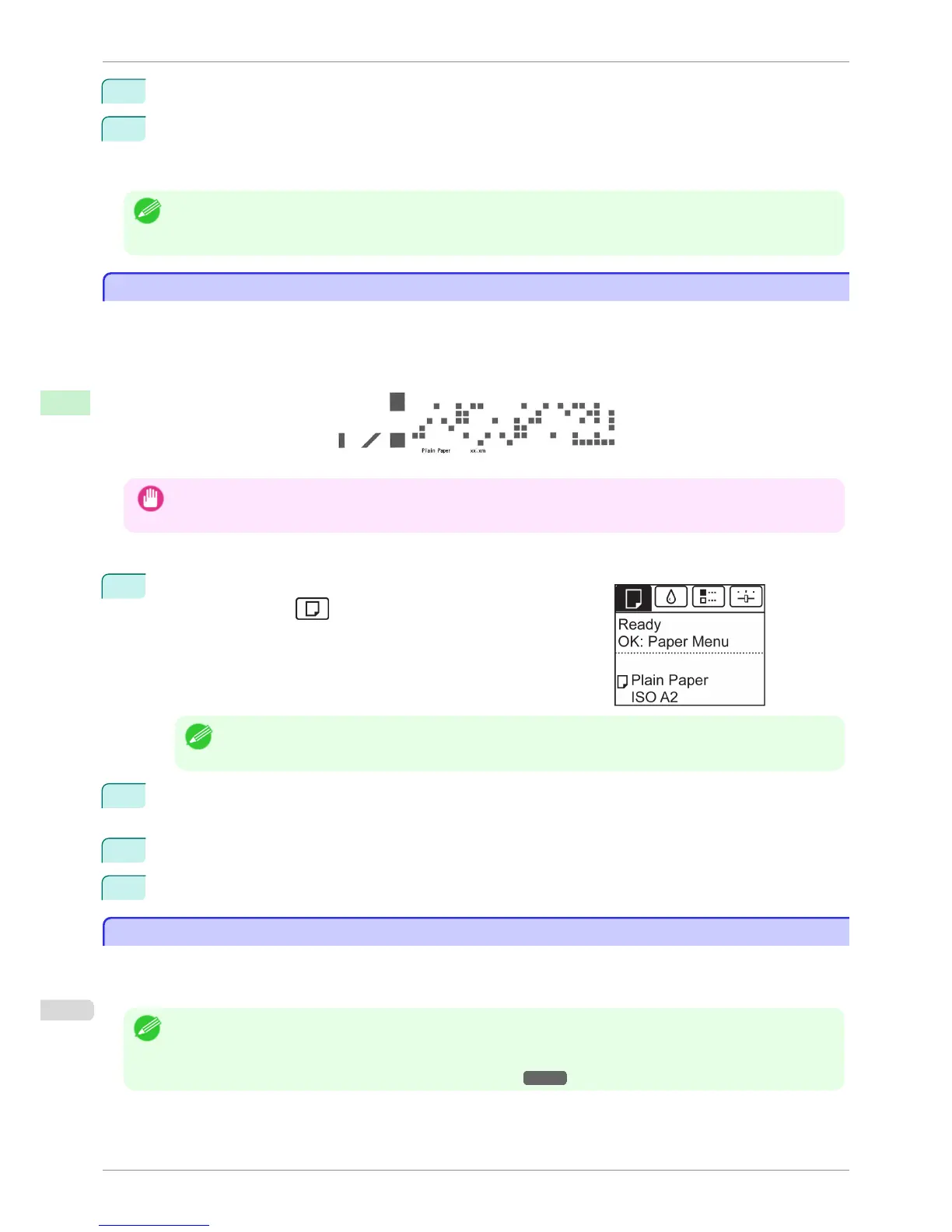
Setting ManageRemainRoll to On in the Paper Menu of the Control Panel will print a barcode with text on the roll
when the roll is removed that identifies the type of paper and amount left. When ManageRemainRoll is On and
you load rolls with printed barcodes, the type of paper and amount left are automatically detected after rolls are
loaded. The barcode will be cut off after it has been read.
Important
• If the barcode on the roll is not detected, enter the type and length of paper on the Control Panel.
Follow these steps to set ManageRemainRoll to On as follows.
1
On the Tab Selection screen of the Control Panel, press
◀ or ▶ to
select the Paper tab (
).
Note
• If the Tab Selection screen is not displayed, press the Menu button.
2
Press the OK button.
The Paper Menu is displayed.
3
Press ▲ or ▼ to select ManageRemainRoll, and then press the OK button.
4
Press ▲ or ▼ to select On, and then press the OK button.
Specifying the Ink Drying Time for Rolls
Specifying the Ink Drying Time for Rolls
When you are using paper that takes longer for ink to adhere, ink may be transferred onto the paper surface during
ejection, soiling it. In that case, you may be able to improve the condition by setting the time to wait for the ink to
dry after printing.
Note
• If the Cutter touches the print surface on which the ink is not dry, the paper surface may become scratched or soiled, or
the paper surface may rub against the output stacker when the paper falls and the surface may become soiled.
To wait for the ink to dry without allowing printed documents to fall after printing, set Cutting Mode on the menu of the
printer to Eject. (See "Specifying the Cutting Method for Rolls.") →P.410
Keeping Track of the Amount of Roll Paper Left
iPF760
User's Guide
Handling Paper Handling rolls
408















 To Next Page