Printing Multiple Pages Continuously
Printing Multiple Pages Continuously
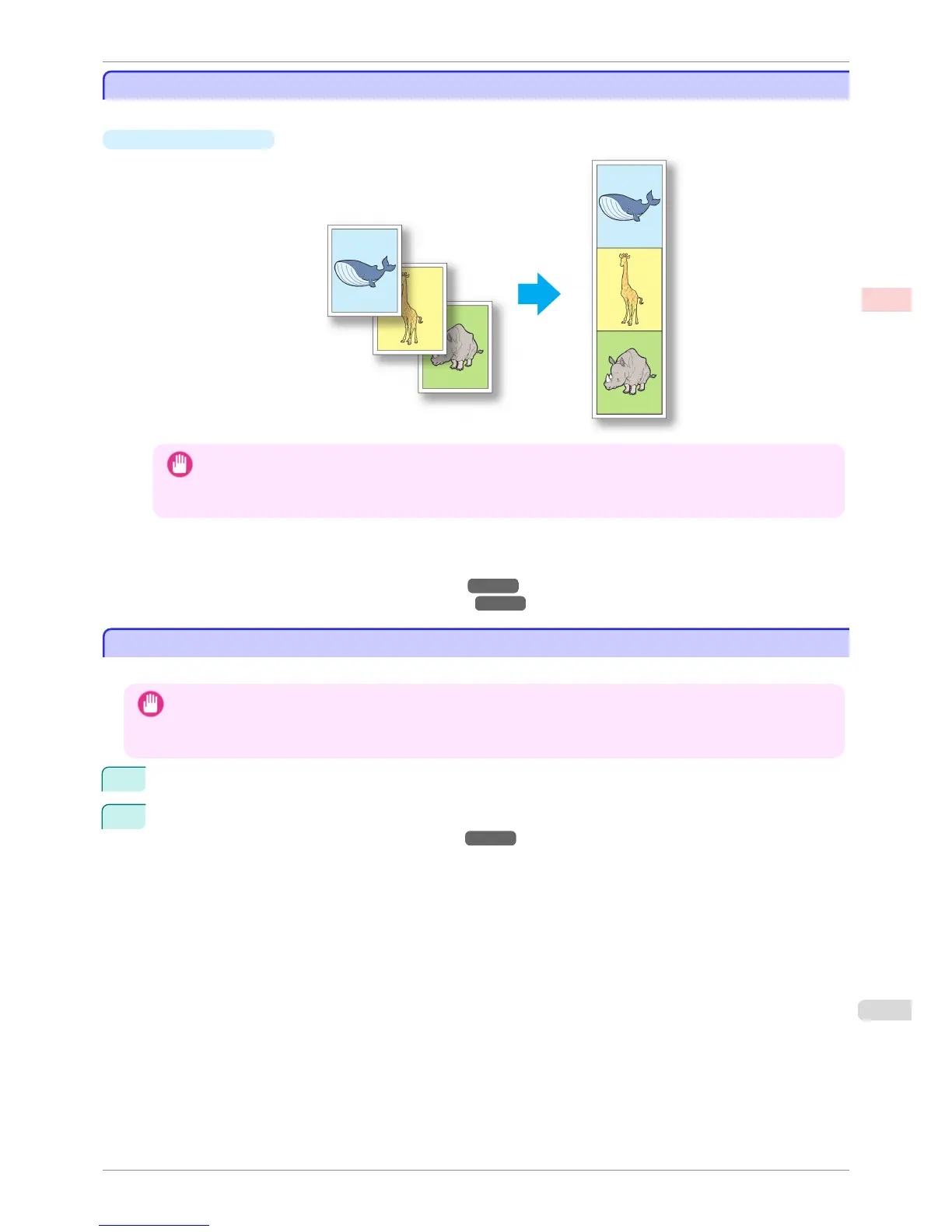
You can print multiple pages as a single continuous image, without margins between pages.
•
Roll paper (banner)
Important
• This feature is only available with rolls. It cannot be used when printing on sheets.
• During banner printing, settings for conserving paper, number of copies, borderless printing, enlargement or reduc-
tion, and other layout-related settings are disregarded.
For instructions on borderless printing of photos and images at actual size, refer to the following topics, as ap-
propriate for your computer and operating system.
•
Printing Multiple Pages Continuously (Windows) →P.115
•
Printing Multiple Pages Continuously (Mac OS X) →P.117
Printing Multiple Pages Continuously (Windows)
Printing Multiple Pages Continuously (Windows)
This topic describes how to print multiple pages as a single continuous image, without margins between pages.
Important
• This feature is only available with rolls. It cannot be used when printing on sheets.
• During banner printing, settings for conserving paper, number of copies, borderless printing, enlargement or reduction,
and other layout-related settings are disregarded.
1
Choose Print in the application menu.
2
Select the printer in the dialog box, and then display the printer driver dialog box.(See "Accessing the Print-
er Driver Dialog Box from Applications(Windows) →P.164 ")
iPF760
Printing Multiple Pages Continuously
User's Guide
Enhanced Printing Options Tiling and multiple pages per sheet
115















 To Next Page