3
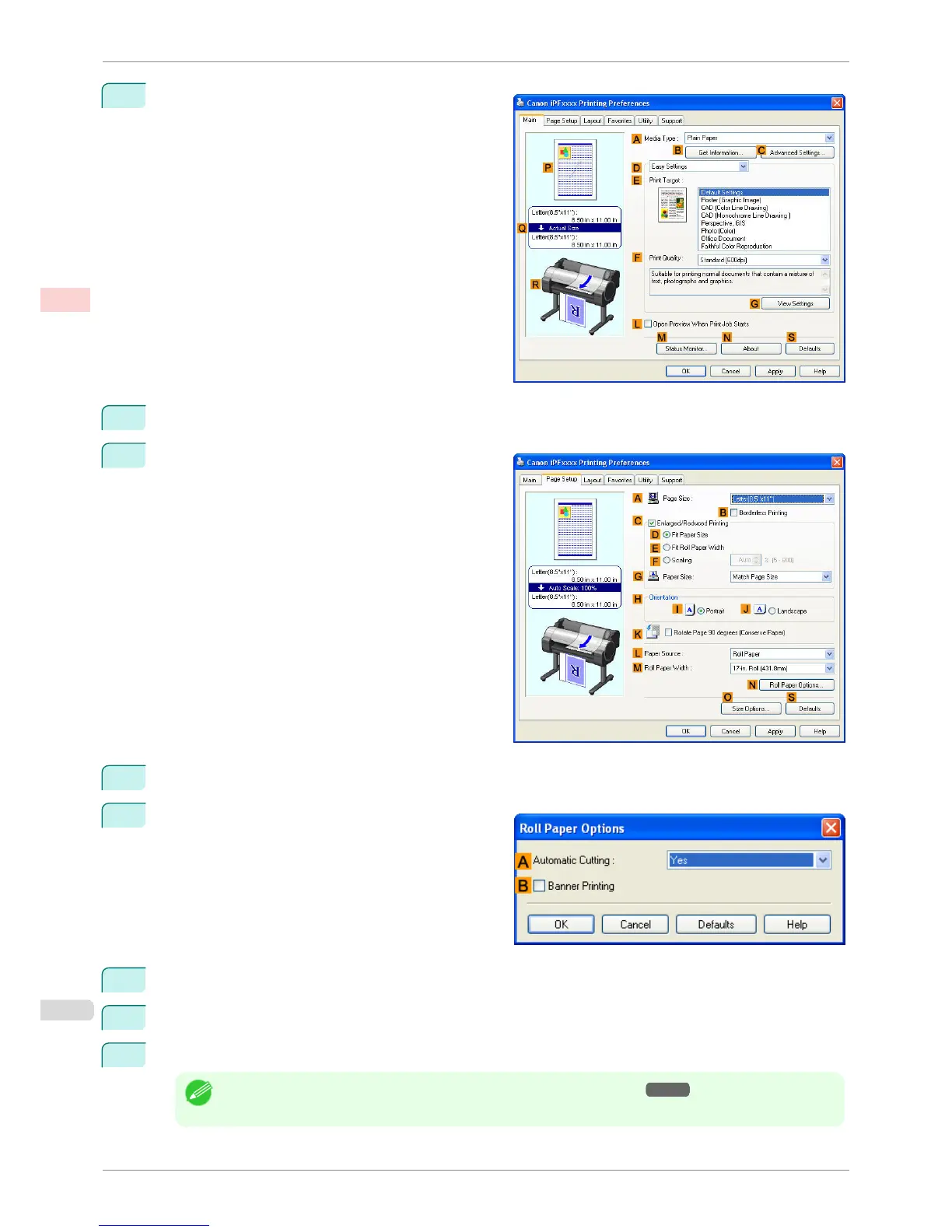
Make sure the Main sheet is displayed.
4
In the A Media Type list, click the type of paper that is loaded.
5
Click the Page Setup tab to display the Page Setup
sheet.
6
Select and click a roll paper in the L Paper Source list.
7
Click
N Roll Paper Options to display the Roll Pa-
per Options dialog box.
8
Select the B Banner Printing check box.
9
Click OK.
10
Confirm the print settings and print as desired.
Note
• For tips on confirming print settings, see "Confirming Print Settings(Windows) →P.161 "
Printing Multiple Pages Continuously (Windows)
iPF760
User's Guide
Enhanced Printing Options Tiling and multiple pages per sheet
116















 To Next Page