Menu Settings
Menu Settings
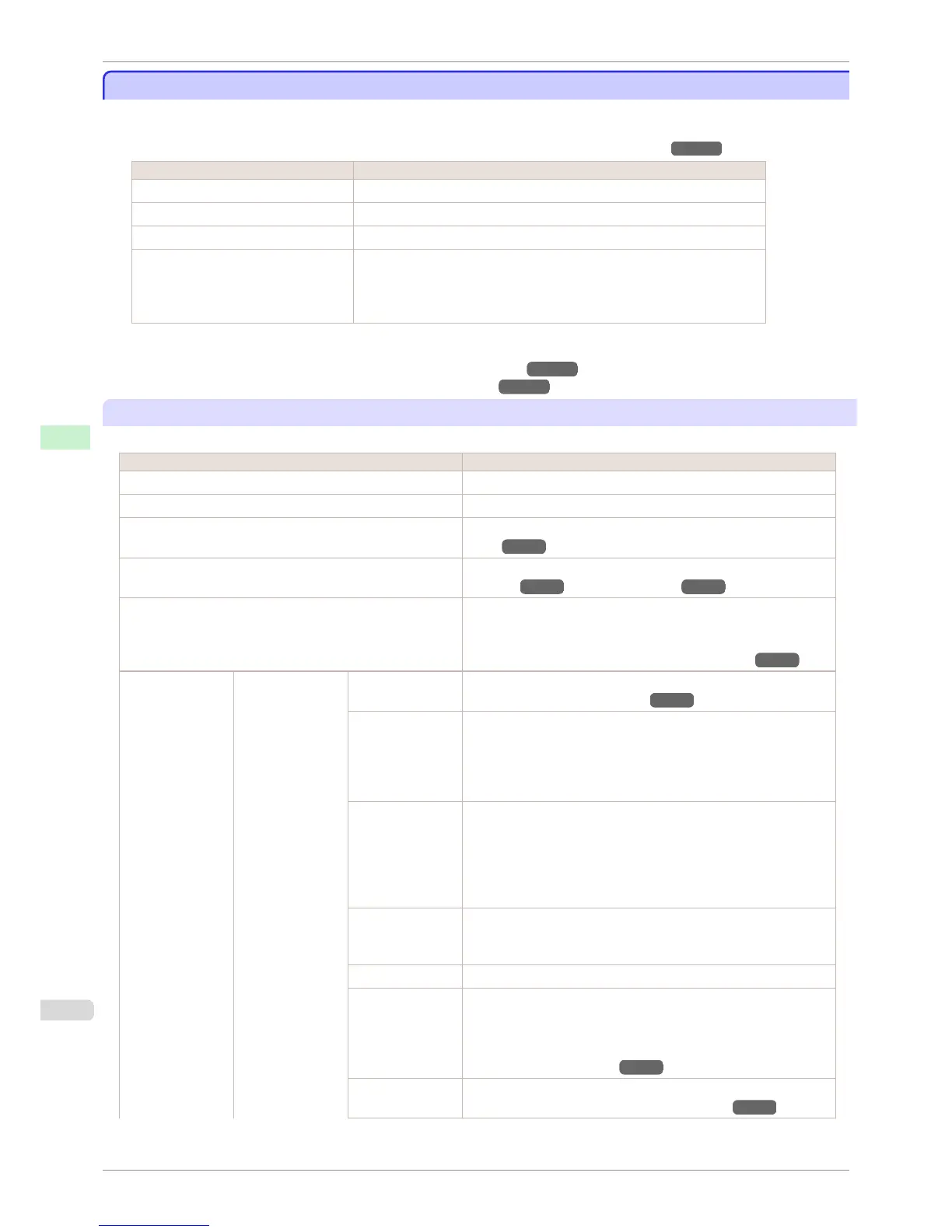
Menu items are as follows.
The printer menu is classified into regular menu items available when no print job is in progress and menu during
printing items only available while printing is in progress. see "Printer Menu Operations." →P.438
Regular menu Menu during printing
Paper Menu Not displayed
Ink Menu The same Ink Menu as normal is displayed.
Job Menu The same Job Menu as normal is displayed.
Set./Adj. Menu A limited Set./Adj. Menu containing the following items is displayed.
•
Adj. Fine Feed (*1)
•
Printer Info
*1: Only displayed in the menu during printing. Not displayed in the regular menu.
For instructions on selecting menu items, see "Menu Operations." →P.439
For details on menu levels and values, see "Menu Structure." →P.442
Paper Menu
The Paper Menu is not displayed during printing.
Setting Item Description, Instructions
Load Paper Select sheets or rolls and load the paper.
Eject Paper Choose this item before removing loaded paper.
Chg. Paper Type (*1) Change the type of paper loaded. (See "Changing the Type of Pa-
per.") →P.402
Chg. Paper Size Change the size of paper loaded. (See "Specifying the Paper
Length.") →P.403 (See "Paper Sizes.") →P.392
ManageRemainRoll Choose On to print a barcode at the end of a roll before you remove
it. The printed barcode can be used in managing the amount of roll
paper left. Choose Off if you prefer not to print the barcode.
(See "Keeping Track of the Amount of Roll Paper Left.") →P.408
Paper Details (The type of paper
is displayed here.)
(*1)
Head Height Adjust the Printhead height. (See "Troubleshooting Paper Abrasion
and Blurry Images (Head Height).") →P.507
Skew Check Lv. If you print on Japanese paper (washi) or other handmade paper that
has an irregular width, choose Loose for a higher skew detection
threshold, or choose Off to disable skew detection. However, if paper
is loaded askew when detection is Off, note that paper jams or Platen
soiling may occur.
Cutting Mode Specify whether or not to cut with the standard round-bladed cutter.
Choose Automatic to have the roll cut automatically after printing. If
you choose Manual, the paper will not be cut after printing. Instead, a
line will be printed at the cut position.
Choose Eject if you prefer not to have documents dropped immedi-
ately after printing, as when waiting for ink to dry.
Cut Speed Choose the cutting speed. If you use adhesive paper, choosing Slow
helps prevent adhesive from sticking to the cutter and keeps the cut-
ter sharp.
Trim Edge First If a roll is loaded, the end of the paper will be cut.
CutDustReduct. If you choose On, a line will be printed at the cut position when paper
cutting is selected. This option reduces the amount of debris given off
after cutting. It also helps prevent adhesive from sticking to the cutter
and keeps the cutter sharp if you use adhesive paper. (See "Reduc-
ing Dust from Cutting Rolls.") →P.415
VacuumStrngth Specify the level of suction that holds paper against the Platen. (See
"Adjusting the Vacuum Strength (VacuumStrngth).") →P.515
Menu Settings
iPF760
User's Guide
Control Panel Printer Menu
448















 To Next Page