Specifying Colors and Printing CAD Drawings
Specifying Colors and Printing CAD Drawings
You can complete color settings when Color (CAD) is selected in Color Mode.
Colors can be adjusted before printing as follows when Color Compatibility is selected.
Note
• Color (CAD) is displayed when you select Advanced Settings on the Main sheet and set Print Priority to Line Draw-
ing/Text.
Color Compatibility
Color Setting Item
Color Setting Description
Color (CAD) 1 Print in standard colors.
Color (CAD) 2 Print in brighter colors.
Color (CAD) 3 Print with approximate colors emulating Canon iPF500, iPF600, iPF700, iPF510, iPF610,
iPF710, iPF605, iPF720, iPF810, iPF815, iPF820, iPF825.
Color (CAD) 4 Print emulating the HP Designjet 500/800, in colors resembling colors produced by these print-
ers.
Color (CAD) 5 Print emulating the HP Designjet 1000, in colors resembling colors produced by this printer.
Important
• If you have selected Color (CAD) 3, Color (CAD) 4, or Color (CAD) 5, it is not possible to match the colors and image
quality produced by the specified printer exactly.
For instructions on configuring Color Compatibility, refer to the following topics.
•
Specifying Colors and Printing CAD Drawings (Windows) →P.48
Specifying Colors and Printing CAD Drawings (Windows)
Specifying Colors and Printing CAD Drawings (Windows)
You can complete color settings when Color (CAD) is selected in Color Mode.
Note
• Color (CAD) is displayed when you select Advanced Settings on the Main sheet and set Print Priority to Line Draw-
ing/Text.
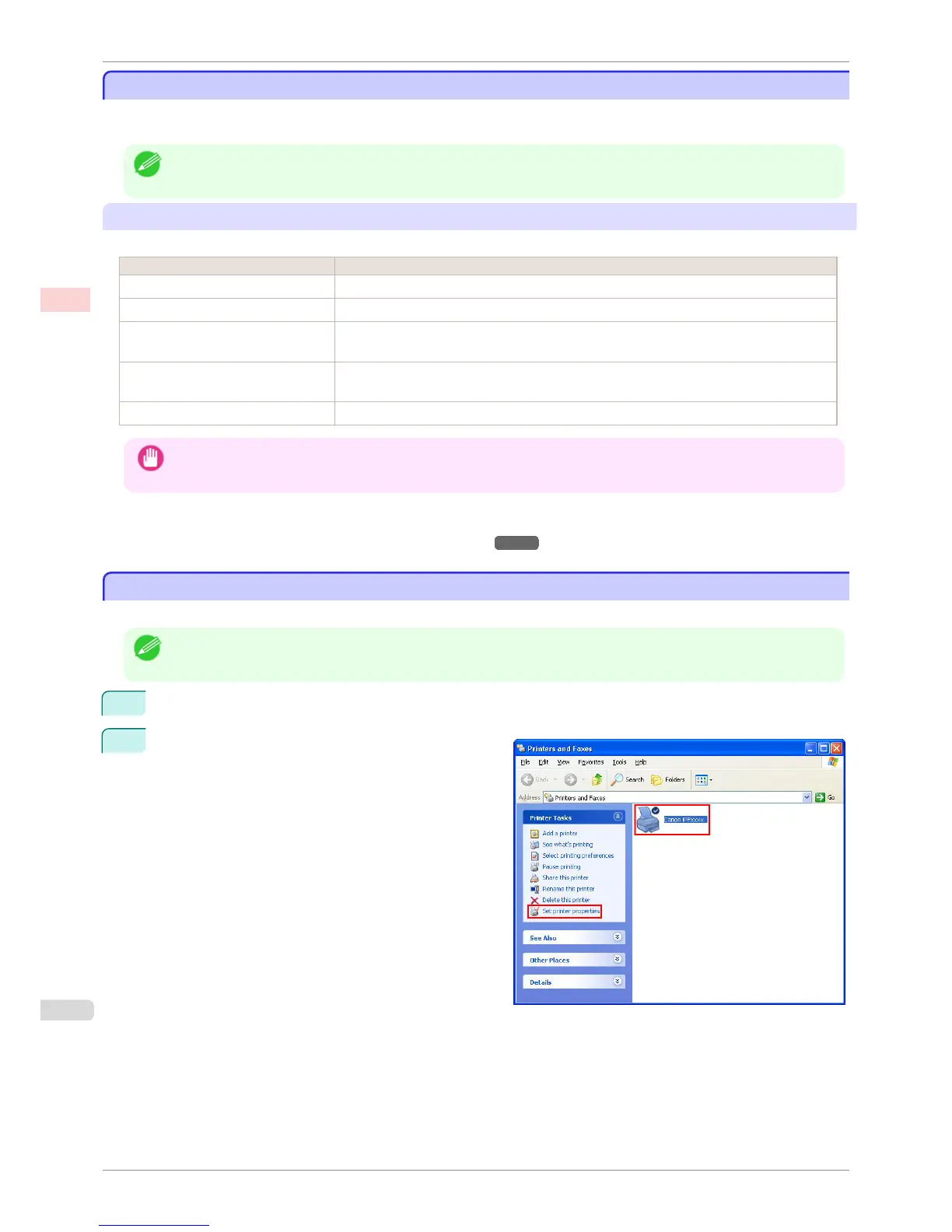
1
Click start > Printers and Faxes (or Printers).
2
Select the printer, and then display the printer proper-
ties dialog box.
Specifying Colors and Printing CAD Drawings
iPF760
User's Guide
Enhanced Printing Options Printing CAD Drawings
48















 To Next Page