(See "Resizing Originals to Match the Paper Size.") →P.62
(See "Resizing Originals by Entering a Scaling Value.") →P.70
•
Free Layout function
Print multiple documents from multiple applications (such as word-processing programs, spreadsheet pro-
grams, and so on) next to each other.
(See "Printing Multiple Originals Next to Each Other.") →P.111
Turning the Printer On and Off
Turning the Printer On and Off
Turning the printer on
1
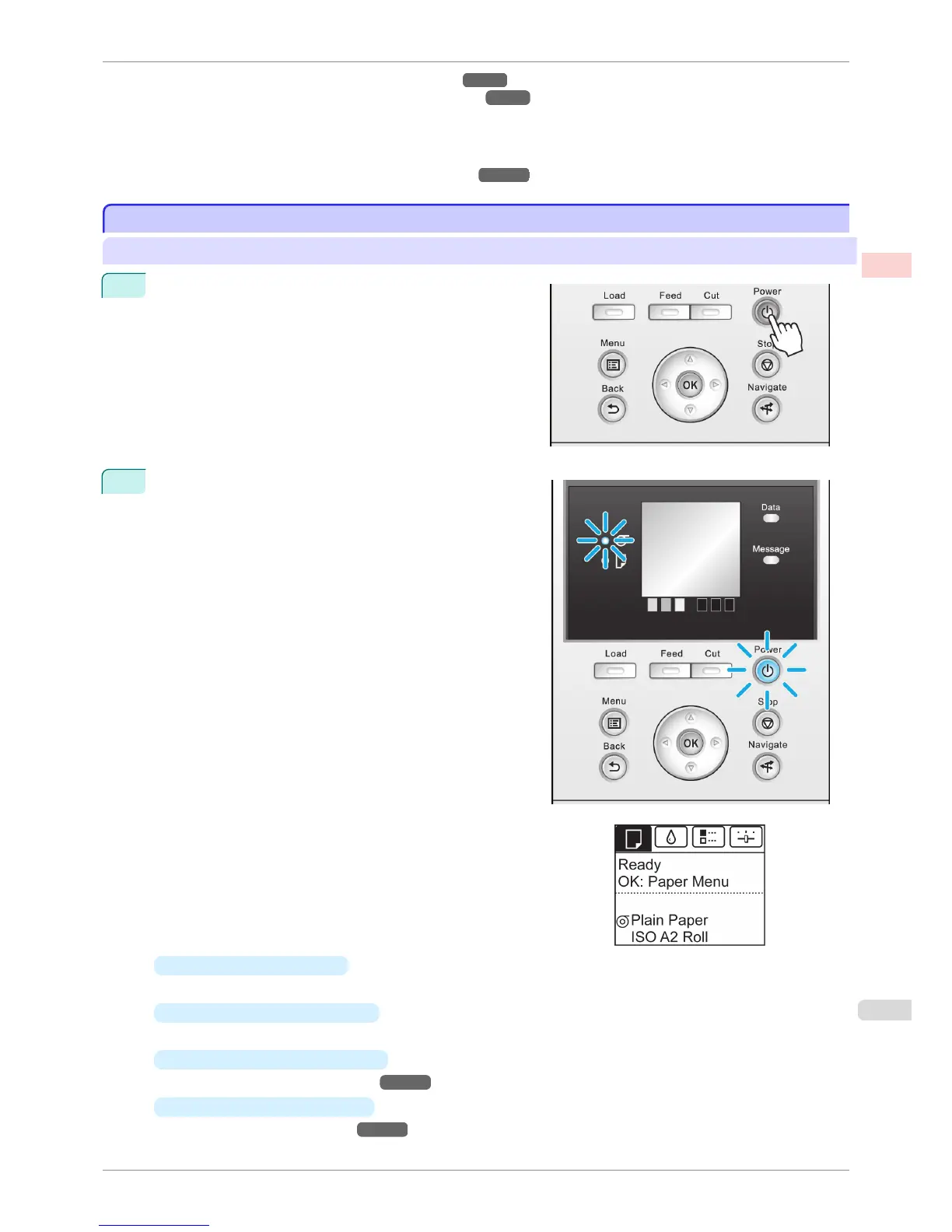
Press the Power button to turn on the printer.
The printer will now start up.
After the Display Screen shows the Canon logo, "Starting
up... Please wait." is displayed.
2
The Power Lamp is lit when the printer finishes starting up,
and the printer is now in Standby.
The printer will not go into Standby in the following situa-
tions. Take the appropriate action.
•
The Top Cover is open
Close the Top Cover.
•
The Ink Tank Cover is open
Close the Ink Tank Cover.
•
The Printhead is not installed
see "Replacing the Printhead."
→P.526
•
An Ink Tank is not installed
see "Replacing Ink Tanks." →P.518
iPF760
Turning the Printer On and Off
User's Guide
Basic Printing Workflow Printing procedure
17















 To Next Page