Clearing Jammed Roll Paper
Clearing Jammed Roll Paper
If paper from a roll becomes jammed, "Paper jam." is shown on the Display Screen of the Control Panel. Remove
the jammed paper as follows.
1
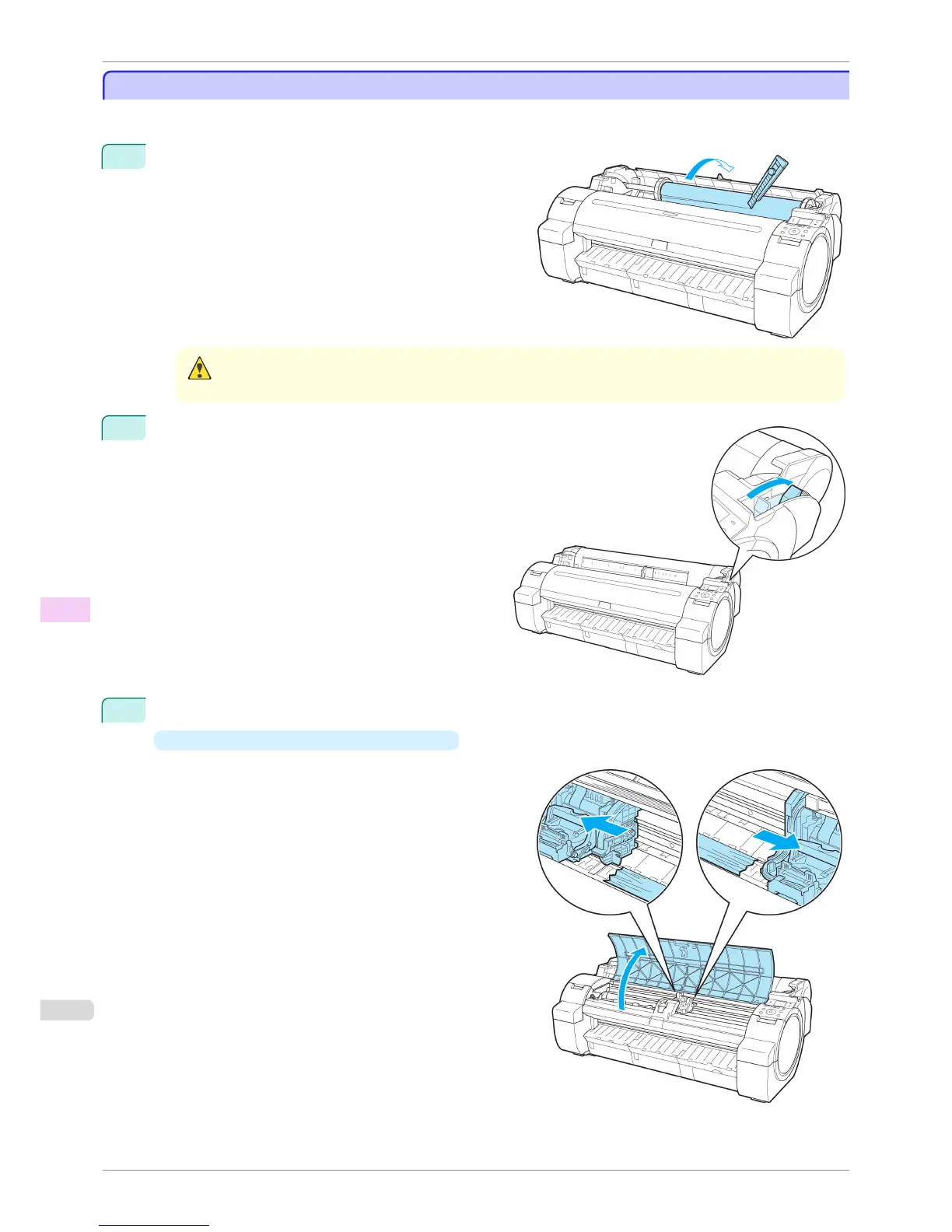
Open the Roll Cover. Use a commercially available cutter
or the like to cut the paper of the loaded roll.
Caution
• When cutting paper, be careful to avoid injury or damage to the printer.
2
Push the Release Lever back.
3
Remove the jammed paper.
•
If paper is jammed inside the Top Cover
1.
Open the Top Cover and move the Carriage to
the left or right side manually, away from the
jam.
2.
Clear any jammed paper from inside the Top Cover.
After removing the paper, make sure there are no other scraps of paper in the printer.
Clearing Jammed Roll Paper
iPF760
User's Guide
Troubleshooting Problems Regarding Paper
552















 To Next Page