For instructions on specifying the original orientation before printing, refer to the following topics, as appropri-
ate for your computer and operating system.
•
Making the Original Orientation Match the Paper Orientation (Windows) →P.148
•
Making the Original Orientation Match the Paper Orientation (Mac OS X) →P.149
Making the Original Orientation Match the Paper Orientation (Windows)
Making the Original Orientation Match the Paper Orientation (Windows)
This topic describes how to print an original in landscape orientation after matching the paper orientation, based on
the following example.
•
Document: An original in landscape orientation
•
Page size: A4 (210.0 × 297.0 mm)/Letter (8.3 × 11.7 in)
•
Paper: Roll
•
Paper type: Plain Paper
•
Roll paper width: A2/A3 roll (420.0 mm [16.5 in])
1
Choose Print in the application menu.
2
Select the printer in the dialog box, and then open the printer driver dialog box.(See "Accessing the Printer
Driver Dialog Box from Applications(Windows) →P.164 ")
3
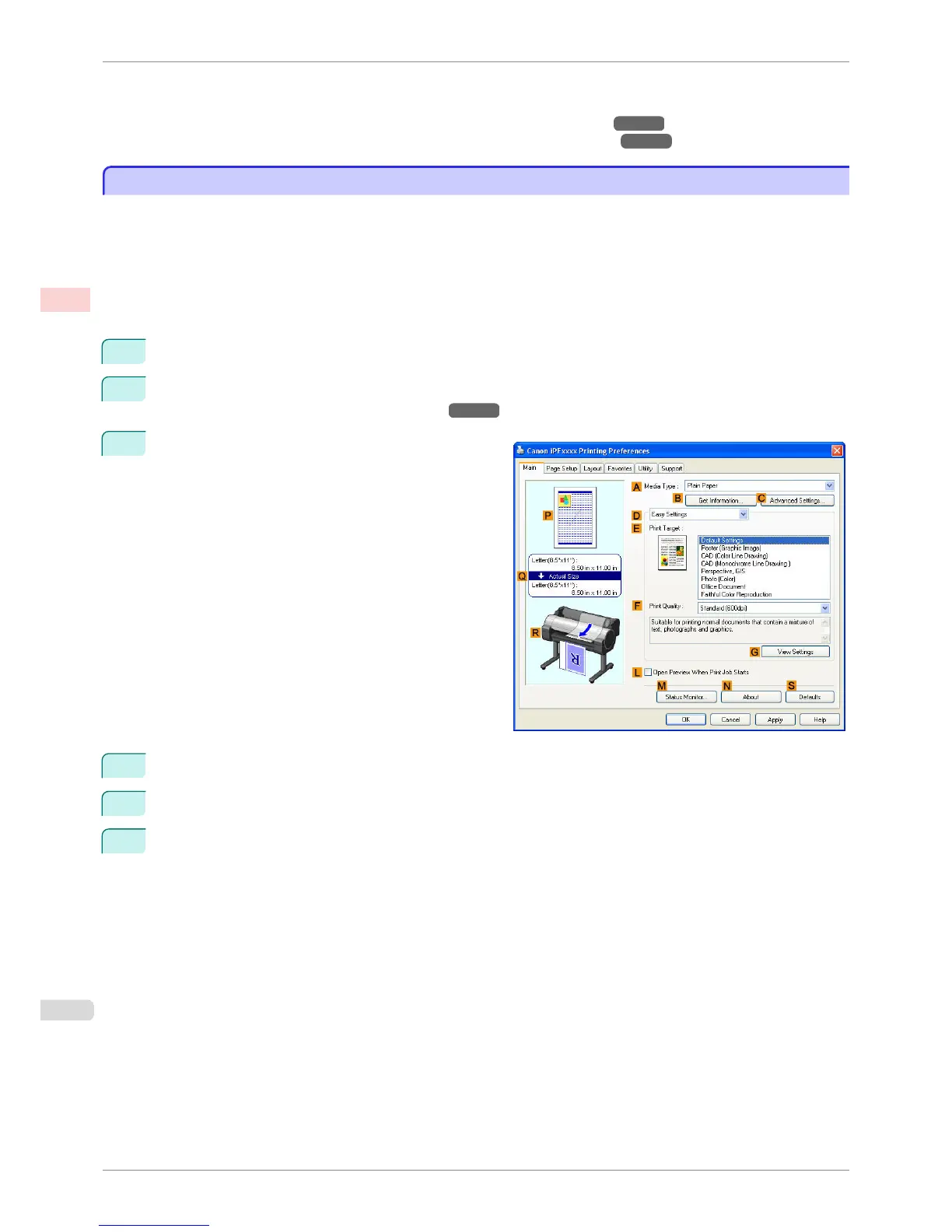
Make sure the Main sheet is displayed.
4
In the A Media Type list, select the type of paper that is loaded. In this case, click Plain Paper.
5
Make your selection in the E Print Target list.
6
Make your selection in the F Print Quality list.
Making the Original Orientation Match the Paper Orientation (Windows)
iPF760
User's Guide
Enhanced Printing Options Other useful settings
148















 To Next Page