Printing Multiple Pages Continuously (Mac OS X)
Printing Multiple Pages Continuously (Mac OS X)
This topic describes how to print multiple pages as a single continuous image, without margins between pages.
Important
• This feature is only available with rolls. It cannot be used when printing on sheets.
• During banner printing, settings for conserving paper, number of copies, borderless printing, enlargement or reduction,
and other layout-related settings are disregarded.
1
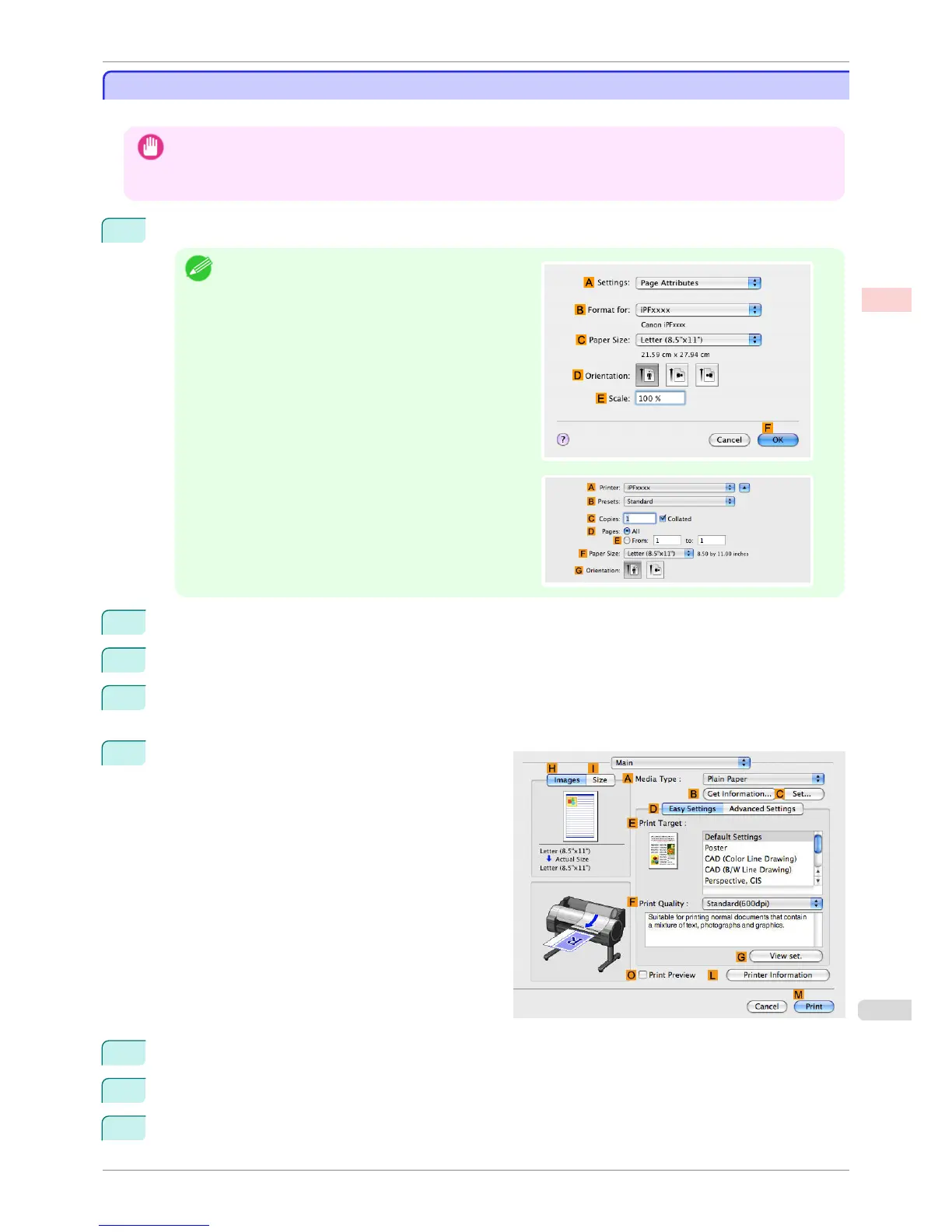
This sets the B Format for and C Paper Size.
Note
•
The configuration method varies depending on the OS
and application software you are using.
If Page Setup is displayed in the application menu, the
settings are configured by opening the Page Attributes
dialog box from Page Setup.
If it is not displayed, the settings are configured in the
upper part of the printer driver displayed when you se-
lect Print from the application software menu.
2
Select the printer in the A Printer list.
3
Click the original size in the F Paper Size list.
4
If you configured the settings using the Page Attributes dialog box, click FOK to close the dialog box, and
then select Print from the application software menu.
5
Access the Main pane.
6
In the A Media Type list, click the type of paper that is loaded.
7
Make your selection in the E Print Target list.
8
Make your selection in the F Print Quality list.
iPF760
Printing Multiple Pages Continuously (Mac OS X)
User's Guide
Enhanced Printing Options Tiling and multiple pages per sheet
117















 To Next Page