2
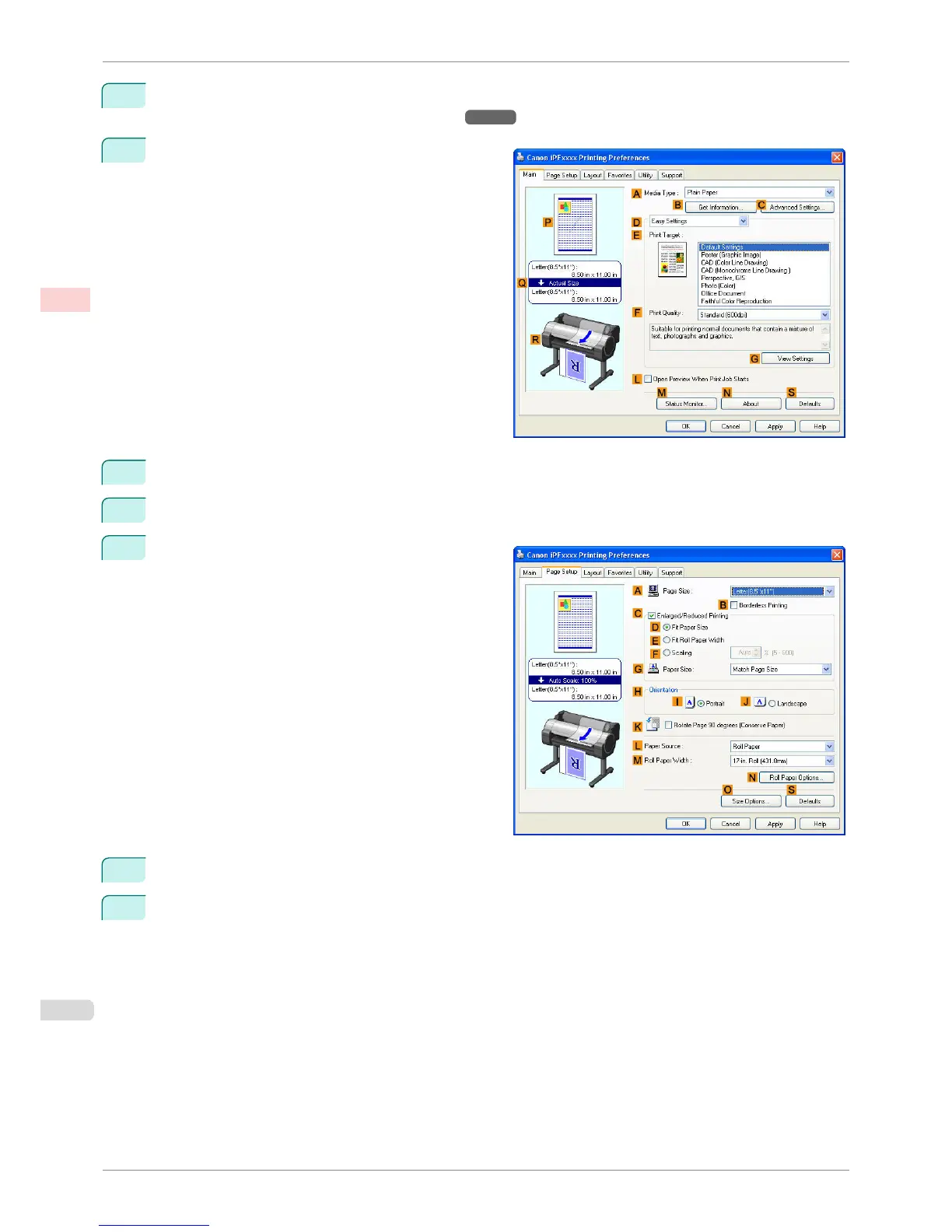
Select the printer in the dialog box, and then display the printer driver dialog box.(See "Accessing the Print-
er Driver Dialog Box from Applications(Windows) →P.164 ")
3
Make sure the Main sheet is displayed.
4
In the A Media Type list, select the type of paper that is loaded.
5
Click Poster in the E Print Target list.
6
Click the Page Setup tab to display the Page Setup
sheet.
7
In A Page Size, click the size of the original as specified in the application. In this case, click ISO A2.
8
Click Manual in the L Paper Source list.
Printing Large Posters (Windows)
iPF760
User's Guide
Enhanced Printing Options Tiling and multiple pages per sheet
124















 To Next Page