2
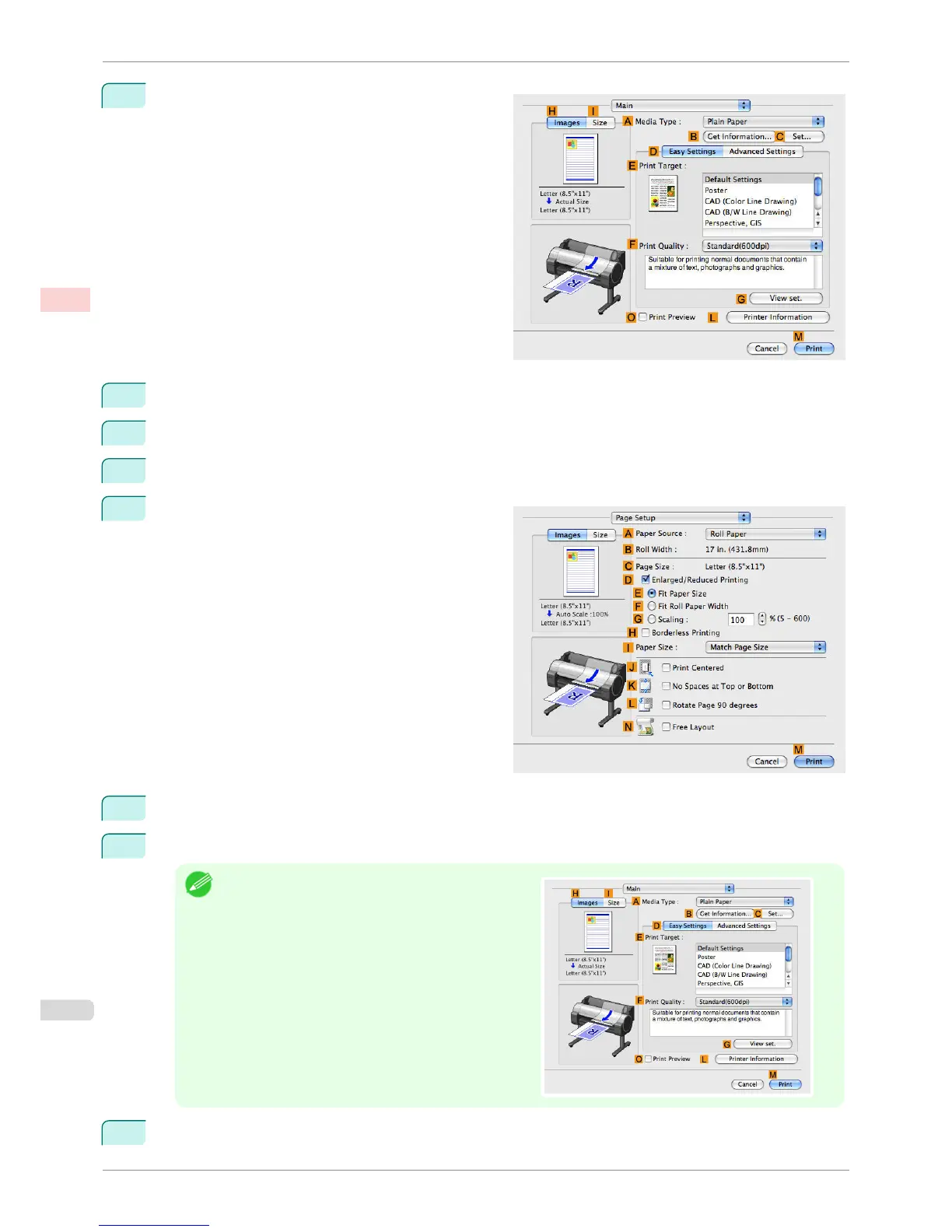
Access the Main pane.
3
In the A Media Type list, select the type of paper that is loaded. In this case, click Plain Paper.
4
Make your selection in the E Print Target list.
5
Make your selection in the F Print Quality list.
6
Access the Page Setup pane.
7
Select and click a roll paper in the A Paper Source list.
8
Make sure the width of the loaded roll is displayed in the BRoll Width list—in this case, 16 in. (406.4mm).
Note
•
If the width of the loaded roll is not displayed in B Roll
Width, click L Printer Information on the Main pane
and update the printer information.
9
In C Page Size, make sure 100*500 is displayed, as registered in Page Setup.
Printing Vertical or Horizontal Banners (Large-Format Printing; Mac OS X)
iPF760
User's Guide
Enhanced Printing Options Printing banners or at other non-standard sizes
104















 To Next Page