7
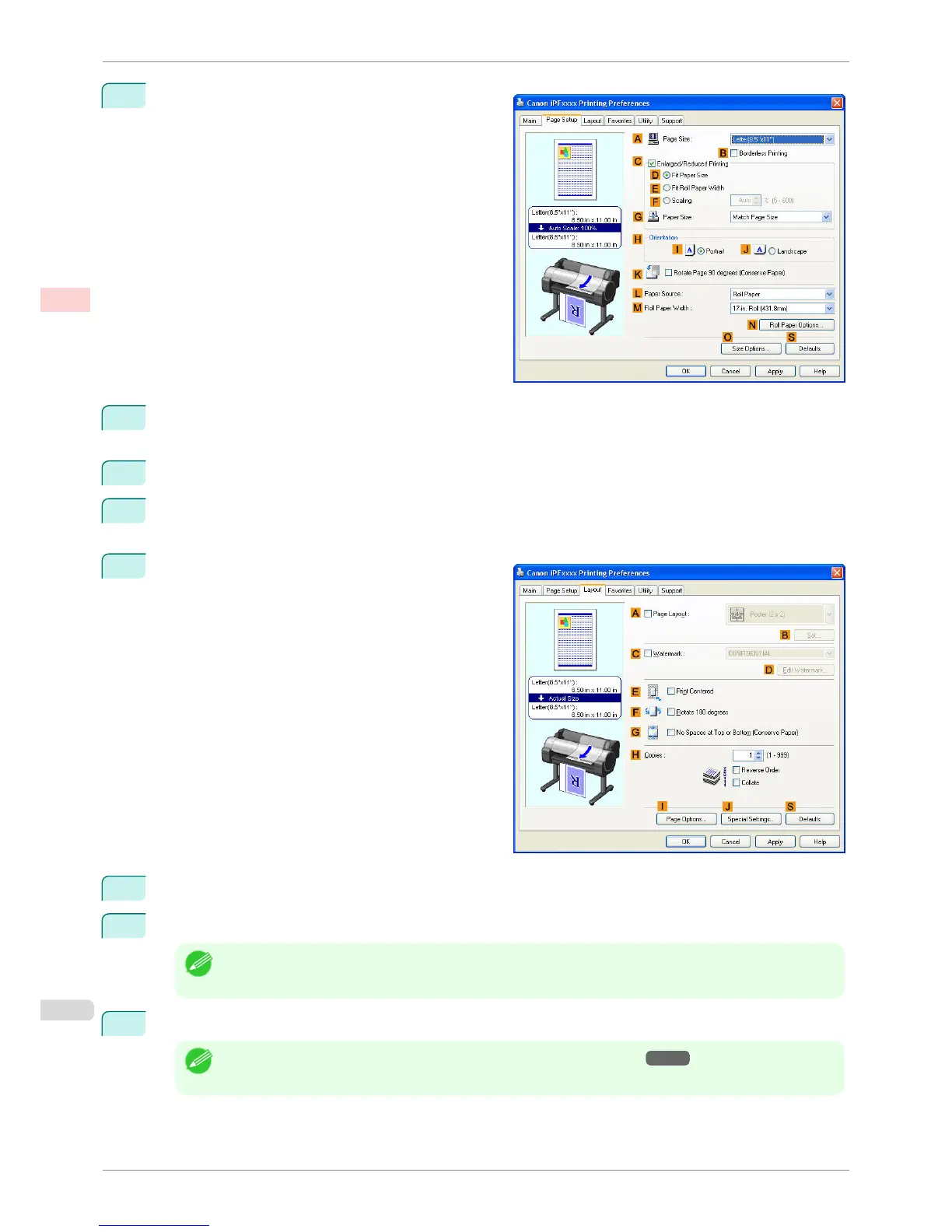
Click the Page Setup tab to display the Page Setup
sheet.
8
In A Page Size, click the size of the original as specified in the application software. In this case, click ISO
A3.
9
Select and click a roll paper in the L Paper Source list.
10
Select the width of the loaded roll in the M Roll Paper Width list—in this case, ISO A2/A3 Roll
(420.0mm).
11
Click the Layout tab to display the Layout sheet.
12
Select the A Page Layout check box.
13
Click 4 Pages/Sheet in the A Page Layout list.
Note
• You can select the layout order for placing four pages on a sheet and a frame border in the Page Layout Print-
ing dialog box by clicking
B Set.
14
Confirm the print settings and print as desired.
Note
• For tips on confirming print settings, see "Confirming Print Settings(Windows) →P.161 "
Printing Multiple Pages Per Sheet (Windows)
iPF760
User's Guide
Enhanced Printing Options Tiling and multiple pages per sheet
120















 To Next Page