8
Make your selection in the F Print Quality list.
9
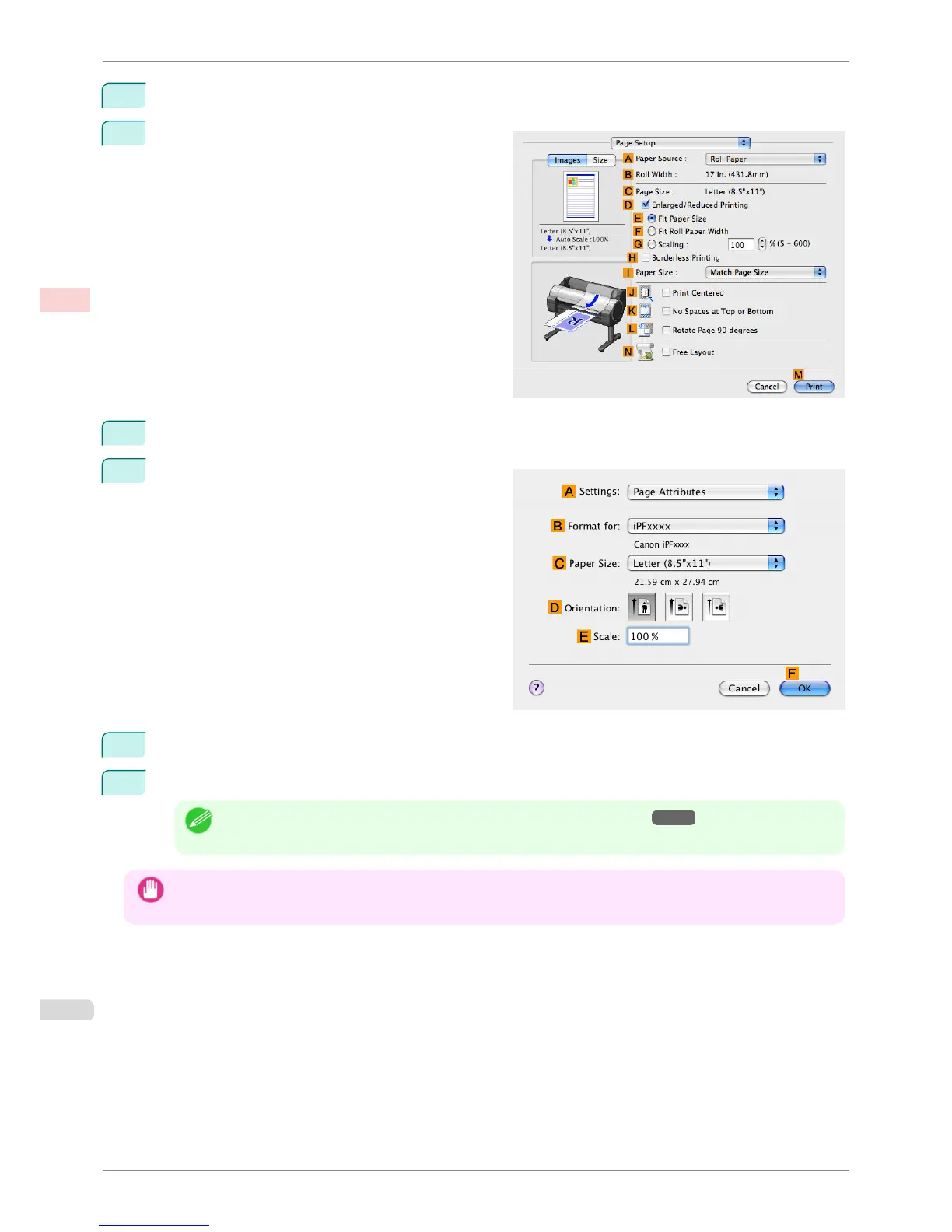
Access the Page Setup pane.
10
Click Manual in the A Paper Source list.
11
Make sure the
C Page Size setting matches the orig-
inal size as selected in C Paper Size in the Page At-
tributes dialog box—in this case, ISO A4 - for Paper
Tray (Large Margins).
12
Select the J Print Centered check box.
13
Confirm the print settings, and then click M Print to start printing.
Note
• For tips on confirming print settings, see "Confirming Print Settings(Mac OS X) →P.294 "
Important
• If you have selected Manual as the paper source, follow the instructions on the printer control panel to enter the paper
size.
Printing Originals Centered on Sheets (Mac OS X)
iPF760
User's Guide
Enhanced Printing Options Centering originals
134















 To Next Page