1
Choose Print in the application menu.
2
Select the printer in the dialog box, and then display the printer driver dialog box.(See "Accessing the Print-
er Driver Dialog Box from Applications →P.164 ")
3
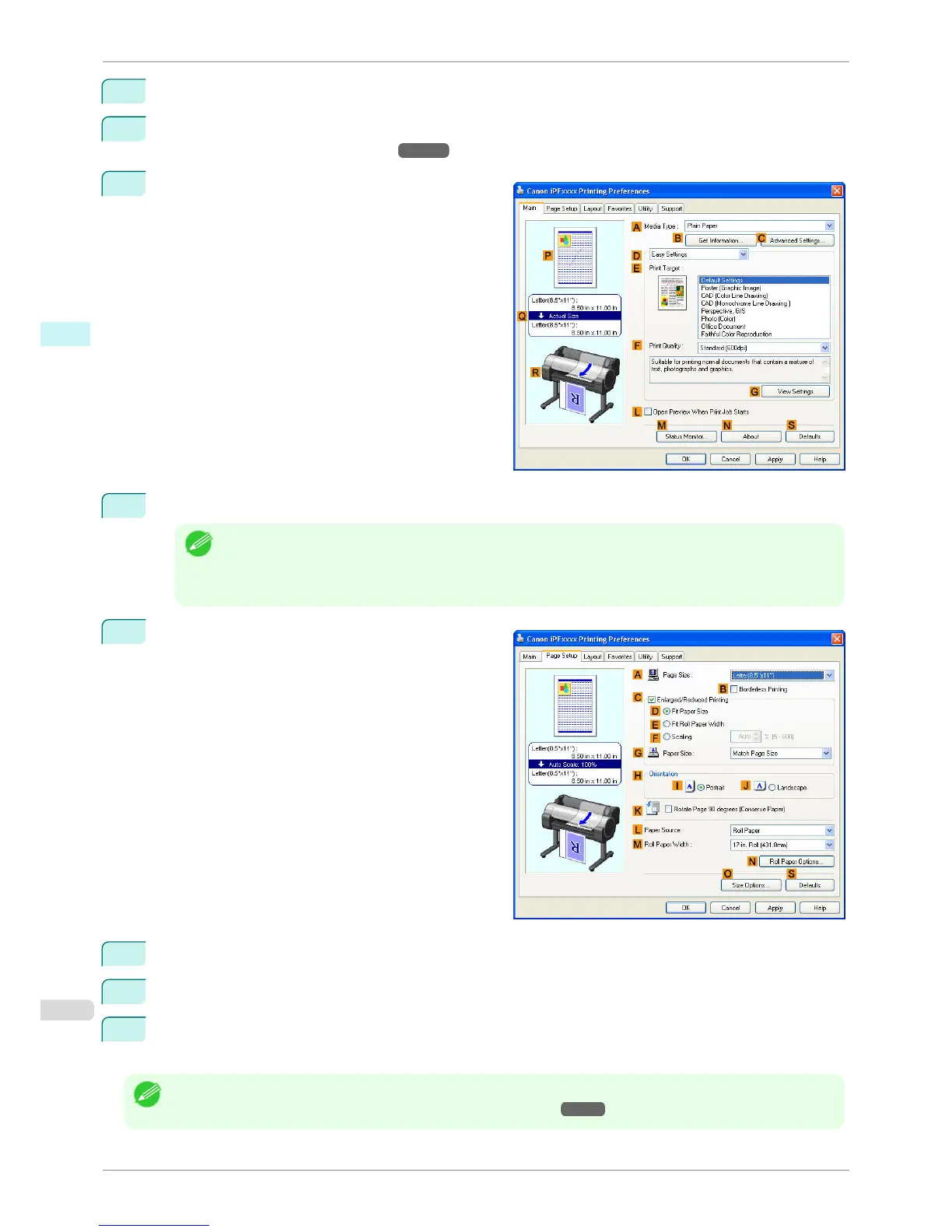
Make sure the Main sheet is displayed.
4
In the A Media Type list, select the type of paper that is loaded.
Note
• Click the B Get Information button to display the Paper Information on Printer dialog box. On the Paper
Information on Printer dialog box, you can obtain information on the paper in the printer and configure printer
driver settings for the feed source and type of paper.
This function requires that the Status Monitor be installed.
5
Click the Page Setup tab to display the Page Setup
sheet.
6
In the A Page Size list, select the size of the original as specified in the application.
7
In the L Paper Source list, select how paper is supplied.
8
If you have selected roll paper in L Paper Source, select the width of the loaded roll in M Roll Paper
Width.
Note
• A variety of settings are available in the printer driver to suit different printing applications.
For details on available printing conditions, see "Printer Driver Settings →P.158 "
Specifying Paper in the Printer Driver
iPF760
User's Guide
Windows Software Printer Driver
160















 To Next Page