2
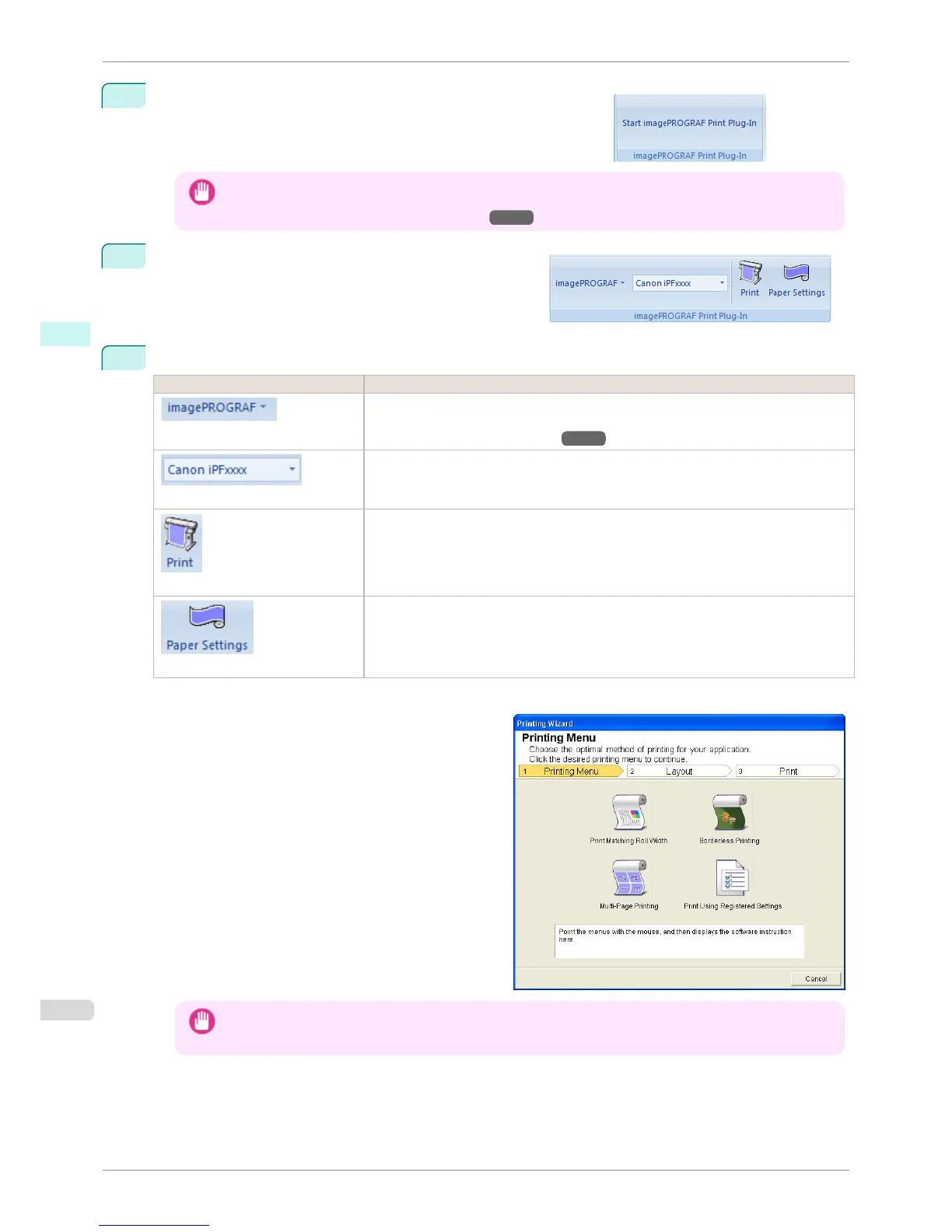
If Start imagePROGRAF Print Plug-In is displayed on the toolbar/
ribbon, click it.
Important
• If the imagePROGRAF Print Plug-In toolbar/ribbon is not displayed, refer to the following.
• When Print Plug-In for Office is not displayed →P.230
3
Check that the imagePROGRAF Print Plug-In toolbar/
ribbon is displayed.
4
Click the buttons on the toolbar/ribbon according to the items you want to set.
Icon Contents
Menu
Displays the About, Help, and Special Settings dialog boxes.
You can change the settings using the Special Settings dialog box.
Refer to Configuring Special Settings
→P.262 for details.
Printer list
Select Printer.
If you select Show All Printers, the imagePROGRAF printers will be displayed again. Se-
lect this when you want to display all printer drivers or update the display.
Print Button
The print Wizard is displayed.
The settings Print Matching Roll Width, Borderless Printing, Multi-Page Printing, and
Print Using Registered Settings can be set.
Paper Settings Button
Large-Format Wizard is displayed.
Settings for Portrait or Landscape Orientation can be set.
Printing Wizard dialog box
Important
• If you want to change the display to another file or application while the Printing Wizard is open, close the
Printing Wizard dialog box. Otherwise, you may not be able to change displays or operate the toolbar.
To start from Microsoft Word
iPF760
User's Guide
Windows Software Print Plug-In for Office
234















 To Next Page