3
Press ▲ or ▼ to select Paper Details, and then press the OK button.
4
Press ▲ or ▼ to select the type of paper, and then press the OK button.
5
Press ▲ or ▼ to select Width Detection, and then press the OK button.
6
Press ▲ or ▼ to select Off, and then press the OK button.
Load paper in the desired position to start printing from
Follow these instructions to load paper at the desired starting position for printing when Width Detection is Off.
1
If you did not send a print job in advance, a menu for selection of the type of paper is displayed.
Press ▲ or ▼ to select the type of paper, and then press the OK button.
Note
• If a print job was received before paper was advanced, the media type and size specified by the job are shown
on the Display Screen.
Thus, this screen is not displayed. Go to step 2.
2
"Width Detection OFF. OK to continue?" is now shown on the Display Screen. Press ▲ or ▼ to select
"Leave OFF", and then press the OK button.
3
After a menu for selection of the paper size is displayed, press ▲ or ▼ to select the paper size, and then
press the OK button.
4
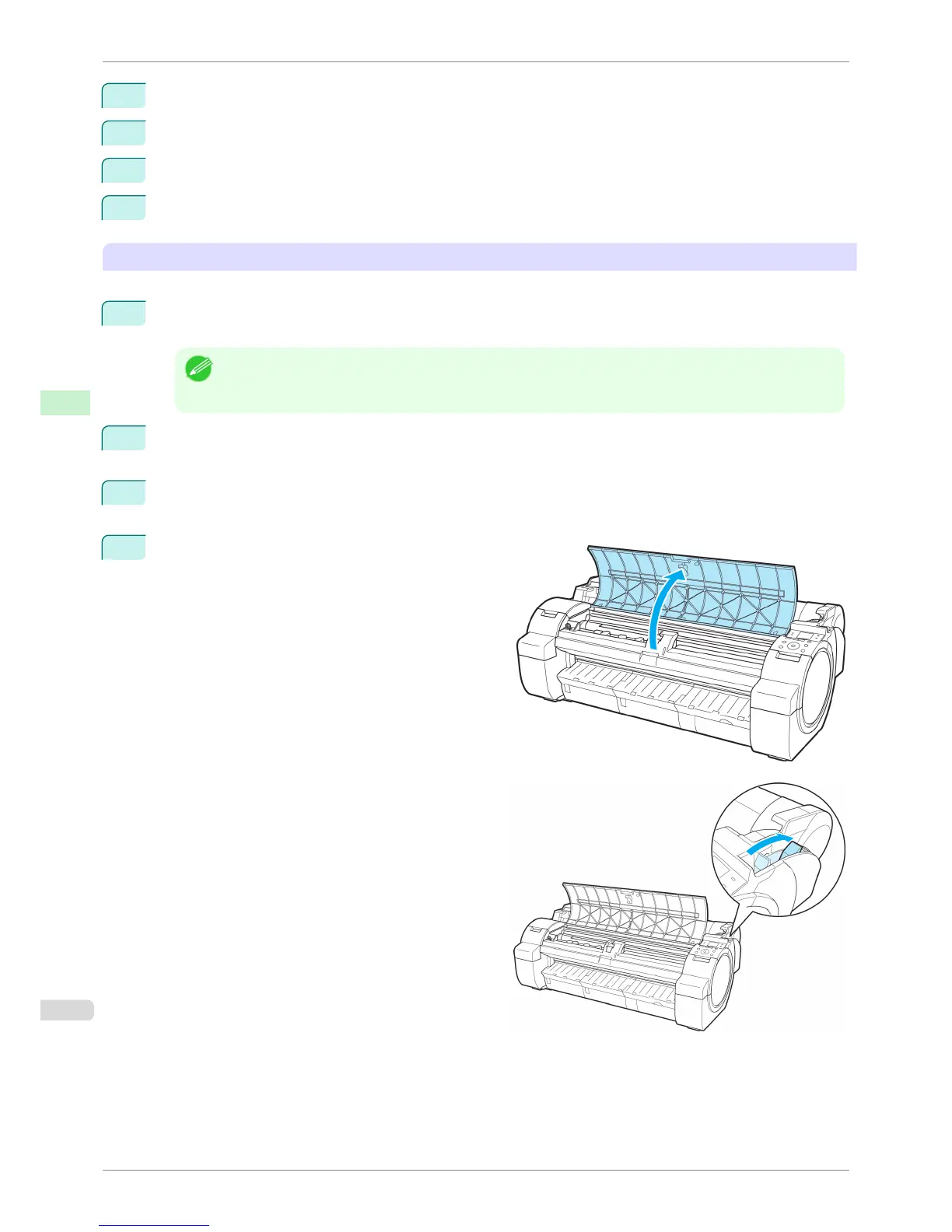
Open the Top Cover and check the position where
paper is loaded.
To start printing from the current position, close the
Top Cover.
To reposition the paper, push the Release Lever
back.
Printing From a Desired Starting Point
iPF760
User's Guide
Handling Paper Handling sheets
420















 To Next Page