7
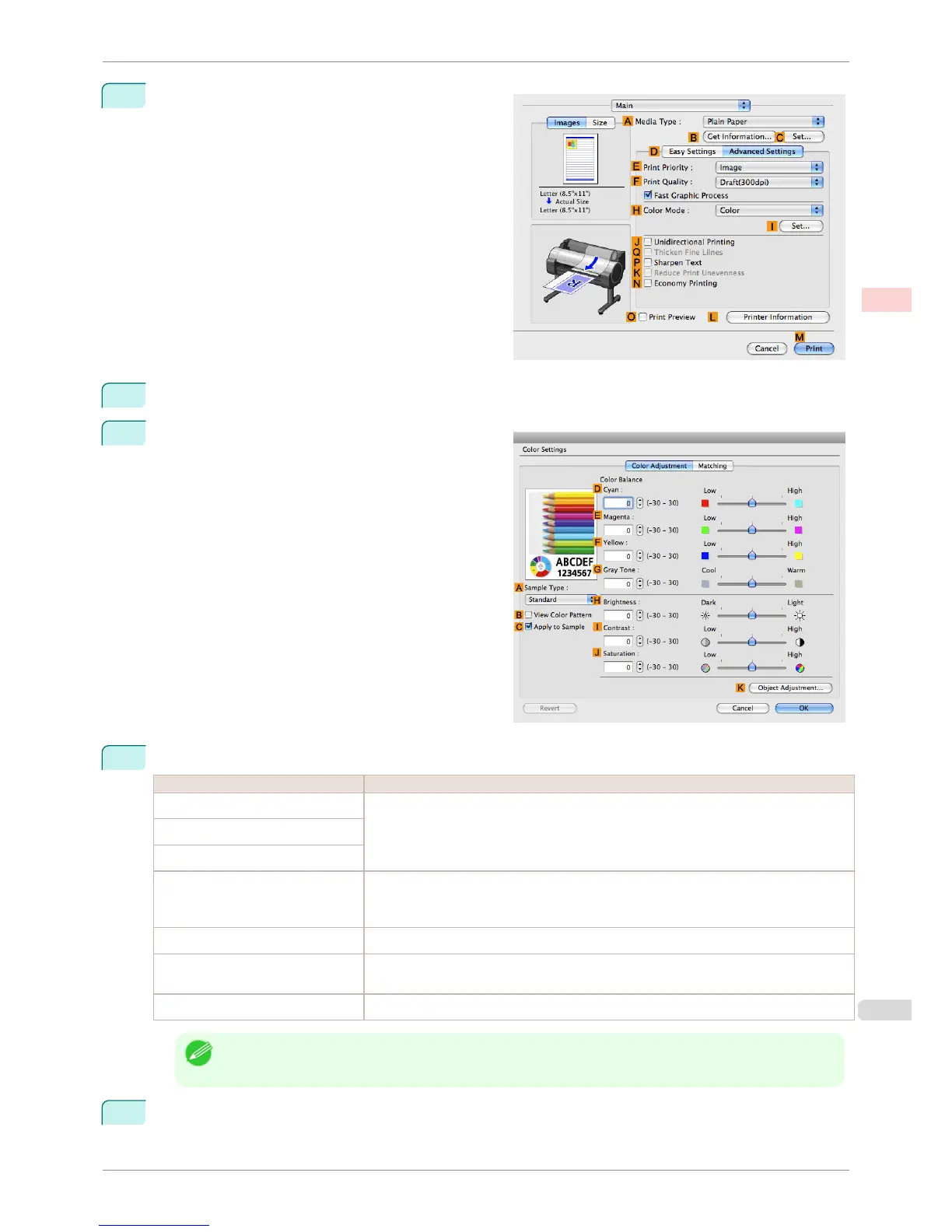
Click
D Advanced Settings to switch the print
mode.
8
Click Color in the H Color Mode list.
9
Click
I Set to display the Color Settings dialog box.
10
On the Color Adjustment pane, adjust the color tones, brightness, and so on as desired.
Adjustment Item Description
D Cyan
Fine-tune color tones by adjusting the levels of Cyan, Magenta, and Yellow.
E Magenta
F Yellow
G Gray Tone
Adjust the gray tone to suit the images of monochrome photos. Choose cool black (tinged
with blue), pure black (neutral), warm black (tinged with red), and so on. Select the color
tone in the color region or from the list.
H Brightness
Adjust the brightness of printed images while keeping the darkest and lightest portions intact.
I Contrast
Adjust the contrast of the darkest and lightest portions relative to each other.
For soft gradation, decrease the contrast. For hard gradation, increase the contrast.
J Saturation
Adjust the level of color saturation, in a range from subdued to vivid.
Note
• Click Object Adjustment to open the Object Adjustment dialog box, which allows you to select the color ad-
justment target from Images, Graphics, and Text.
11
Click OK to close the Color Settings dialog box.
iPF760
Fine-Tuning Colors of Photos and Images (Mac OS X)
User's Guide
Enhanced Printing Options Adjusting Images
55















 To Next Page