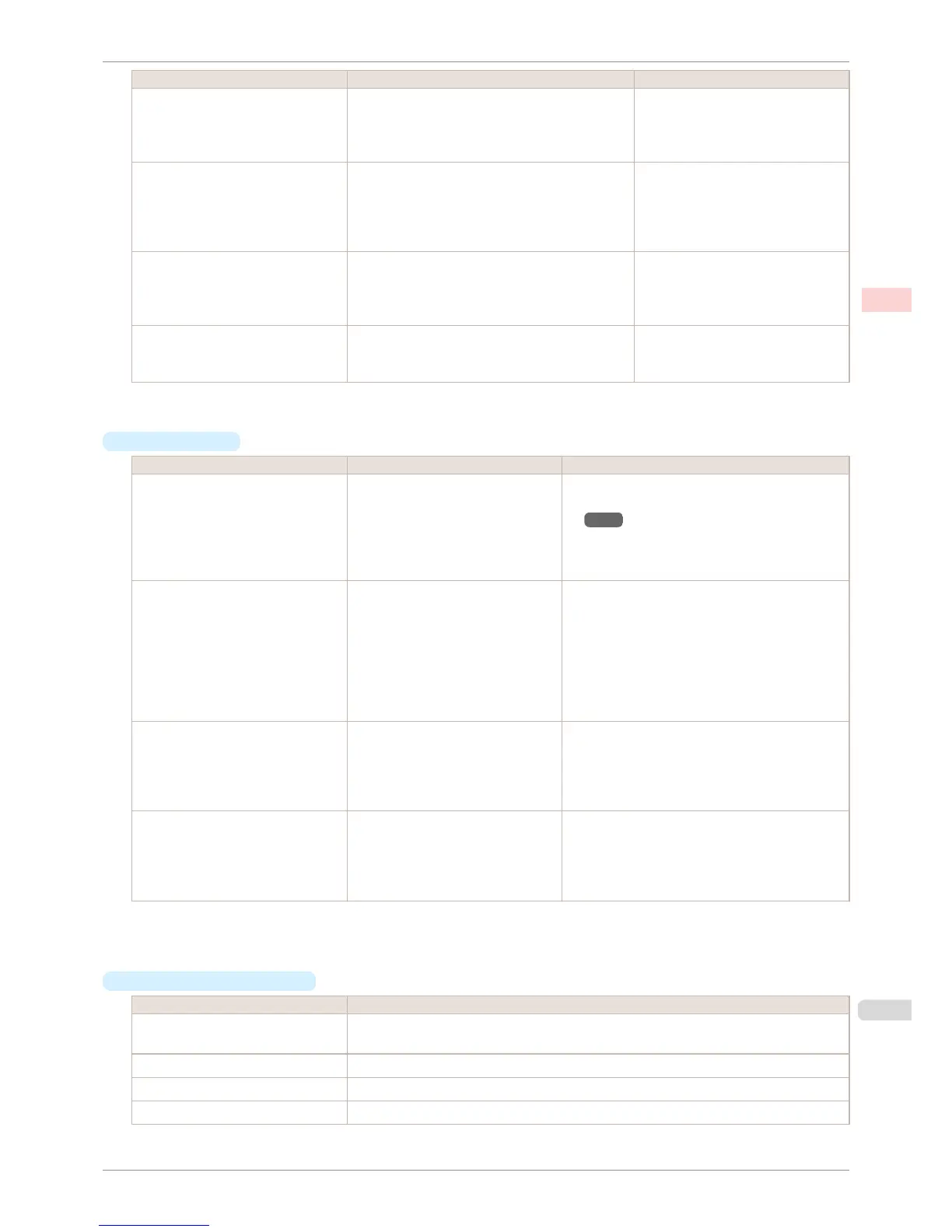
Print Quality (*1) Description Print Priority
Highest A setting for printing at the highest resolution when
quality is most important. Printing takes longer and
consumes more ink than in other modes, but this
mode offers superior printing quality.
Image
High Choose this setting to print at high resolution when
quality is most important.
Printing takes longer and consumes more ink than in
Standard or Fast modes, but this mode offers ex-
ceptional printing quality.
Image
Line Drawing/Text
Standard Choose this setting to print at standard resolution
when quality and speed are both important.
Printing takes less time than in Highest or High
mode.
Image
Line Drawing/Text
Office Document
Fast Choose this setting to print faster.
Printing in draft mode can help you work more effi-
ciently when checking layouts.
Image
Line Drawing/Text
*1: Options suitable for the selected Print Priority are listed under Print Quality.
•
Color Settings
Setting Item Options Description
Color Mode (*1) Color
Monochrome
Color (CAD)
Monochrome (BK ink)
Monochrome Bitmap
No color correction
Choose whether to print in color or monochrome.
(See "Adjusting the Color in the Printer Driv-
er →P.50 ")
Color Adjustment Cyan
Magenta
Yellow
Gray Tone
Brightness
Contrast
Saturation
You can adjust the levels of cyan, magenta, and yel-
low as well as the brightness, contrast, saturation,
and gray tones.
If you choose Monochrome or Monochrome (BK
ink) in Color Mode only Brightness and Contrast
can be adjusted.
Image, Graphics, and Text are available as Object
Adjustment options.
Color-Matching Modes Driver Matching Mode
ICC Matching Mode
Driver ICM Mode (Windows)
Host ICM Mode (Windows)
ColorSync (Mac OS X)
Choose the color-matching mode.
Color-Matching Method (*2) Auto
Perceptual
Colorimetric
Colorimetric (No Wht-pnt Corr)
Saturation
Choose the color-matching method. The available
options vary depending on your selection in Color-
Matching Mode.
*1: Options suitable for the selected Print Priority are listed under Color Mode.
*2: The order of options displayed varies depending on the operating system.
•
Enhancing printing quality
Setting Item Description
Unidirectional Printing Choosing unidirectional printing can improve printing results if lines are printed crooked or im-
ages are uneven. However, this takes more time than regular printing.
Thicken Fine Lines Choose this option to make fine lines clearer in CAD drawings or similar documents.
Sharpen Text Choose this option to print intricate text more distinctly.
Reduce Print Unevenness (*1) Choose this option to counteract uneven printing.
iPF760
Giving Priority to Particular Graphic Elements and Colors for Printing
User's Guide
Enhanced Printing Options Adjusting Images
57















 To Next Page