•
Document: A horizontal banner created in Microsoft Word
•
Page size: Non-standard (100×500 mm [3.9×19.7 in])
•
Paper: Roll
•
Paper type: Plain Paper
•
Roll paper width: 16 in (406.4 mm)
The print procedure is as follows.
1.
Register a Custom Paper Size in the printer driver.
Call a non-standard paper size registered in the printer driver with Custom Paper Size.
Once you register Custom Paper Size, you then can select it repeatedly from the paper size list.
Custom Paper Size can be set up to 18.0 m.
2.
In the application, create an original in the size you registered.
3.
Print the banner, using the settings that correspond to banners.
Registering a Custom Paper Size
This example describes how to register a paper size that is horizontally elongated and suitable for banners in either
horizontal or vertical format.
1
Display the printer driver dialog box.(See "Accessing the Printer Driver Dialog Box from the Operating Sys-
tem Menu(Windows) →P.165 ")
2
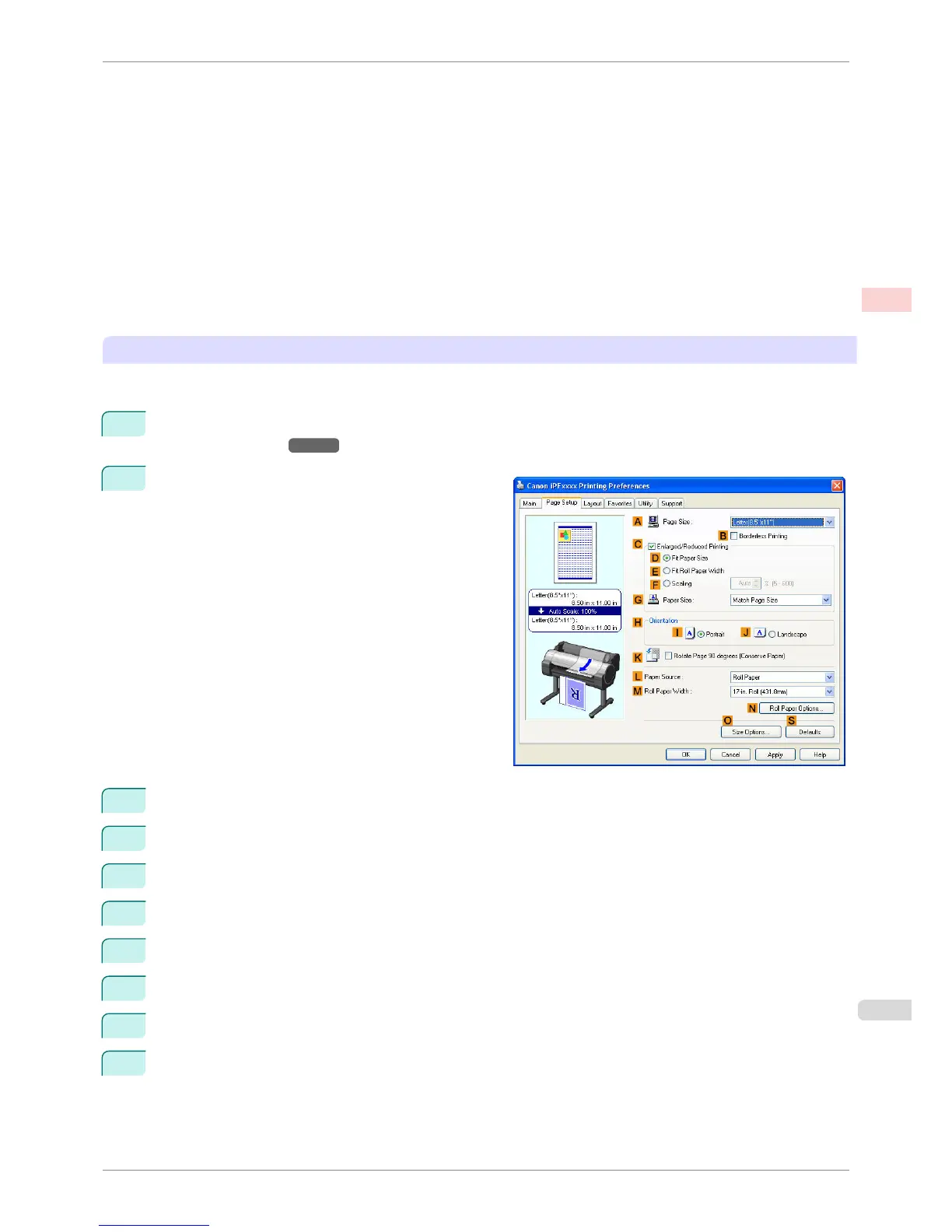
Click the Page Setup tab to display the Page Setup
sheet.
3
Select and click a roll paper in the L Paper Source list.
4
Click O Size Options to display the Paper Size Options dialog box.
5
Enter a desired paper name in Custom Paper Size Name. My Horizontal Banner is used in this example.
6
In Units, click mm.
7
Under Paper Size, enter 100 in Width and 500 in Height.
8
Click Add to add the paper size of My Horizontal Banner.
9
Click OK to close the Paper Size Options dialog box.
10
Close the printer driver dialog box.
iPF760
Printing Vertical or Horizontal Banners (Large-Format Printing; Windows)
User's Guide
Enhanced Printing Options Printing banners or at other non-standard sizes
99















 To Next Page