Cleverscope CS300 Reference Manual v2.11
Page 122 www.cleverscope.com ©Cleverscope 2004-2015
18 Signal Generator Simulator [View Menu]
The Cleverscope Signal Generator Simulator provides built-in software generated signals for both the A and B
channels that can be used to demonstrate the capabilities of the Cleverscope application software without
requiring a Cleverscope Signal Generator hardware unit to be fitted.
If you need to test external units then you can purchase the CS700A Signal generator module or use your own
external signal source.
18.1 Signal Generator Simulator Control Window
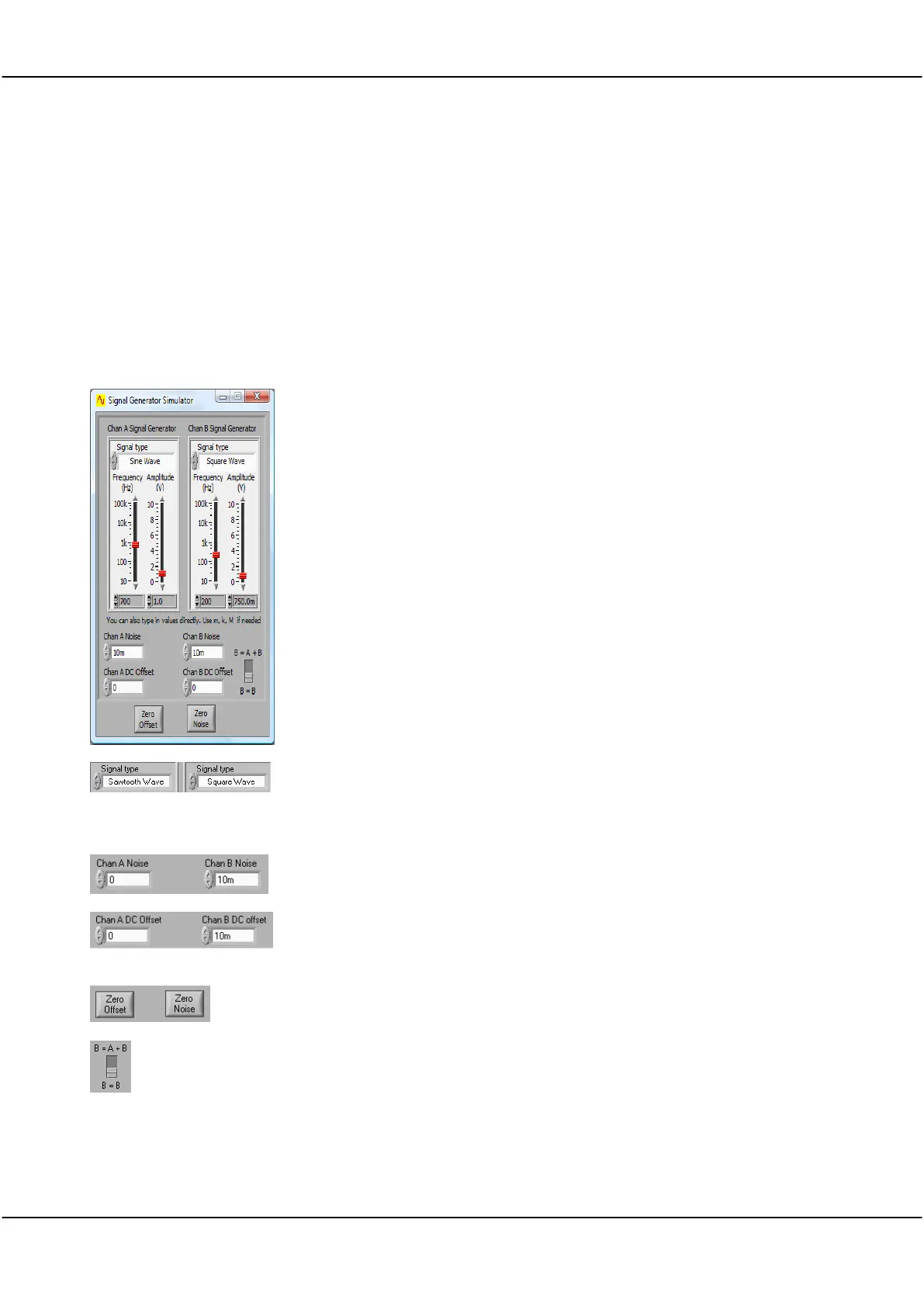
The Cleverscope Signal Generator control window enables you to alter the
frequency, amplitude and wave-shape for both channel A and channel B of
the internally generated signals.
The signals are not output to real hardware.
The choices for wave-shape are sine, triangle, square and sawtooth. These
choices can be selected independently for channel A and channel B using
the signal type selection boxes at the top of the signal generator setup
dialog box.
The amplitude of background noise can be adjusted using the Chan A or B
noise selection boxes.
You can also add background noise and a DC offset to the generated signals
to make them more closely approximate real-world signals that might be
captured using a hardware unit.
The level of DC offset can also be adjusted using the Chan A DC offset or
Chan B Noise offset selection.
Selecting B = A + B using the switch provided at the bottom right of the
signal generator setup dialogue box will cause the sum of the channel A and
B internally generated signals to be directed to channel B for display.
Note: The offset and noise levels can be zeroed using the buttons provided
at the bottom of the signal generator setup dialog box.



 To Next Page